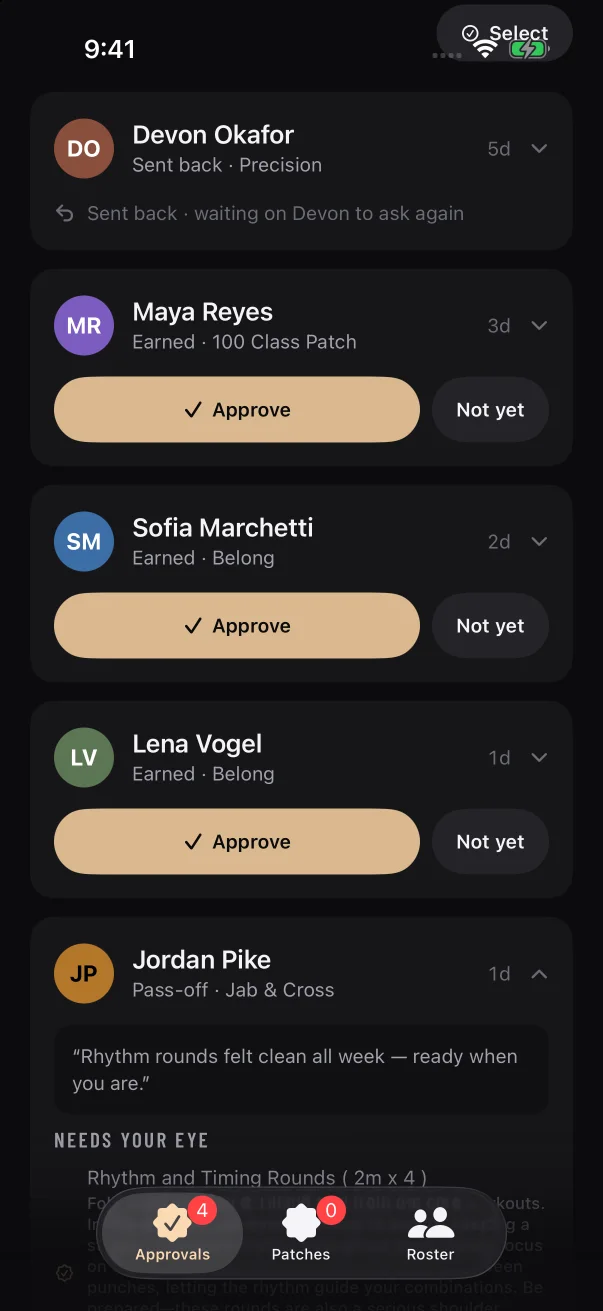
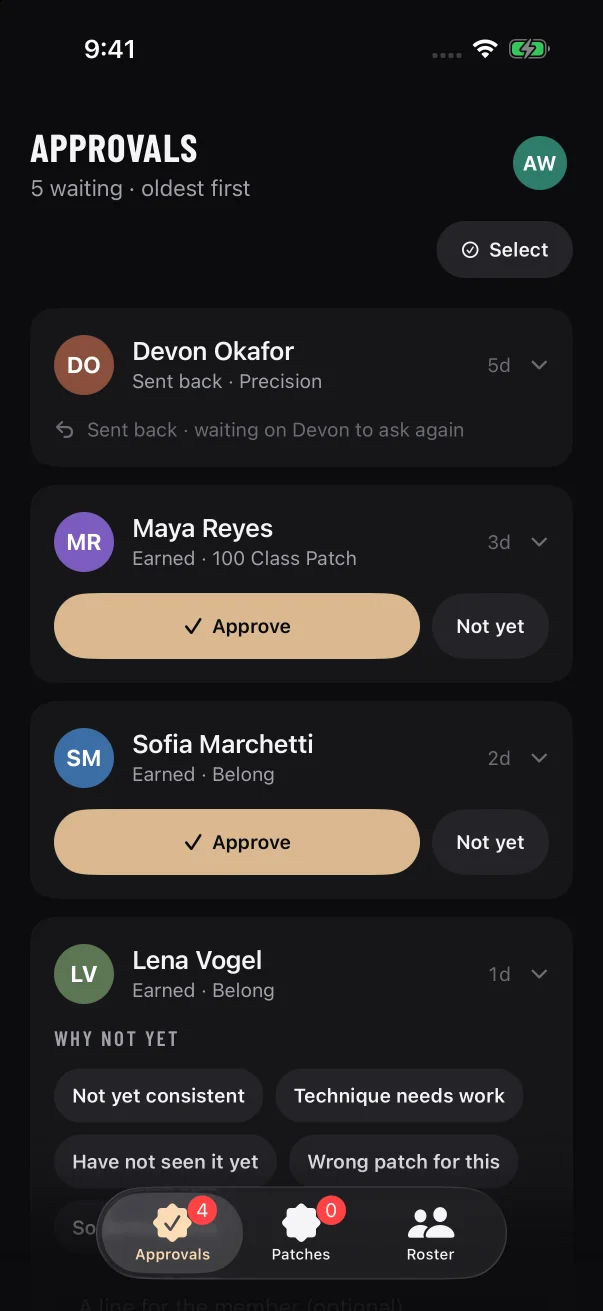
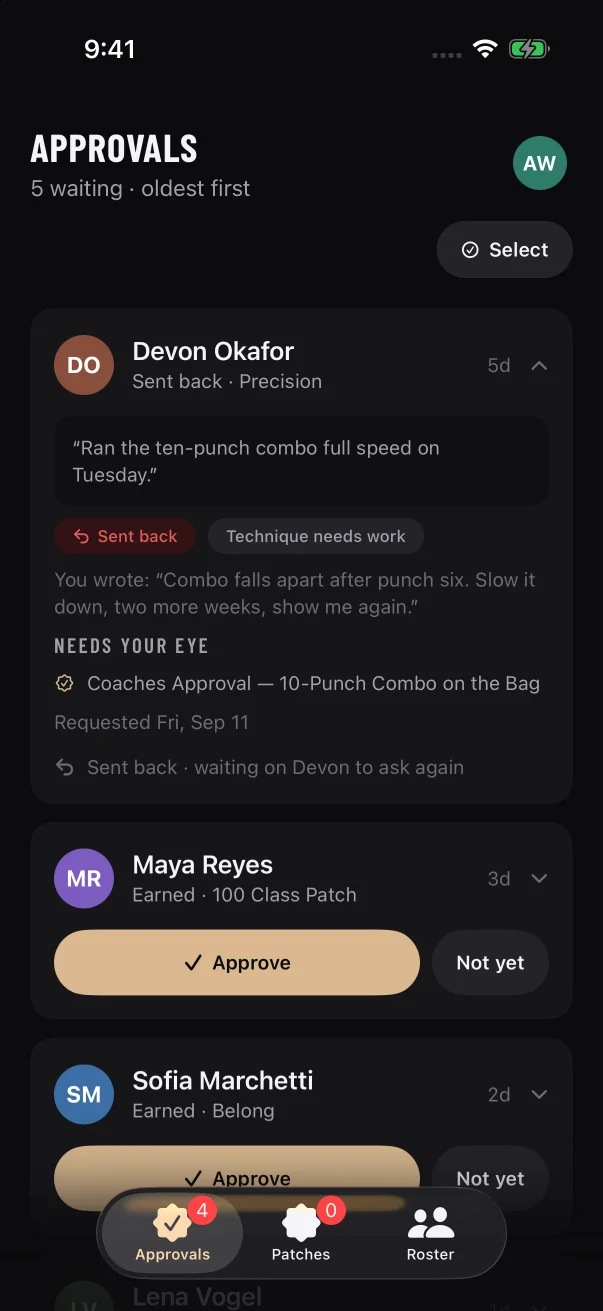
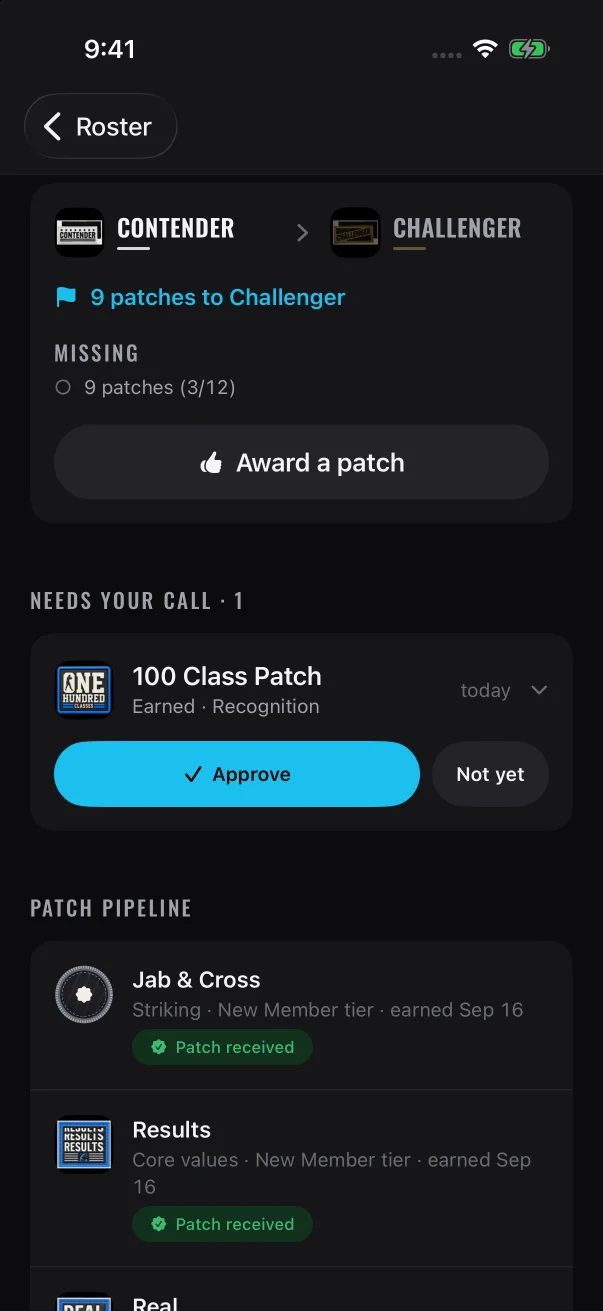
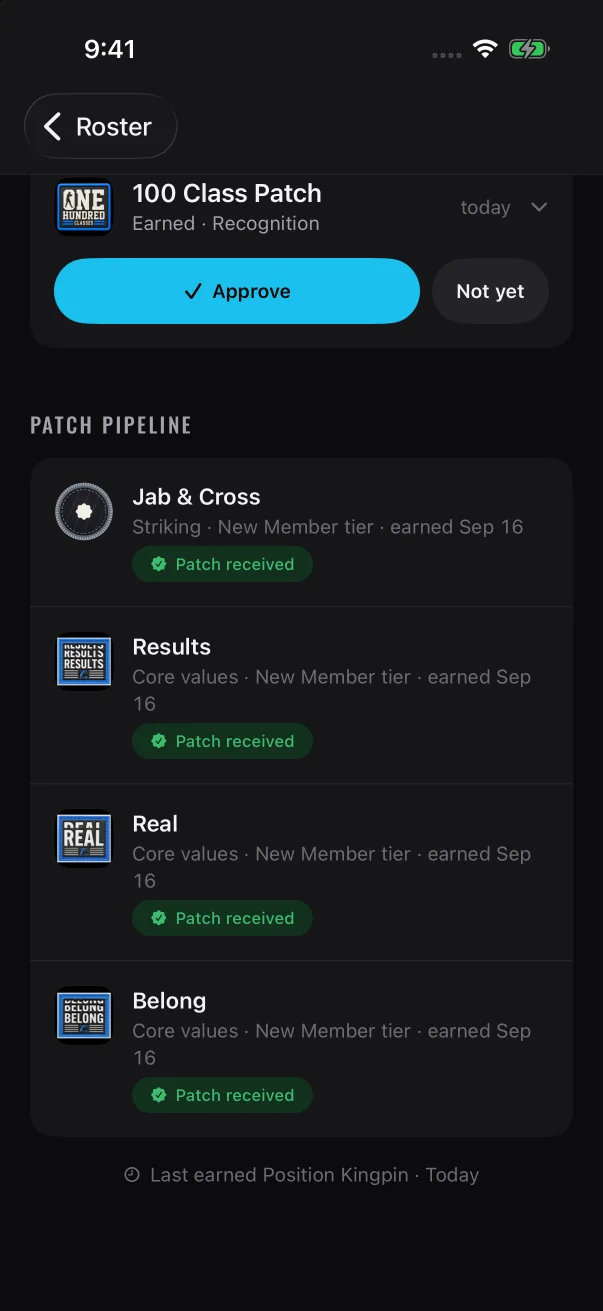
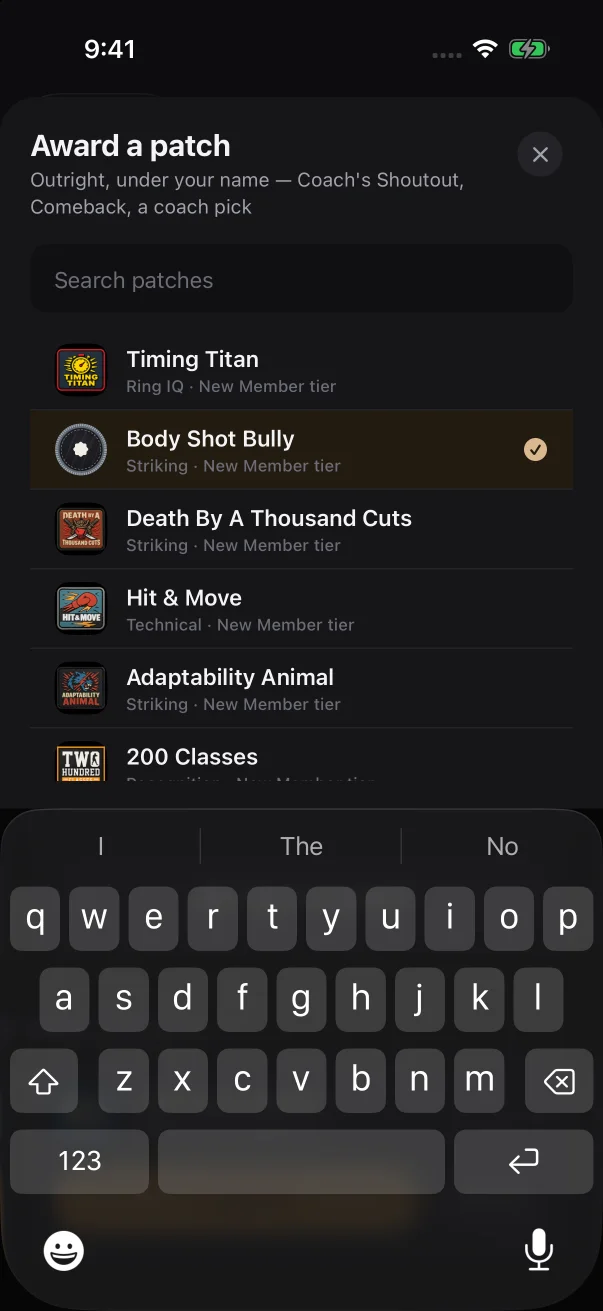
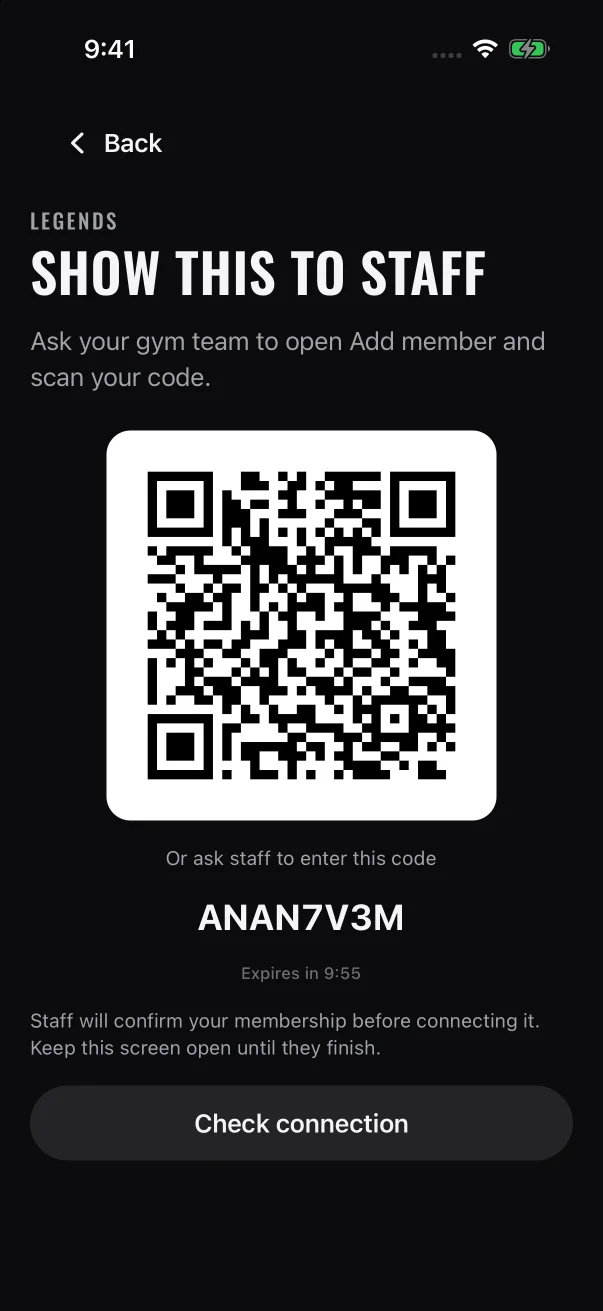
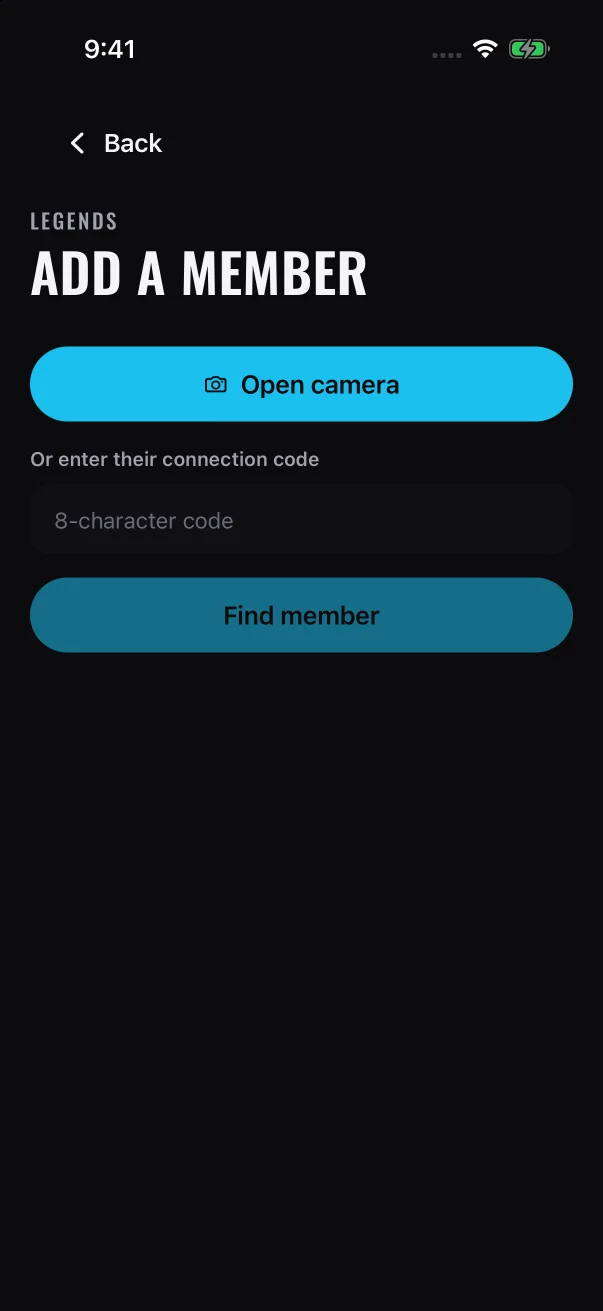
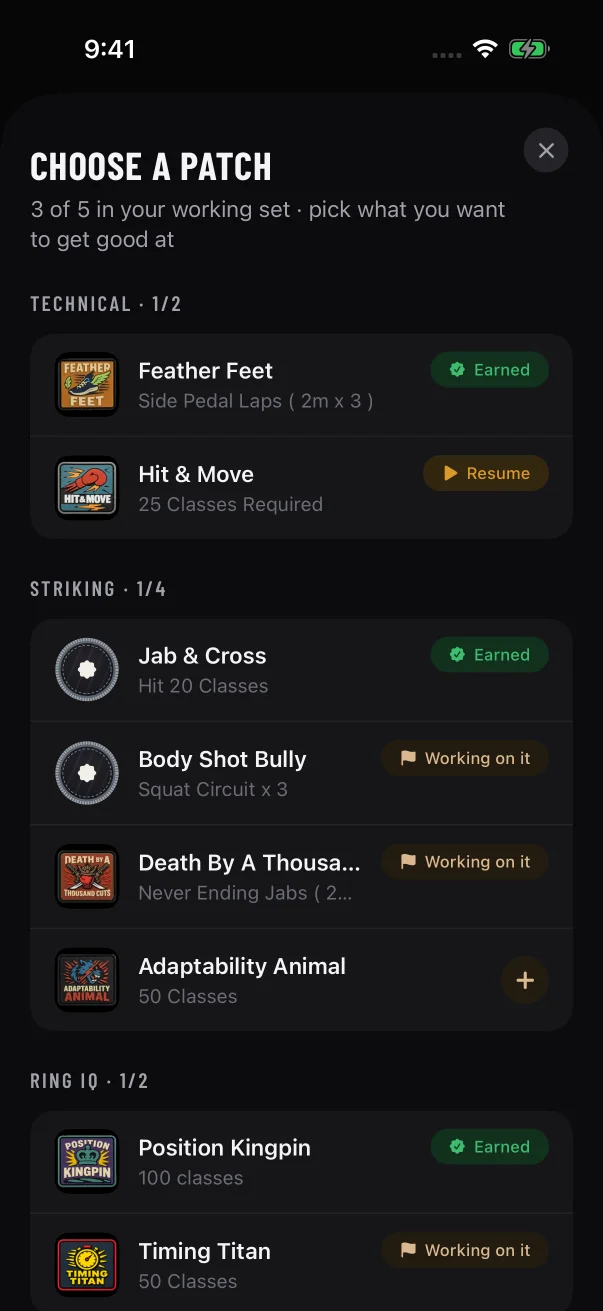
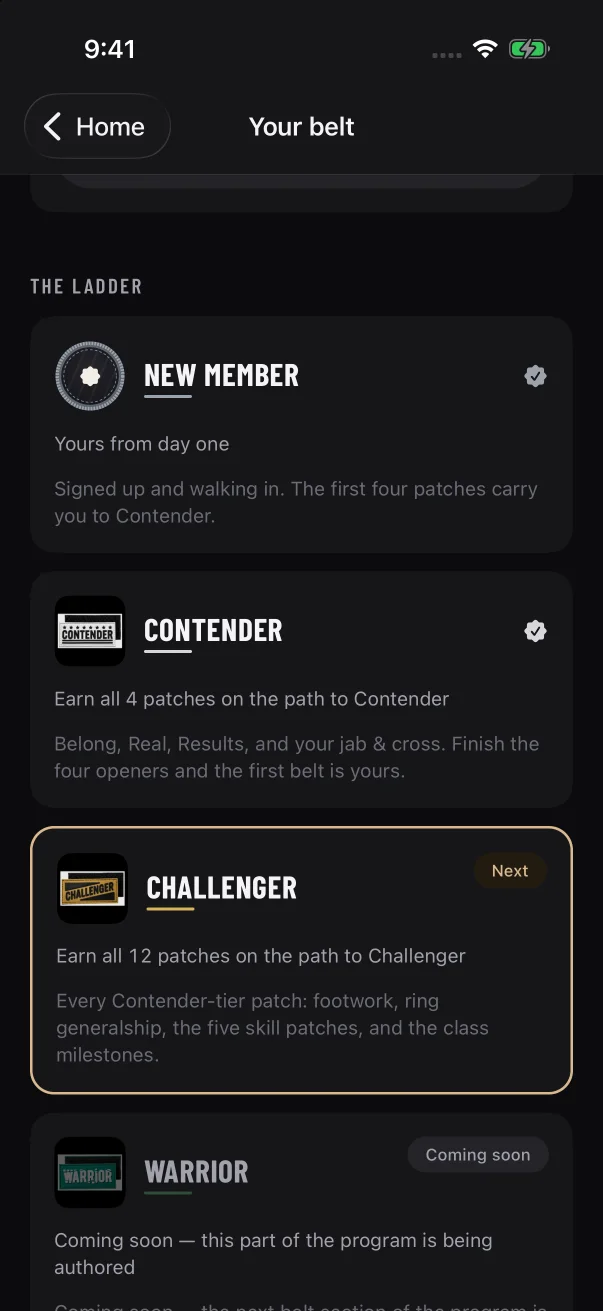
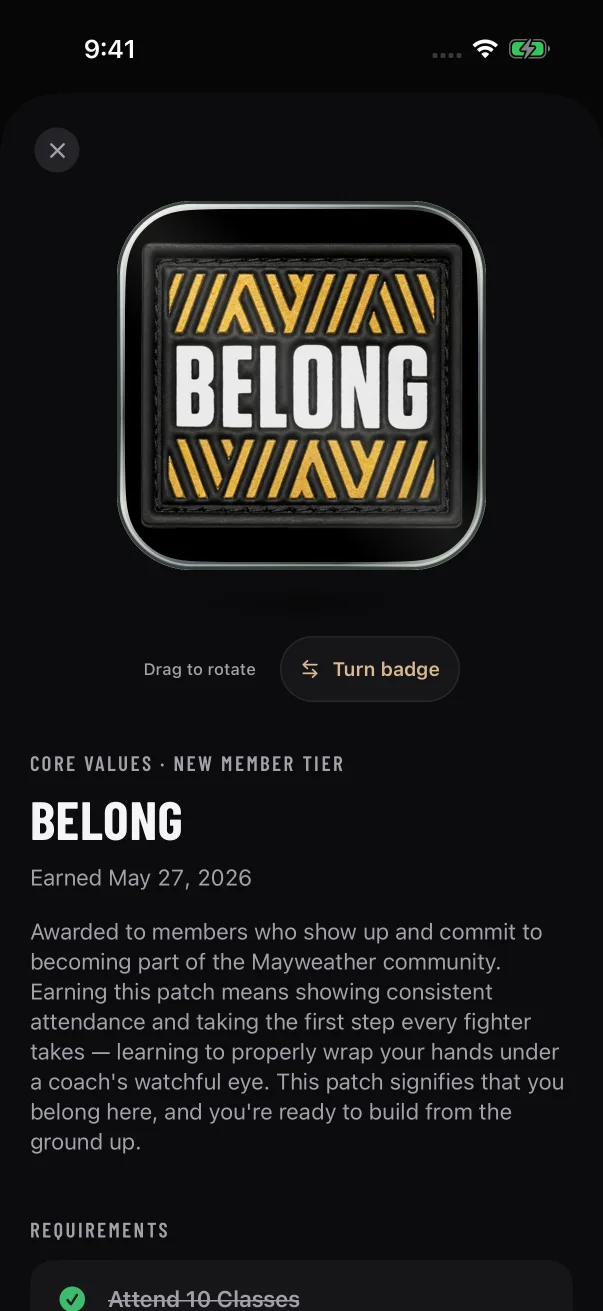
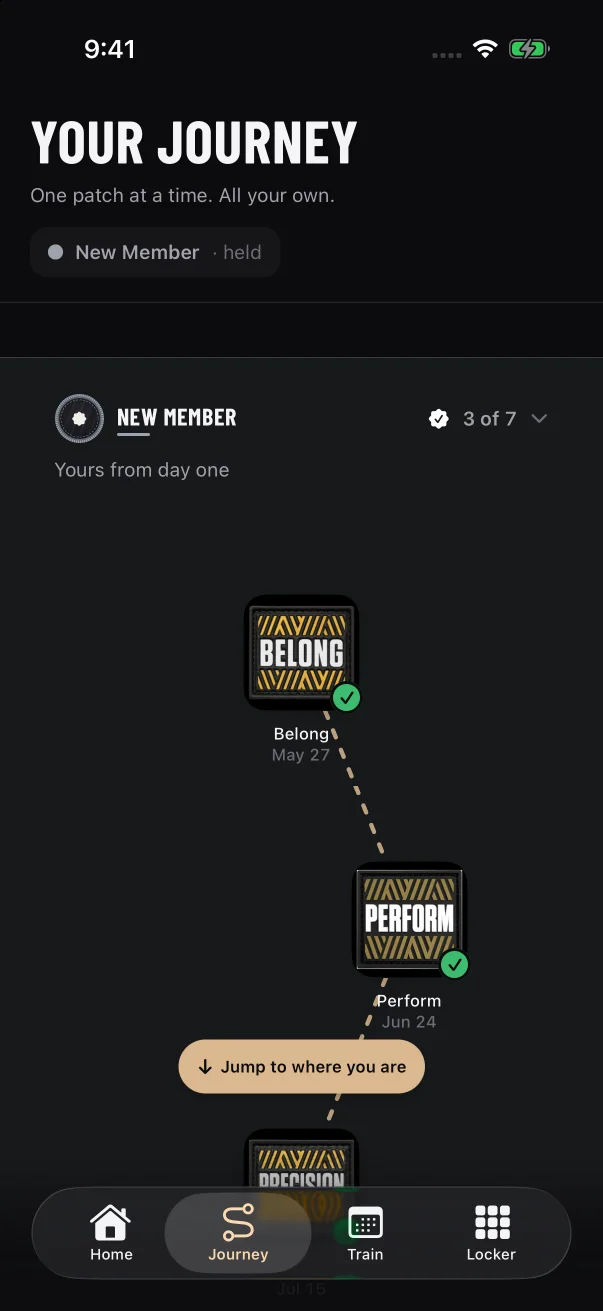
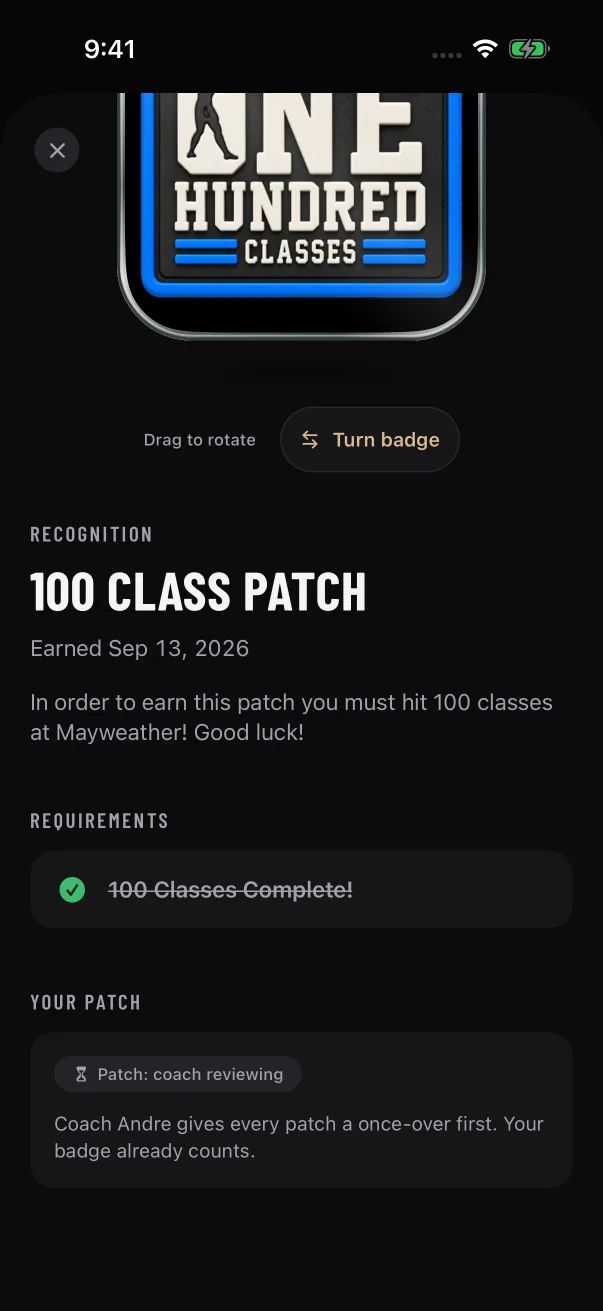
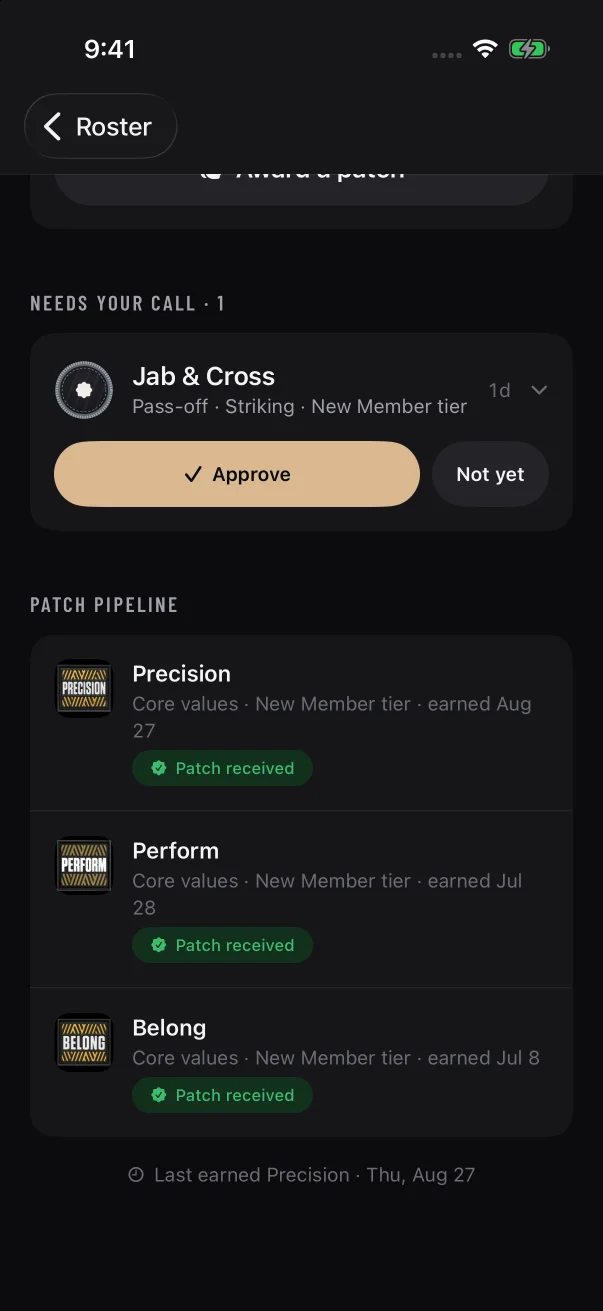
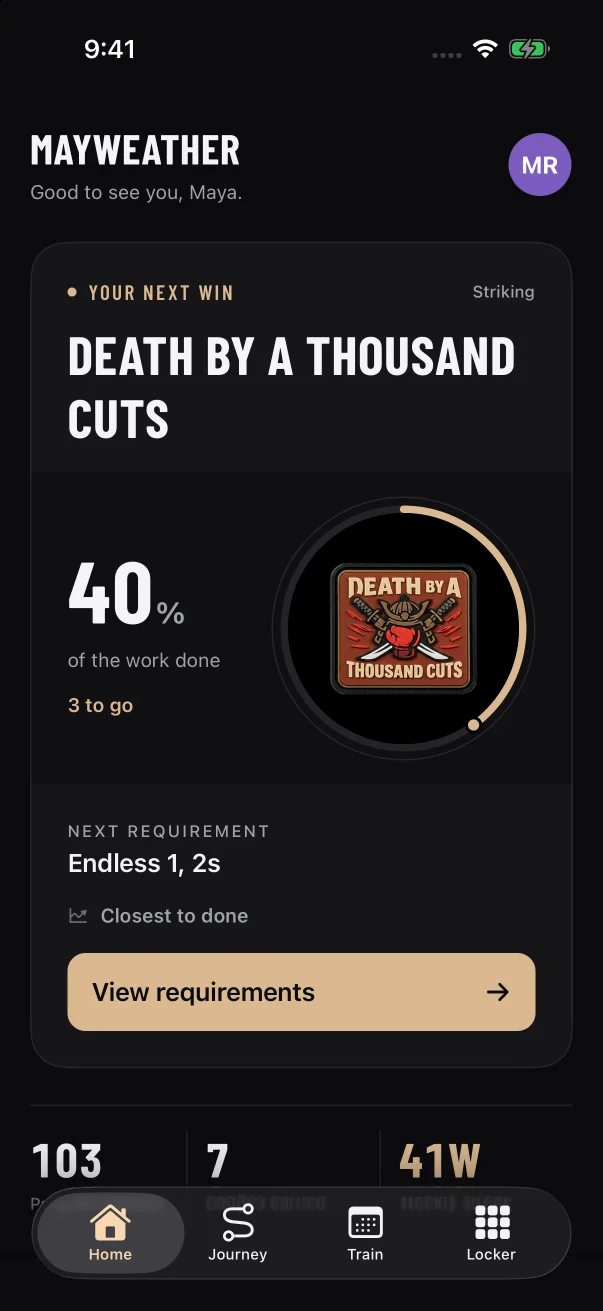
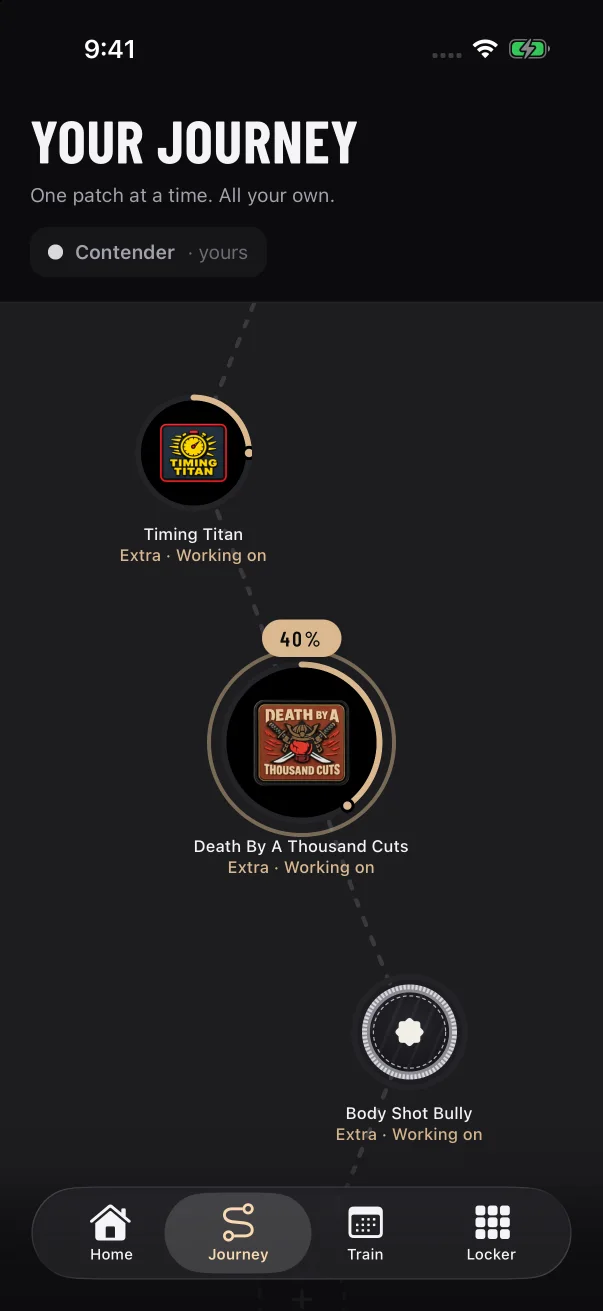
Open the card, check "Requirements met" and tap Approve. There's no confirmation step, and the patch moves to your Patches tab. Full steps
Watch the member show the skill in class. Then open their "Pass-off" card in Approvals, check the list under "Needs your eye" and tap Approve. See the steps
Tap Not yet, pick at least one reason, add a note if you want to, and tap Send back. On an earned patch, the member keeps the badge. More about Not yet
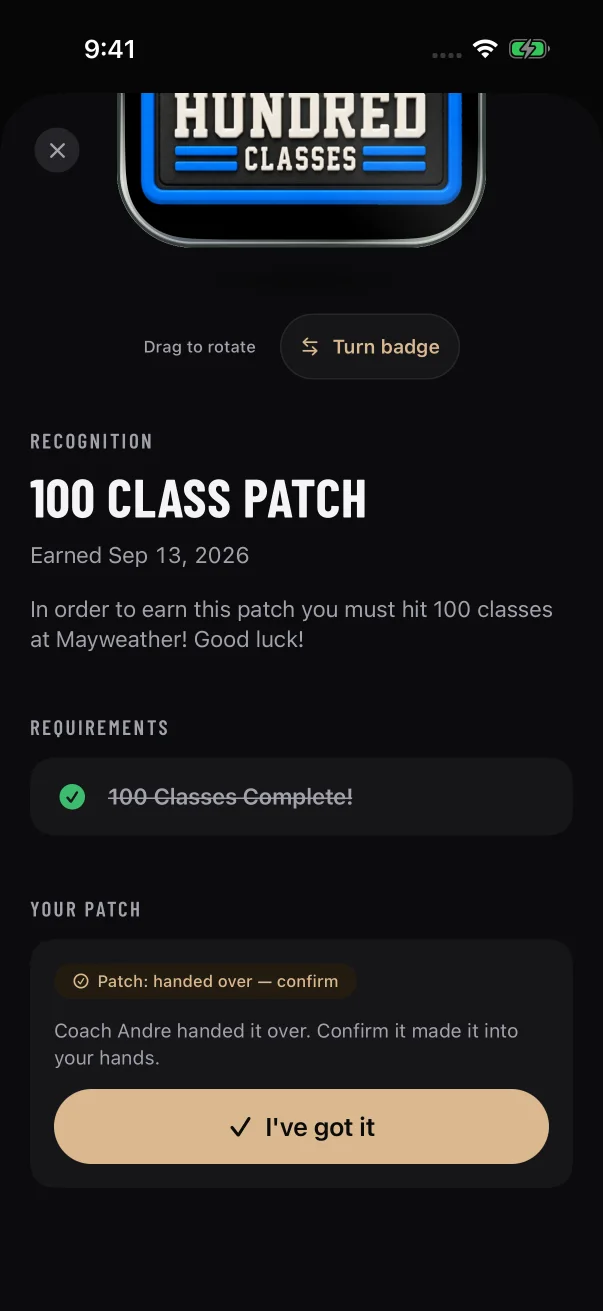
Give the member the patch in person, then tap Hand over on that patch's row in Patches. The app doesn't ask you to confirm, so tap it only once the patch is in their hands. Hand-over steps
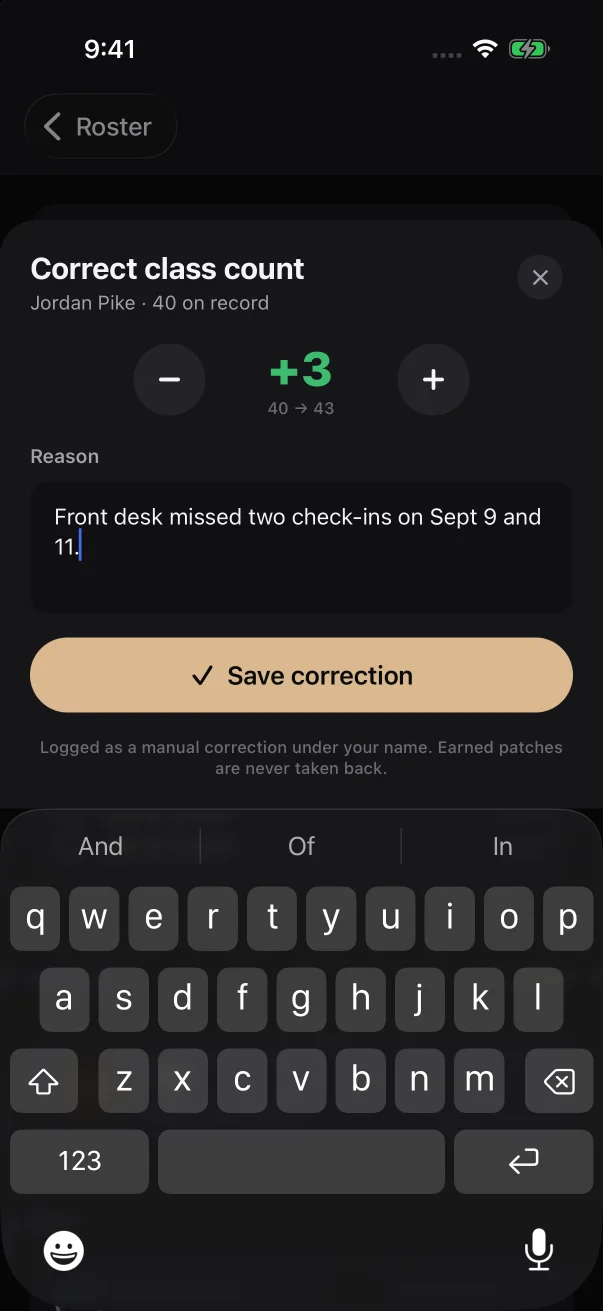
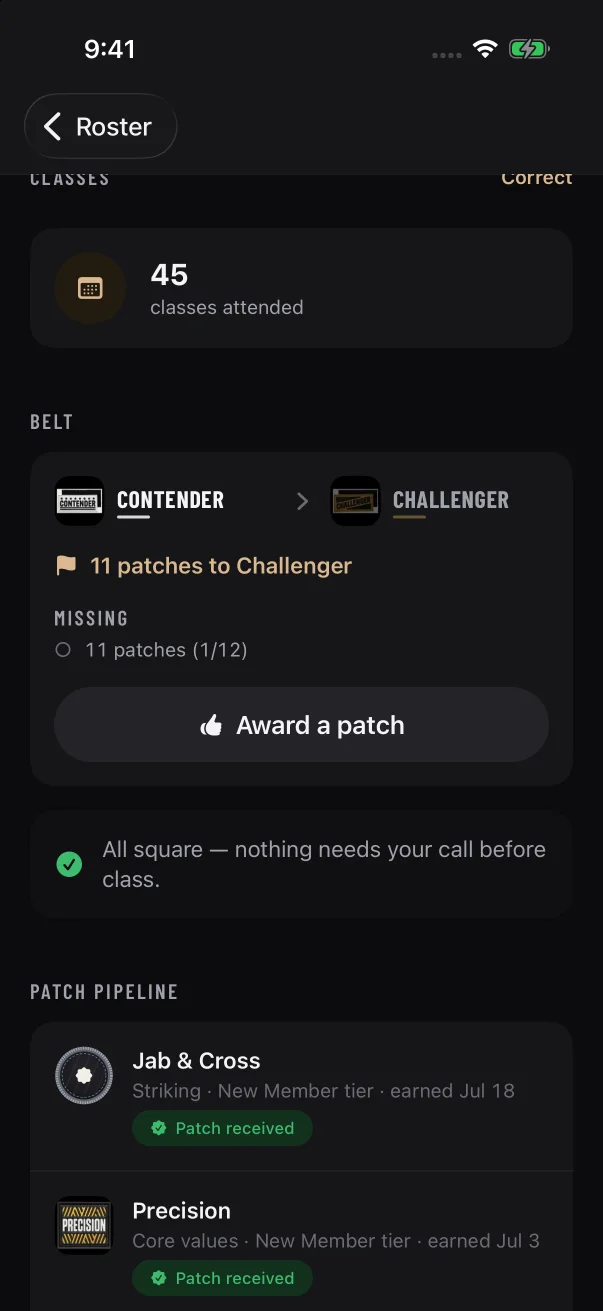
On their page, tap Correct beside "Classes", add the missing classes, give a reason and tap Save correction. You can only add classes, never remove them. How to correct a count
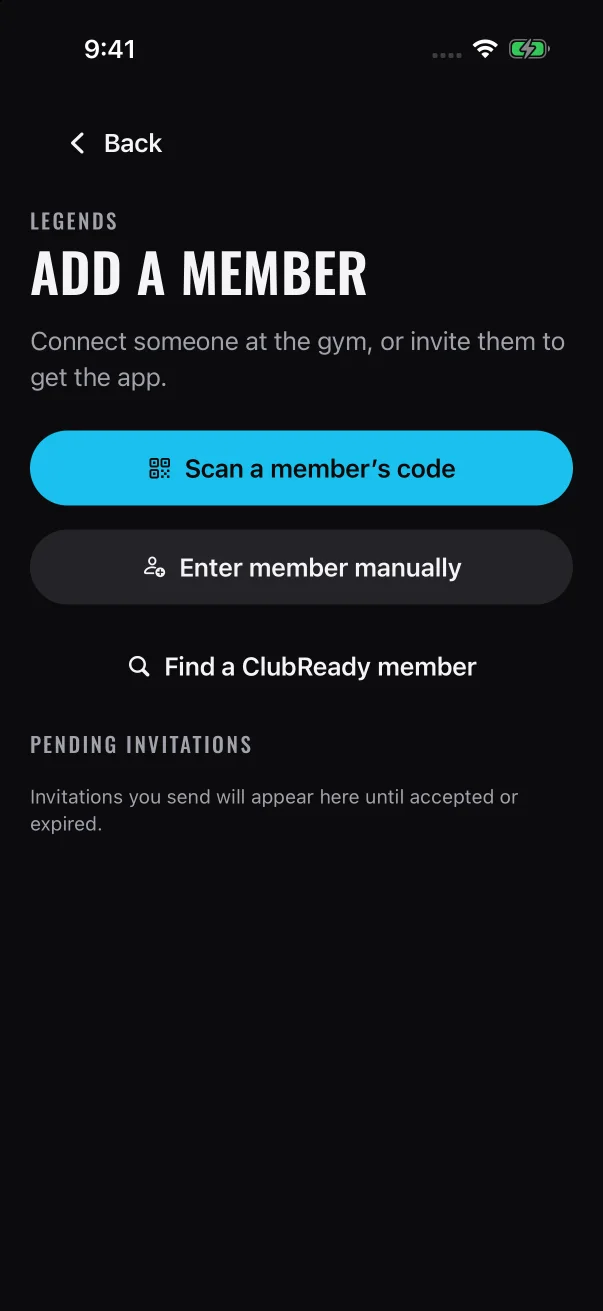
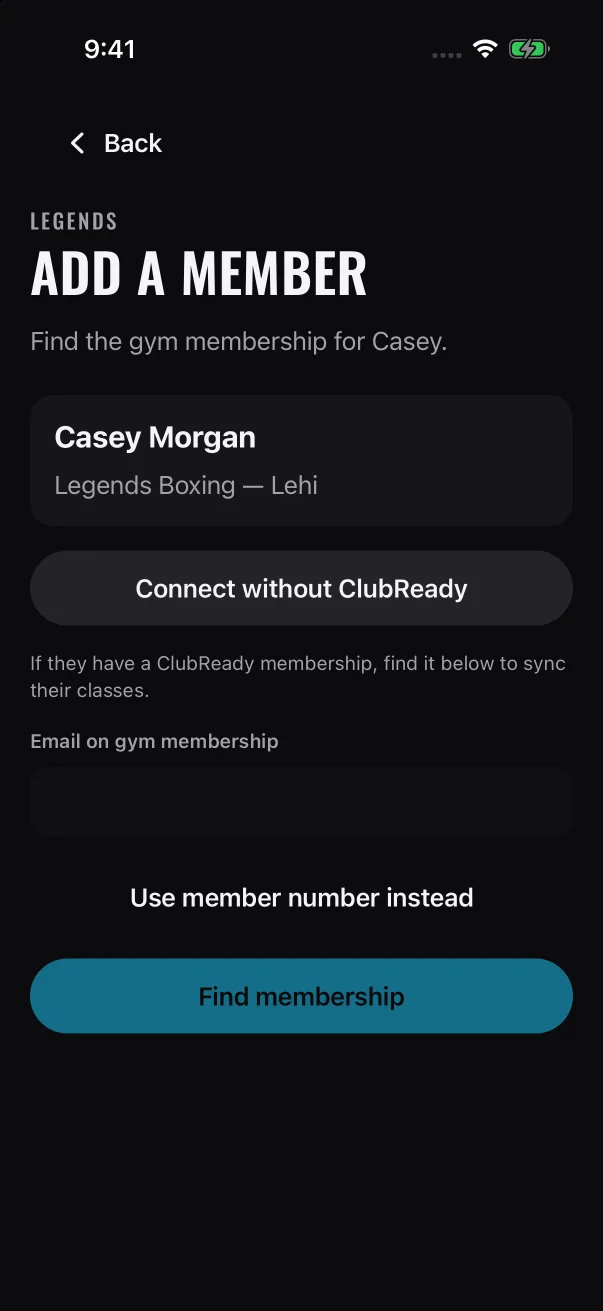
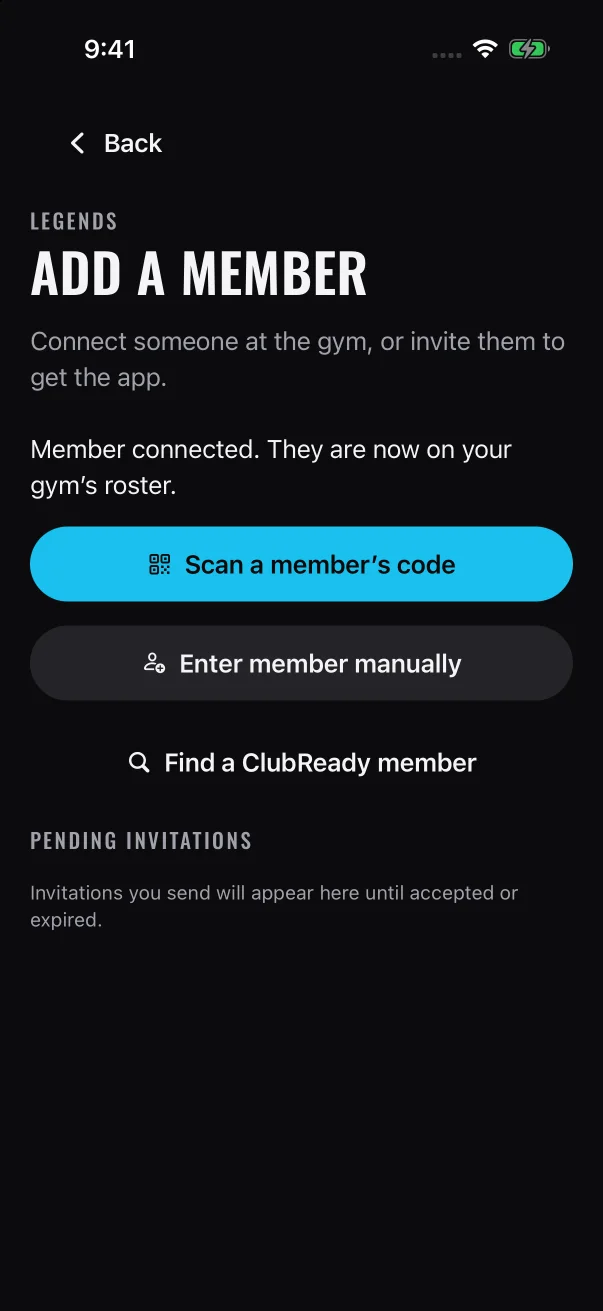
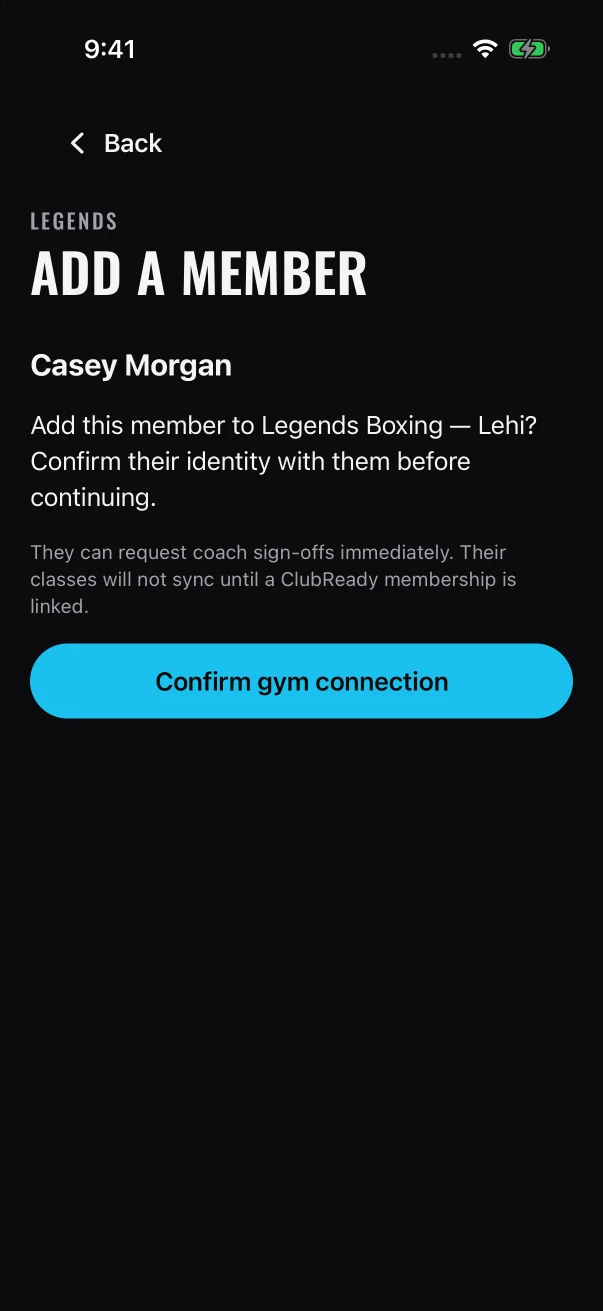
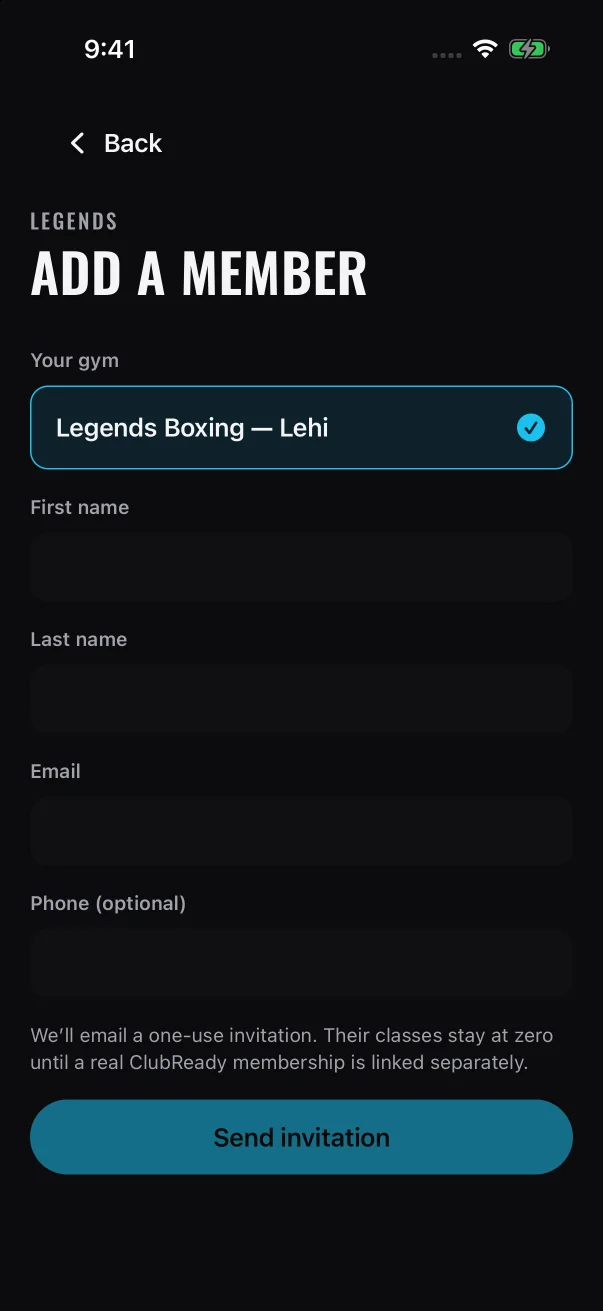
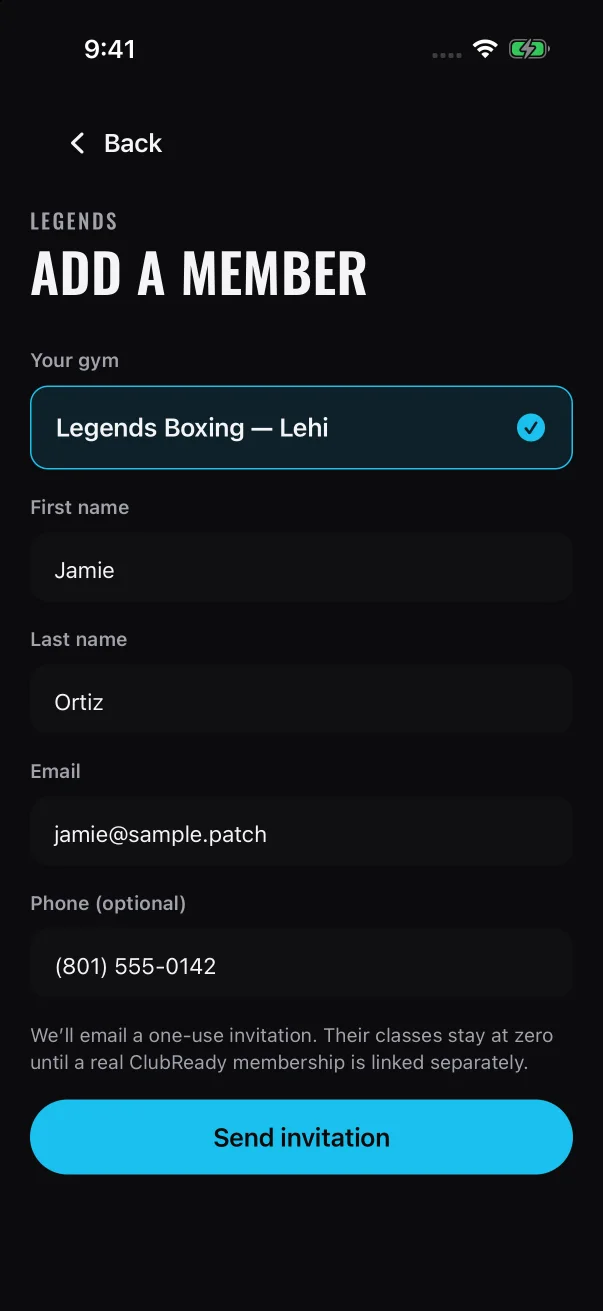
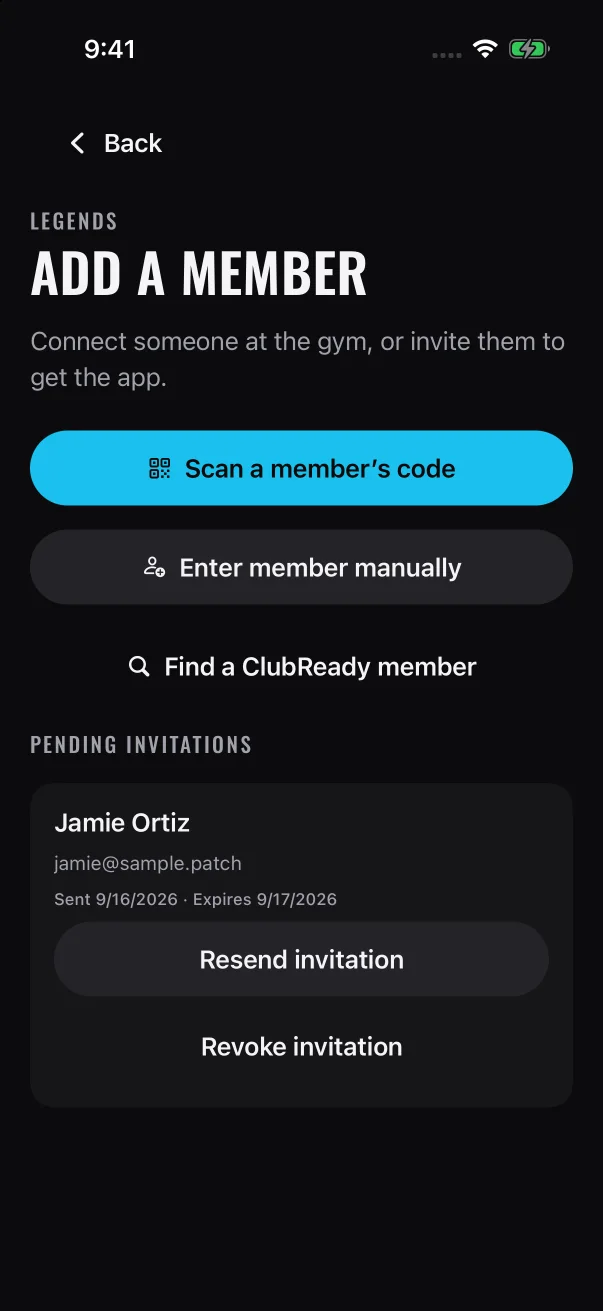
Tap Roster, then Add member. Scan the code of someone standing with you, or use one of the other two buttons to send an email invitation. Open Add a member
The app can't reach the server, so decisions are paused. Check your Wi-Fi or mobile data, then tap the banner at the top to try again. When you're offline
No, decisions are final. If you sent something back by mistake, approve an earned patch from the same card, or ask the member to send a sign-off request again. About final decisions
This guide is for coaches and other gym staff at Mayweather Boxing + Fitness who use Mayweather Patch with a coach account. It shows you how to sign off members' skills, approve and hand over their physical patches, and keep your gym's roster up to date.
The coach app in one paragraph
There's no separate coach app. You use the same Mayweather Patch your members use, signed in with a coach account. Members earn digital badges by training and finishing the requirements on each patch. Two kinds of work come to you: patches a member has earned, which you review before the physical patch goes out, and requests to sign off a skill that only a coach can check. When you sign in, the app skips the member screens and opens on three tabs: Approvals, Patches and Roster. Each decision is saved once the app confirms it. The rest of your gym team sees it the next time their lists refresh, and so does the member in their own app.
Approvals holds your decisions, Patches holds the patches you owe, and Roster lists your members.
Where
What it's for
Read more
Approvals
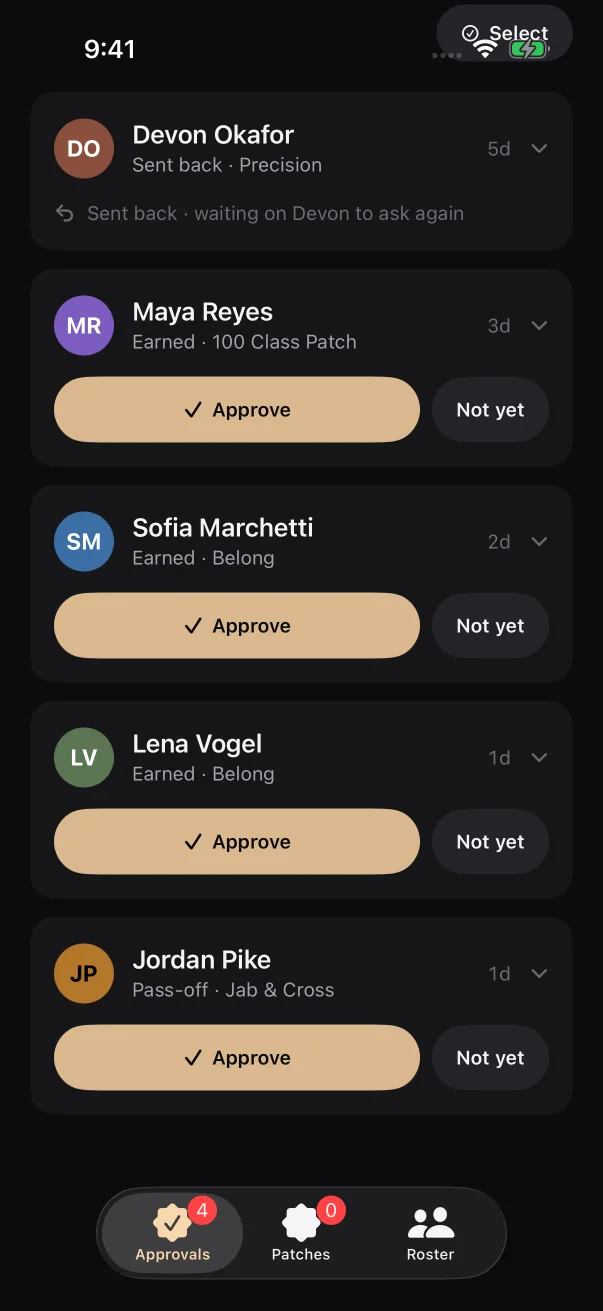
Everything waiting on a coach, oldest first. An "Earned" card is a patch a member has earned. A "Pass-off" card is a request to sign off a skill. The number on the tab counts the cards no coach has decided yet.
Most days come down to three jobs. Do them in this order at the start of a shift, and again whenever you have a quiet minute.
1. Check Approvals
You only get a notification when a member asks for a sign-off. Earned patches land in the queue without one, so open Approvals even when your phone has been quiet.
1
Open Mayweather Patch and tap Approvals.
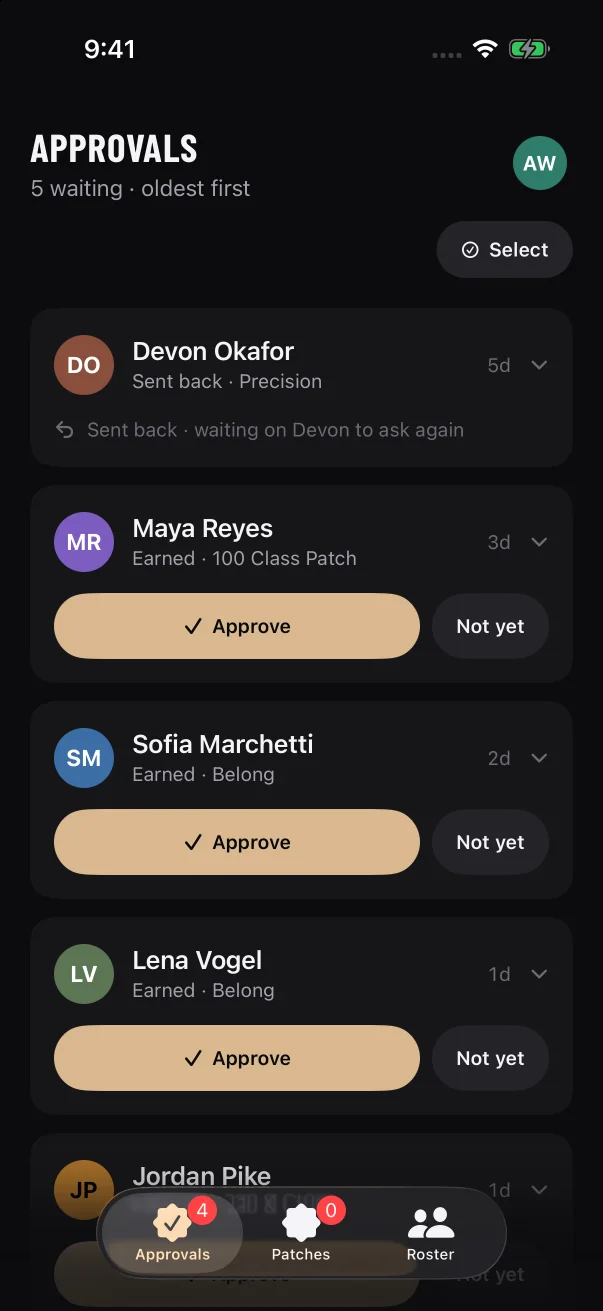
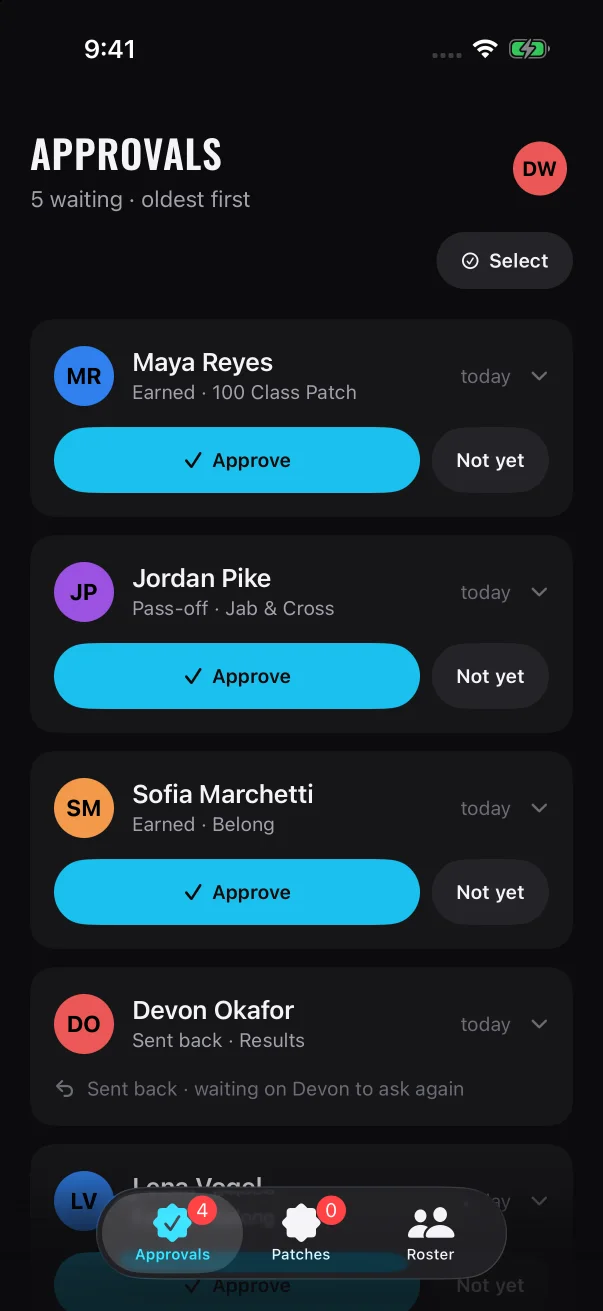
It's the tab the app opens on when you sign in. The line under the title reads, for example, "5 waiting · oldest first", and the member who has waited longest is at the top. That count includes cards that were already sent back, so it can be higher than the number on the tab. The number on each card is how long it has waited: "today", or days such as "3d". It turns amber at 7 days.
2
Tap a card to see what you're deciding.
An "Earned" card lists each requirement under "Requirements met", then the date the patch was earned. A requirement tagged "self-logged" is one the member logged themselves, so it's worth a quick look on the floor. A "Pass-off" card shows the member's note and, under "Needs your eye", each skill you're being asked to sign off.
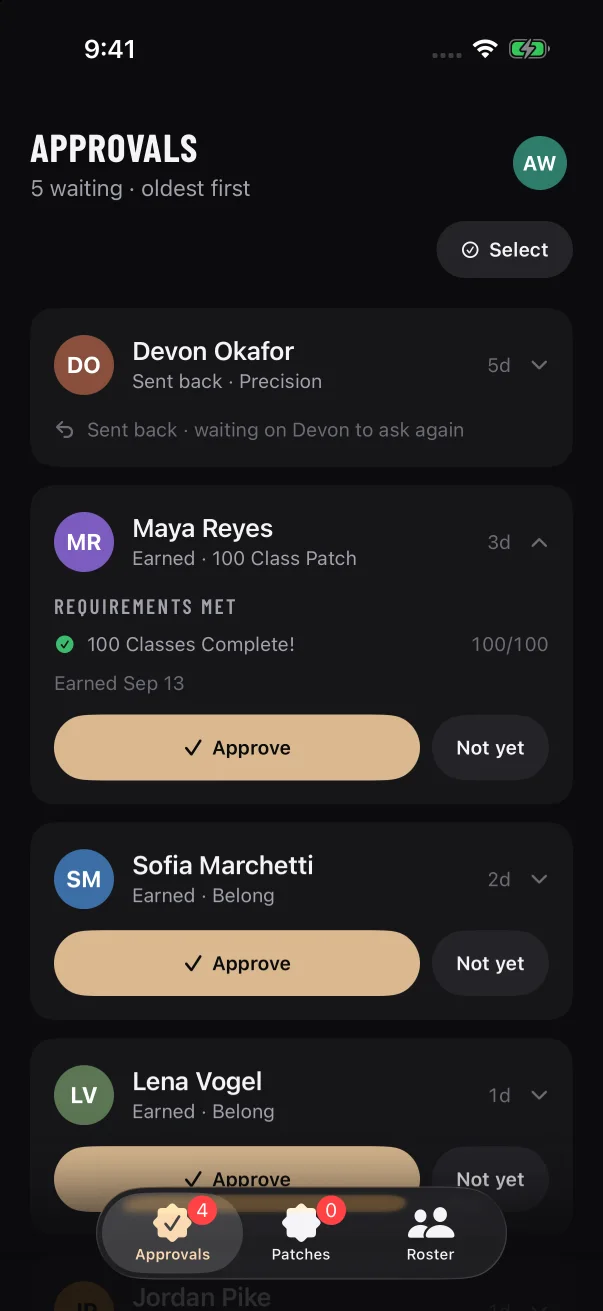
An open "Earned" card lists every requirement the member met, above Approve and Not yet.
3
Tap Approve when you're satisfied.
Approving an "Earned" card sends the physical patch to your Patches tab. Approving a "Pass-off" card signs off every coach-checked skill on that patch. If nothing else is left on the patch, the member earns the badge right away. If that patch also comes as a physical patch, it then shows up in Approvals as an "Earned" card. Approve that card too before the patch moves to Patches.
4
Tap Not yet when it isn't ready.
Pick at least one reason under "Why not yet". You can add a note in "A line for the member (optional)". Then tap Send back. To close the panel without deciding, tap the X beside the button. The card stays in the queue.
The button reads "Pick a reason" until you choose at least one reason.
5
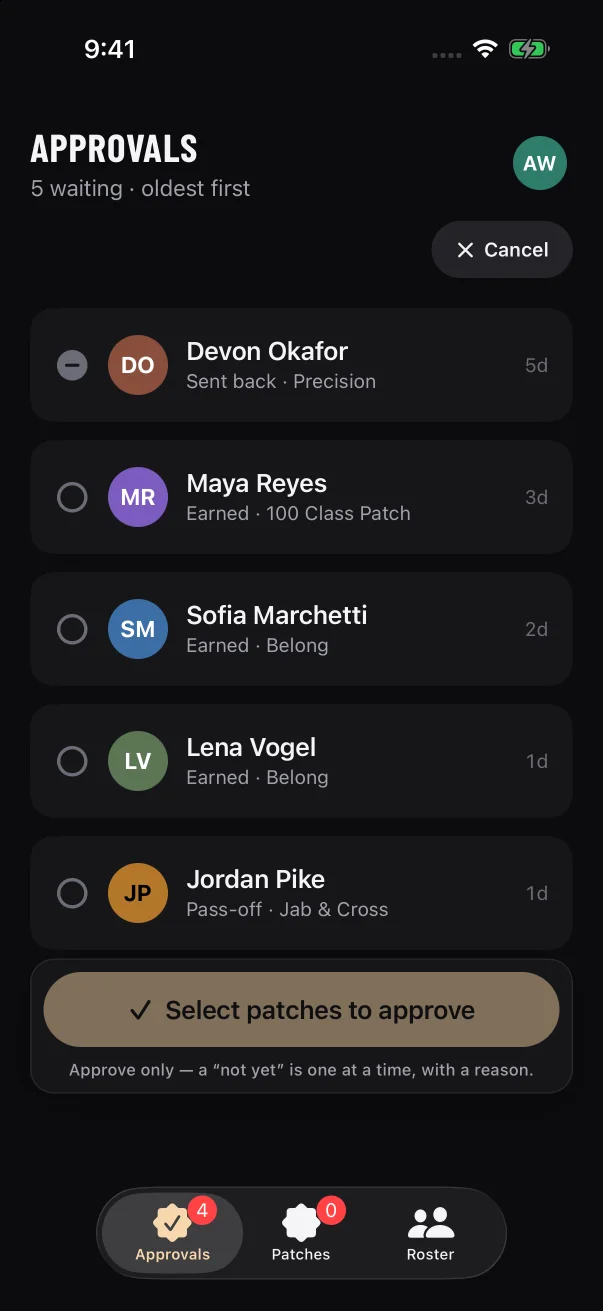
To approve several cards at once, tap Select.
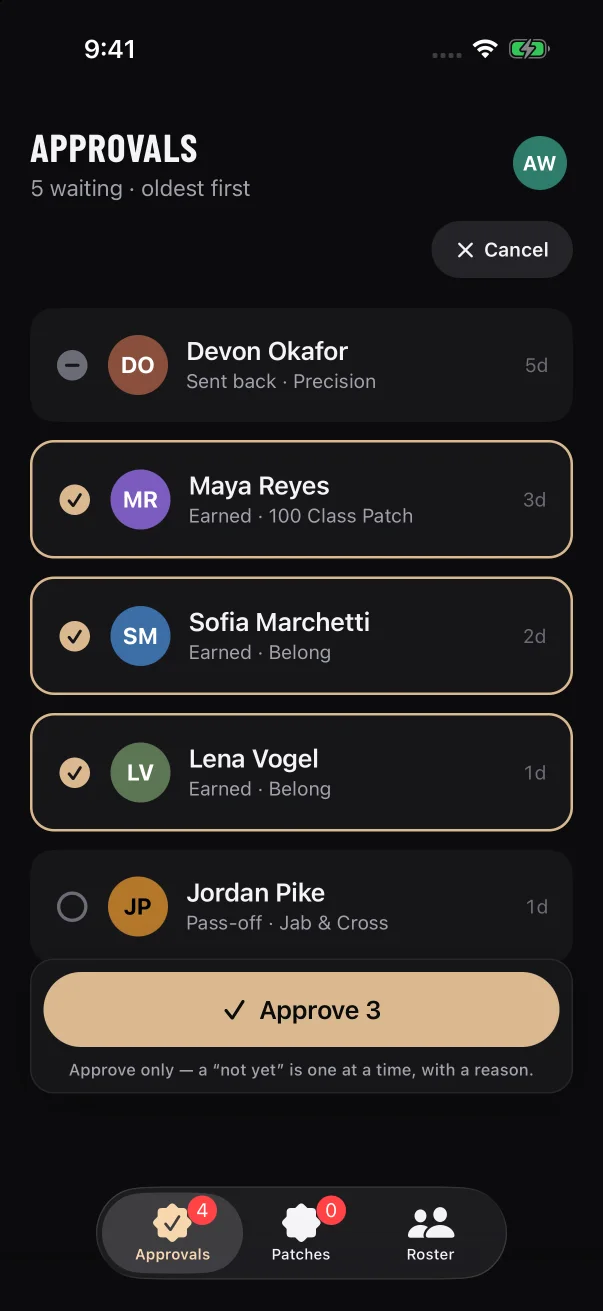
Select appears when the queue holds two or more cards. Tick the cards, then tap the button at the bottom, which reads Approve 3 when three are ticked. A sign-off request that was sent back can't be ticked. Select only approves. Each "not yet" is made one card at a time, with its own reason.
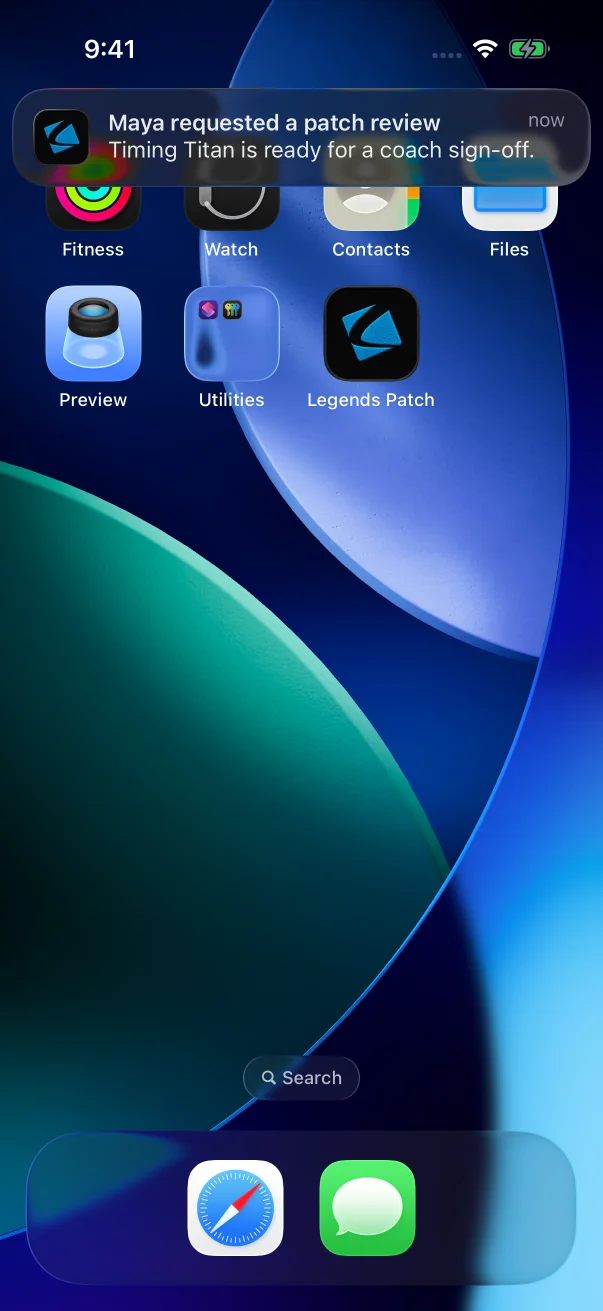
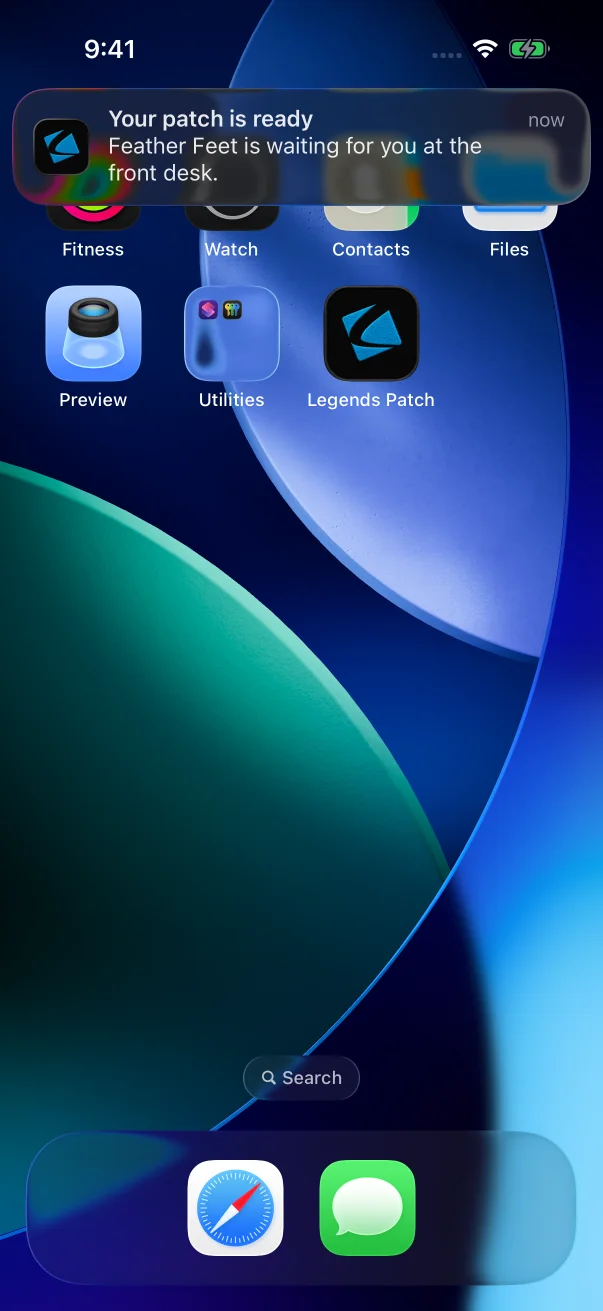
When a member asks for a sign-off, every staff member at the gym who allows notifications from the app gets one like this. Tapping it opens Approvals.
A card with a line such as "Sent back · waiting on Devon to ask again" has no buttons. That sign-off request has already been sent back, and the next move is the member's. See Sending something back.
2. Hand over patches
1
Open Patches.
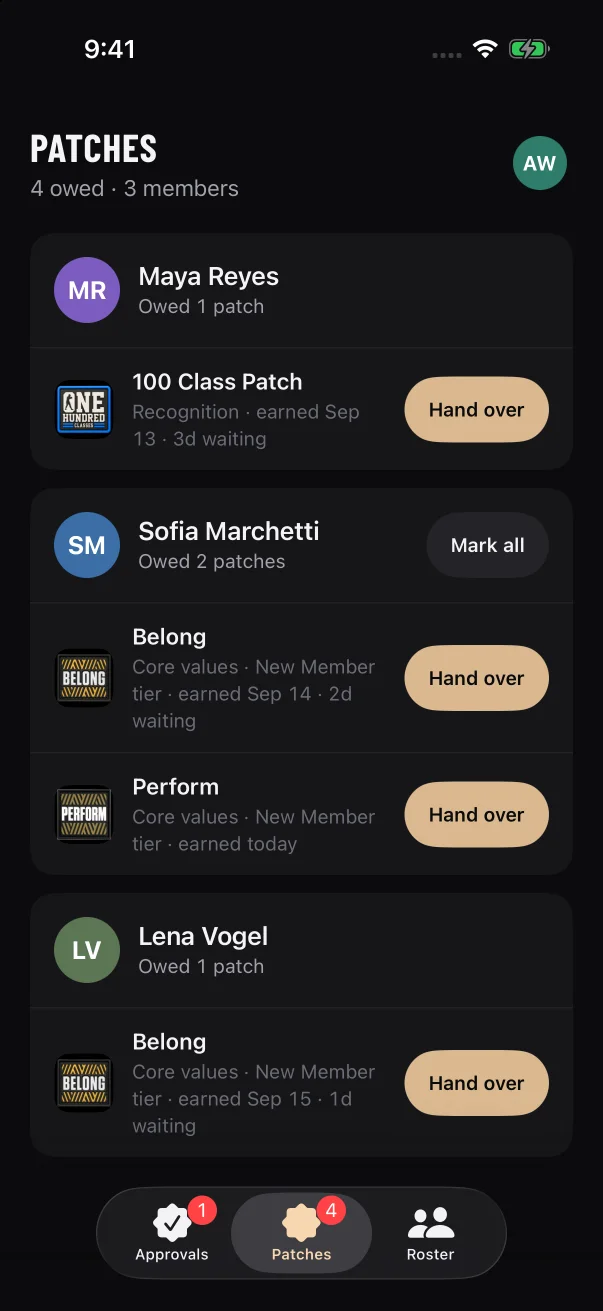
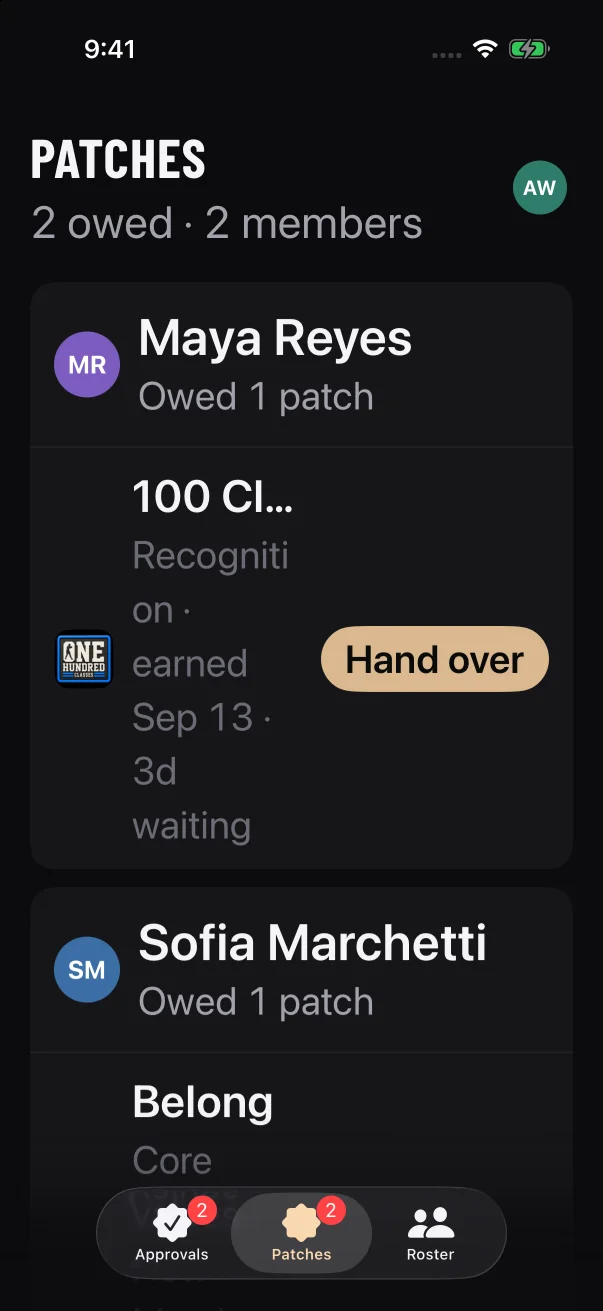
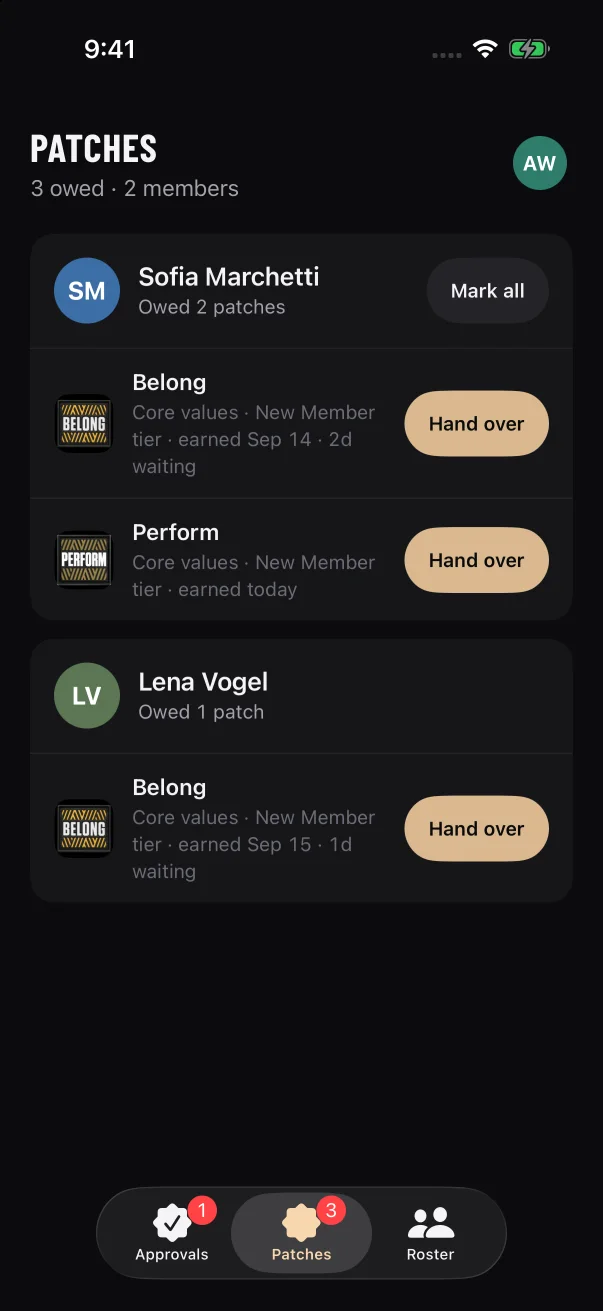
Members who are owed patches are listed with the longest wait at the top. The line under the title sums it up, for example "4 owed · 3 members". Each row shows how long the patch has waited since the member earned it, and turns amber at 7 days.
Each member's card lists the patches they're owed, and Mark all appears when they're owed two or more.
2
Give the member their patch in person.
3
Tap Hand over on that patch's row.
The row leaves the list once the app confirms it. If a member is owed two or more patches, Mark all hands over everything they're owed in one tap.
4
The member confirms.
Their app asks them to confirm that the patch reached them. If they allow notifications, they get one asking the same.
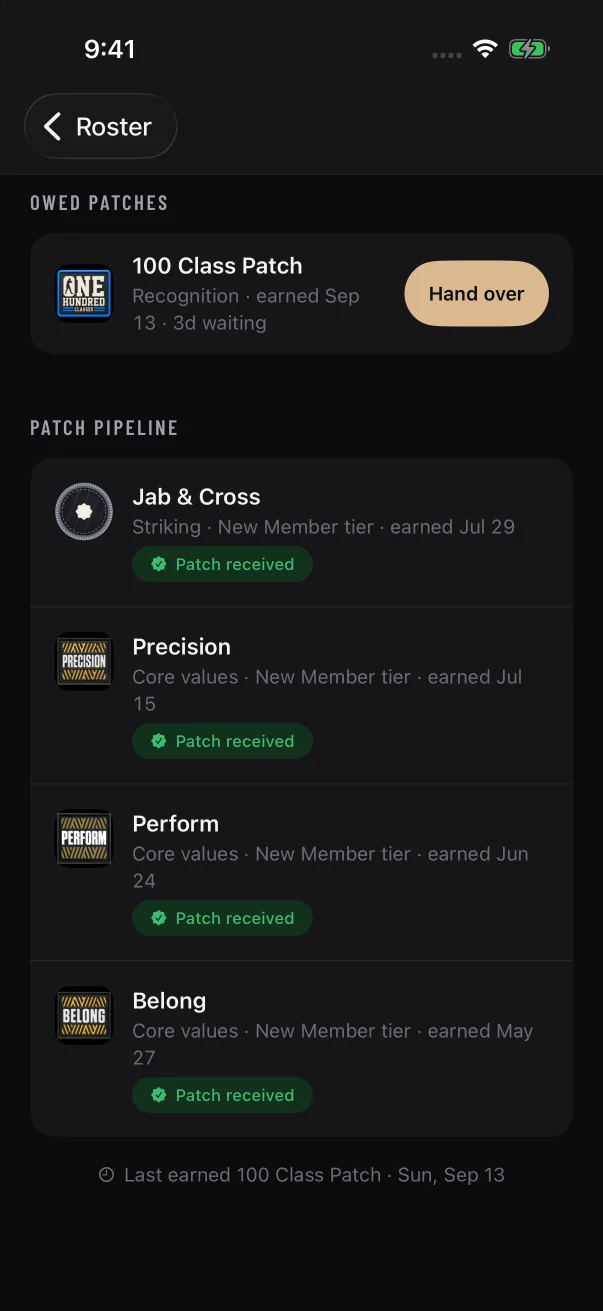
The same Hand over buttons appear under "Owed patches" on a member's page, which is handy when they're standing in front of you.
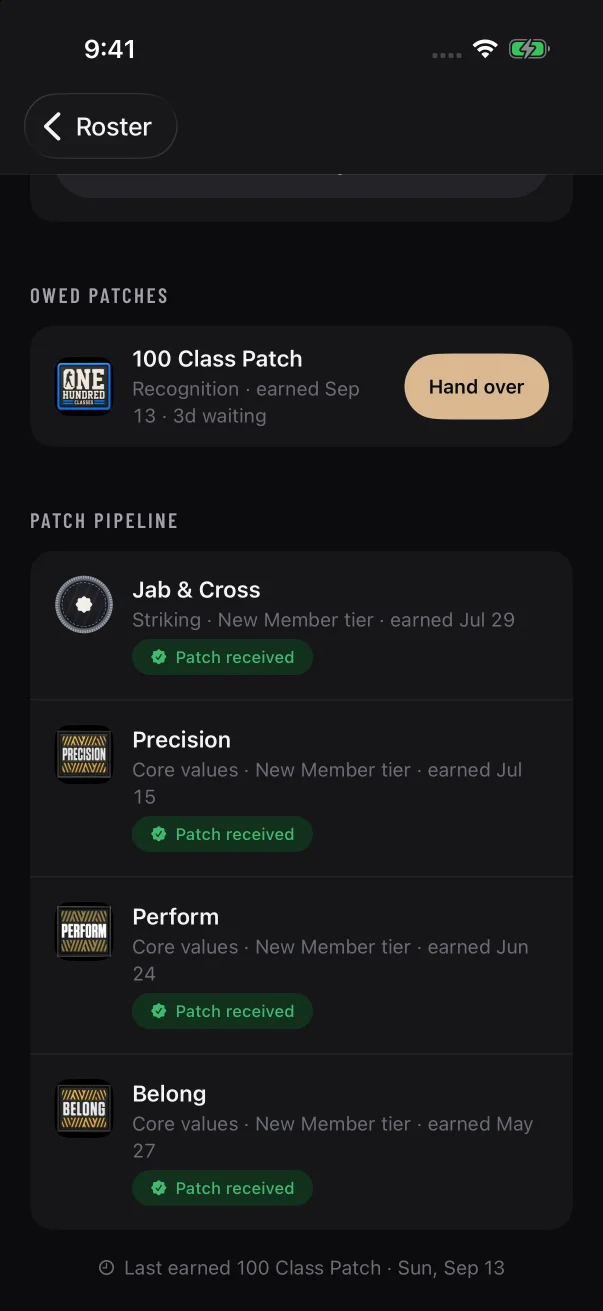
On a member's page, each patch under "Owed patches" has its own Hand over button.
3. Keep your roster current
Add new members. Tap Add member on Roster. You can scan the connection code the member shows you in their app, or invite them by email. See Adding members to your gym.
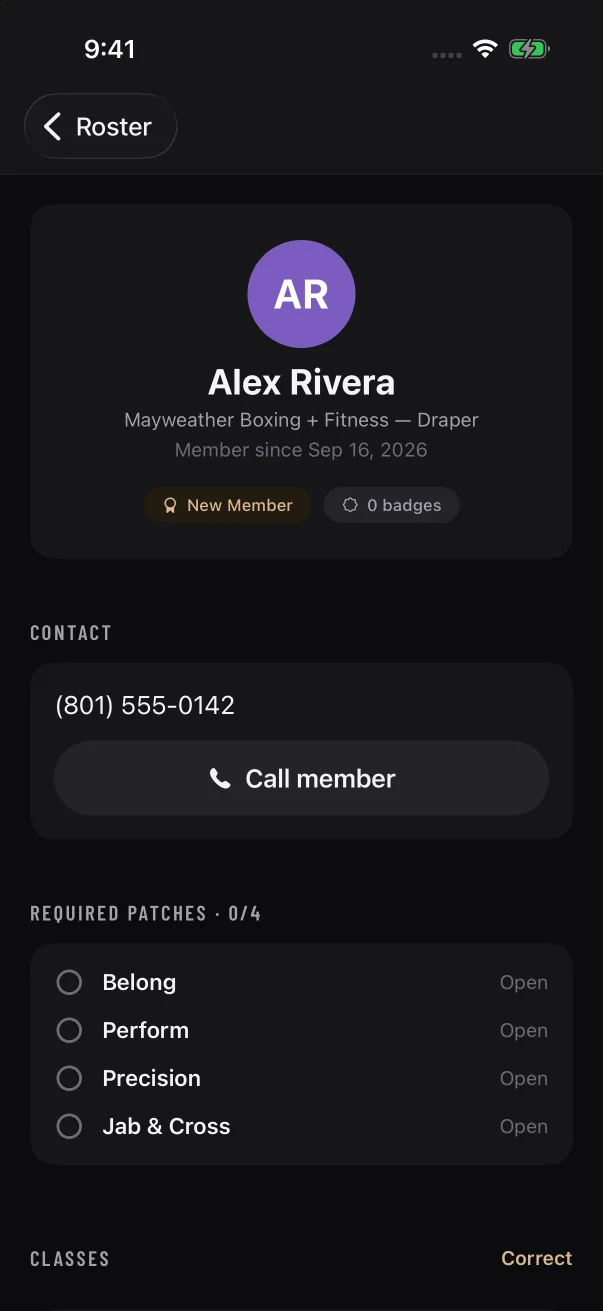
Check in on a member. Tap their card on Roster to see their belt, the patches they still need, their class count and anything that needs your call. See A member's detail page.
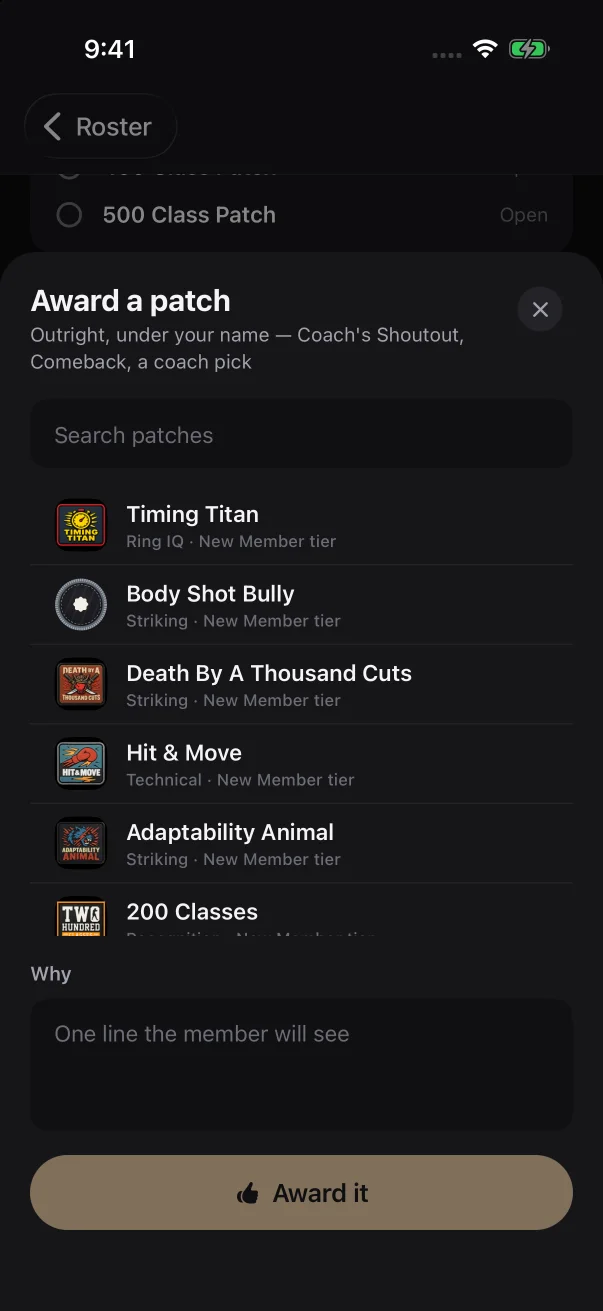
Fix what the records missed. If a member's class count is short, tap Correct next to "Classes" and give a reason. To give a patch outright, tap Award a patch. See Correcting classes and awarding patches.
Expect members to come and go. The roster lists members with an active membership at your gym, sorted by first name. When a membership ends, that member drops off your roster and off the Patches tab.
The queue is for the whole gym. Approvals and Patches show every member at your gym, not only the members you coach. Whichever coach decides first, that decision stands. The one exception is an earned patch that was sent back: any coach can still approve it.
Decisions are final. Approving, sending back and handing over can't be reversed once saved. If you sent a patch back by mistake, you can still approve it from the same card. If you sent a sign-off request back by mistake, ask the member to request it again.
Badges are never taken back. A "Not yet" on an earned patch holds only the physical patch. The member keeps the badge.
The lists refresh on their own. They update every 20 seconds while the app is open, whenever you come back to it, and after each decision. There's no pull-to-refresh.
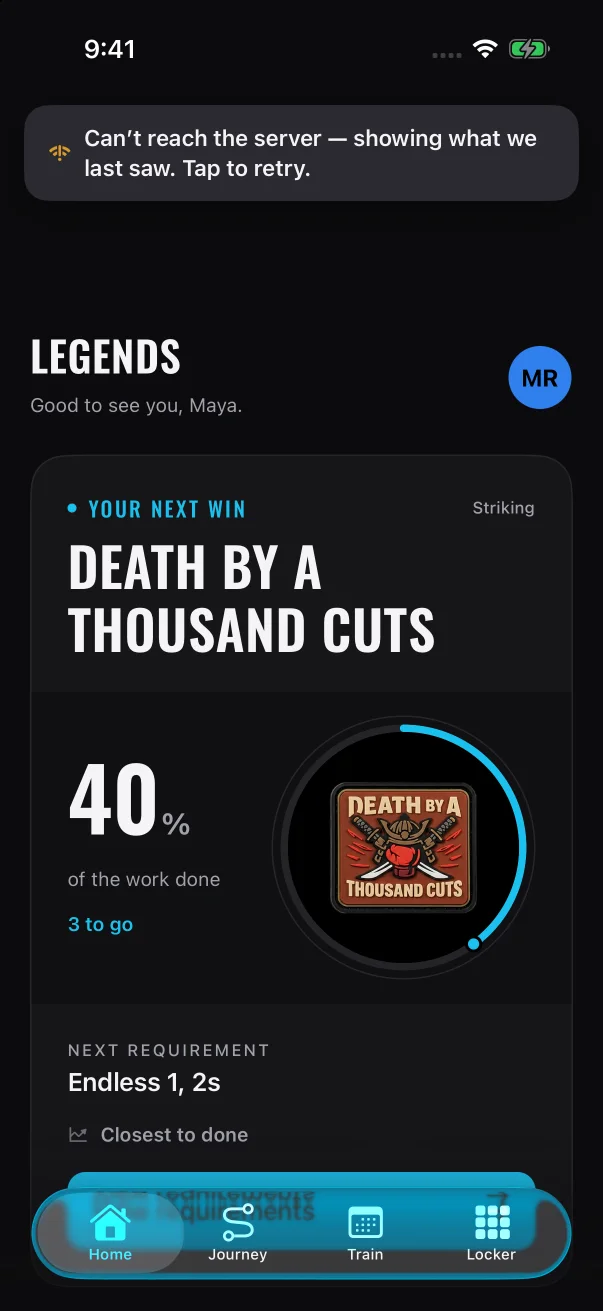
Buttons pause when you're offline. If the app can't reach the server, it keeps showing the last lists it loaded and dims every decision button. A banner at the top reads "Can’t reach the server — showing what we last saw. Tap to retry." Tap it to try again.
The app counts classes and logged drills for members. You handle what it can't: watching a skill and signing it off, and getting physical patches into members' hands. This page explains which decisions are yours and which ones the app or the program makes.
Patches are earned on merit
Every patch has a list of requirements. A member earns the badge, the digital version of the patch, as soon as the app sees the last requirement met. The requirements decide. Your part is to check the ones that need a coach's eye.
Once a badge is earned, it stays earned. Nothing takes it back: not a "not yet" on the physical patch, not a class correction, and not a change to the program.
Who completes each requirement
A member's patch shows its requirements with an icon at the start of each row. The icon shows what kind of requirement it is, and that tells you who completes it. Once a row is done, a check mark replaces the icon.
Requirement
Icon the member sees
Who completes it
Class counts
Calendar
The app, from the gym's attendance records
A skill a coach has to see
Seal
You, when you approve the member's sign-off request
A drill the member does and logs
Pencil
The member, by tapping Log a round
Some programs also use a few other automatic requirements, such as weeks in a row with enough visits, weeks as a member, or a number of patches earned. The app tracks those itself too. How members earn patches and belts lists every requirement type.
You never approve automatic requirements. Class counts update when the gym's attendance records sync. If the automatic requirements finish a patch, the badge is earned without any coach action.
Members can't tick a coach requirement. They ask you for a sign-off instead.
Members log their own drills. On an earned patch waiting for your review, the rows the member logged are tagged "self-logged", so you know what to check on the floor.
Some patches come after others. If the program puts a patch after an earlier one, classes still count toward it. Once its own requirements are met, the app awards it as soon as the earlier patch is earned.
A program can reserve a patch for a higher belt. A member can earn patches up to one belt above the belt they hold. A patch reserved for a belt higher than that can't be earned yet.
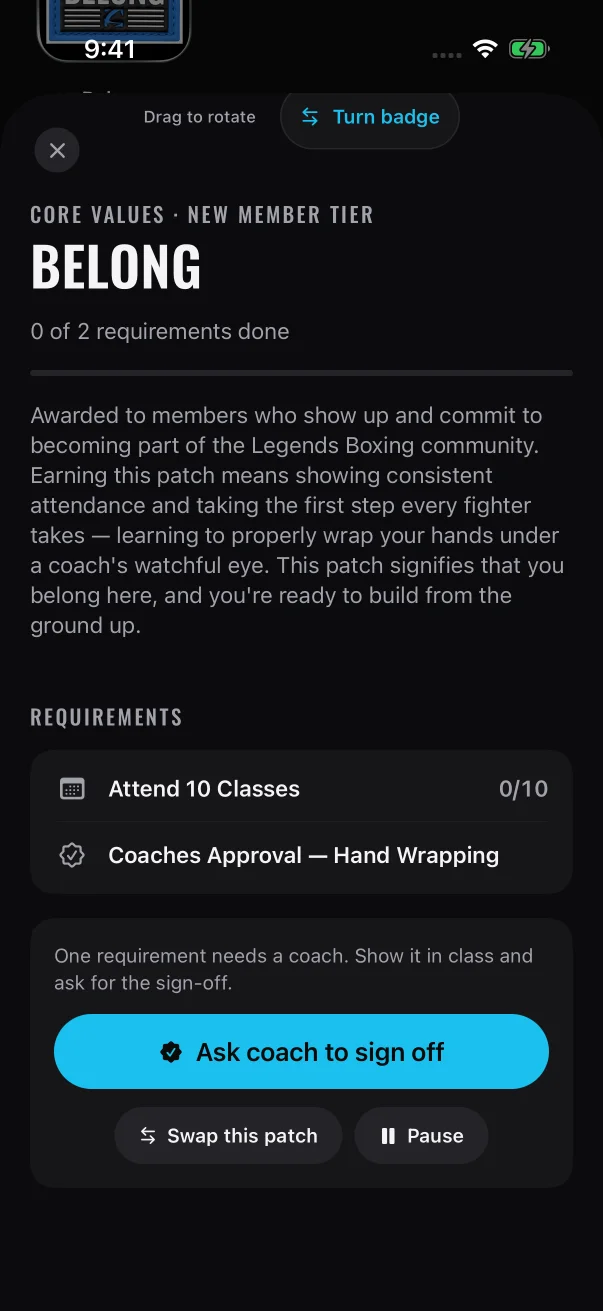
On a member's patch, the seal icon marks the skill a coach signs off, while the class count fills in by itself.
Signing off skills: one decision per patch
Members ask for a sign-off on the whole patch, not on a single skill.
1
The member adds the patch to their working set, shows the skill in class and taps Ask coach to sign off. They can add a note for you. A member can only ask about a patch they're working on, and only one request per patch can wait at a time.
2
The request appears in Approvals as a "Pass-off" card for every coach at your gym. Expand it to see the member's note and, under "Needs your eye", each skill the request covers with its drill description.
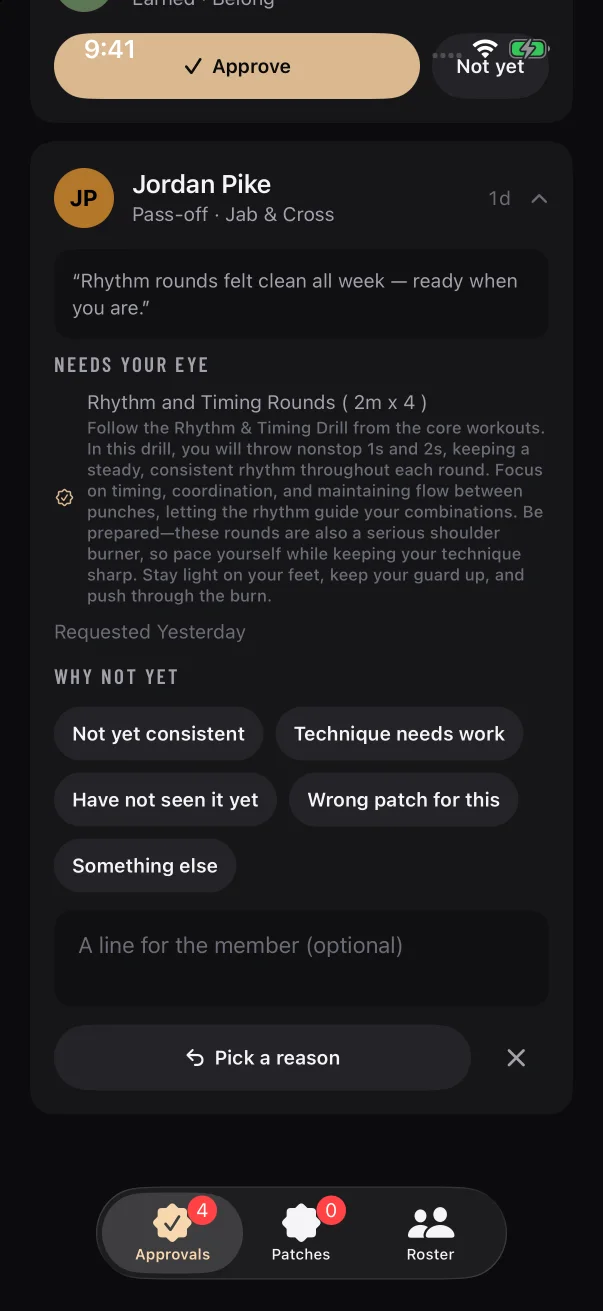
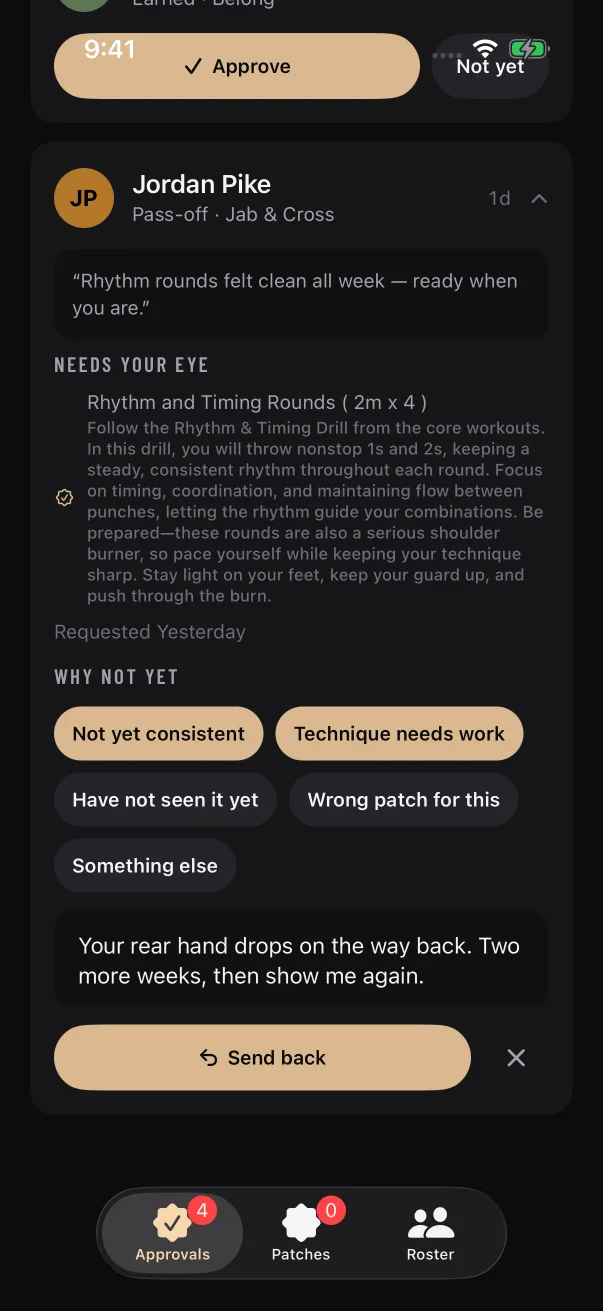
A sign-off request shows the member's note and, under "Needs your eye", every skill your approval covers.
3
Tap Approve. That one decision marks every coach requirement on that patch as done.
4
If the member's other requirements are already complete, the badge is earned then and there, and the member's app celebrates it when it next updates. If not, your sign-off is saved and the app awards the badge once the rest is done. The member doesn't need to ask again.
A few more rules:
Whoever decides first makes the call. A second decision on the same request doesn't change it, and your queue refreshes to show what was decided.
When a patch comes with a physical version for the member's gloves, that physical patch goes through you separately from the badge. A member's badge counts as soon as it's earned and never waits for the physical patch.
1
When a member earns a patch that comes with a physical patch, it appears in Approvals as an "Earned" card. Expand it to see "Requirements met" and the date it was earned.
An earned patch waiting for your review lists what the member completed.
2
Tap Approve to release the patch. It moves to the Patches tab.
3
When you give the member their patch, tap Hand over. If a member is owed more than one, Mark all hands them all over at once.
Approved patches wait on the Patches tab, longest-waiting first, until you hand them over.
4
The member confirms in their app with I've got it.
If your sign-off completes a patch that has a physical version, a new "Earned" card for that member appears in Approvals. The first decision was about the skill. The second one releases the patch itself. If a badge has no physical patch, it never comes to you for review.
Where a physical patch can be
Stage
Where you see it
What the member sees
Waiting for your review
Approvals: "Earned" and the patch name
"Patch: coach reviewing"
You chose Not yet
Approvals: "Sent back" and the patch name
"Needs another look"
Approved, not yet given
Patches tab, with Hand over
"Patch: waiting with Coach"
Handed over
"Patch pipeline" on the member's page
"Patch: handed over — confirm"
Member confirmed
"Patch pipeline" on the member's page
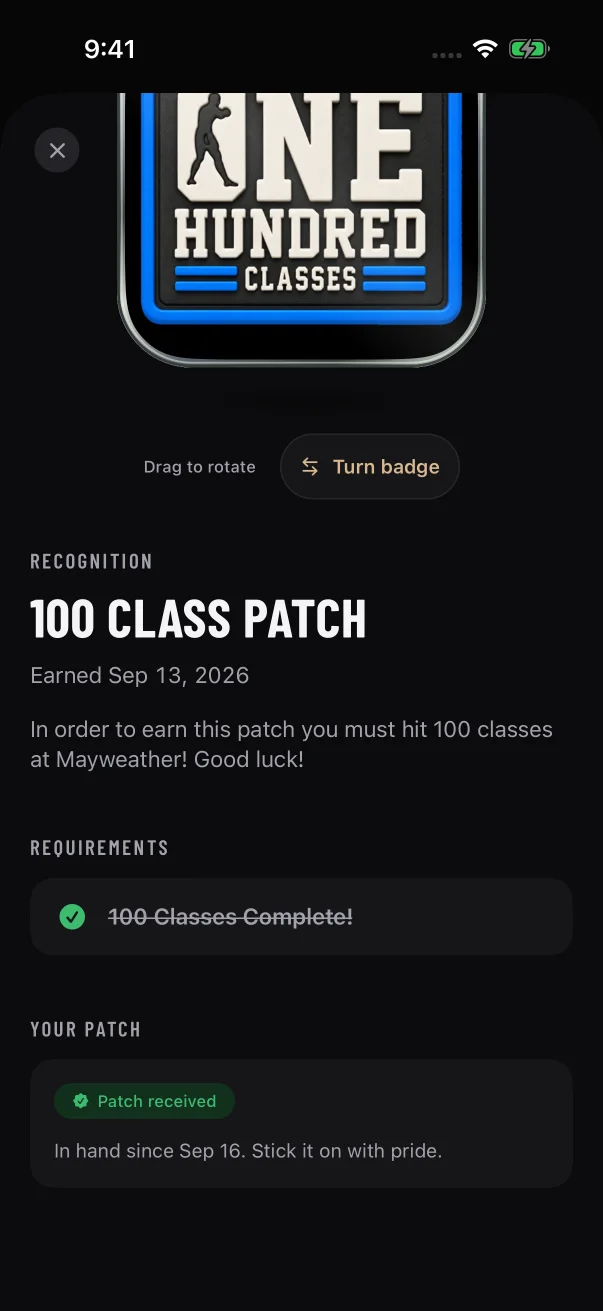
"Patch received"
Choosing Not yet opens "Why not yet" with five reasons: "Not yet consistent", "Technique needs work", "Have not seen it yet", "Wrong patch for this" and "Something else". Pick at least one. You can add "A line for the member (optional)". The button reads "Pick a reason" until you choose one, then Send back.
The button stays on "Pick a reason" until you choose at least one reason.
What happens next depends on what you sent back.
You sent back
What it means
What happens next
A sign-off request
The badge wasn't earned, and it still isn't.
The member sees "Sent back" with your reasons, your note if you wrote one, and "Nothing is lost. Put in the reps and ask again." Your card reads "Sent back · waiting on", the member's first name and "to ask again", and has no buttons. The member makes the next move by tapping Ask again, which brings the request back to Approvals as a "Pass-off" card.
An earned physical patch
The badge is earned and stays earned. Only the physical patch is on hold.
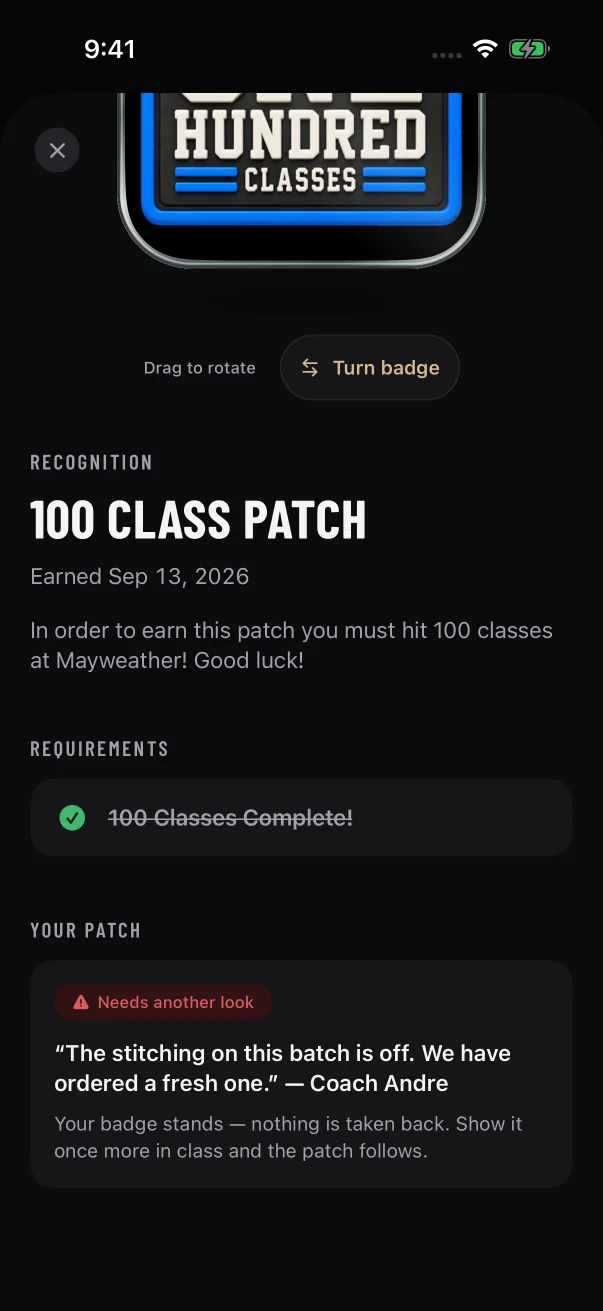
The member sees "Needs another look", your reasons and any note you wrote, and "Your badge stands — nothing is taken back. Show it once more in class and the patch follows." The member has no button for this. When you're satisfied, approve it from the same card.
Neither one removes a badge, a class or a belt. You send items back one at a time, each with its own reason. There is no batch "not yet".
Members belong to the gym, not to one coach. By default, each member is looked after by the whole "Gym team".
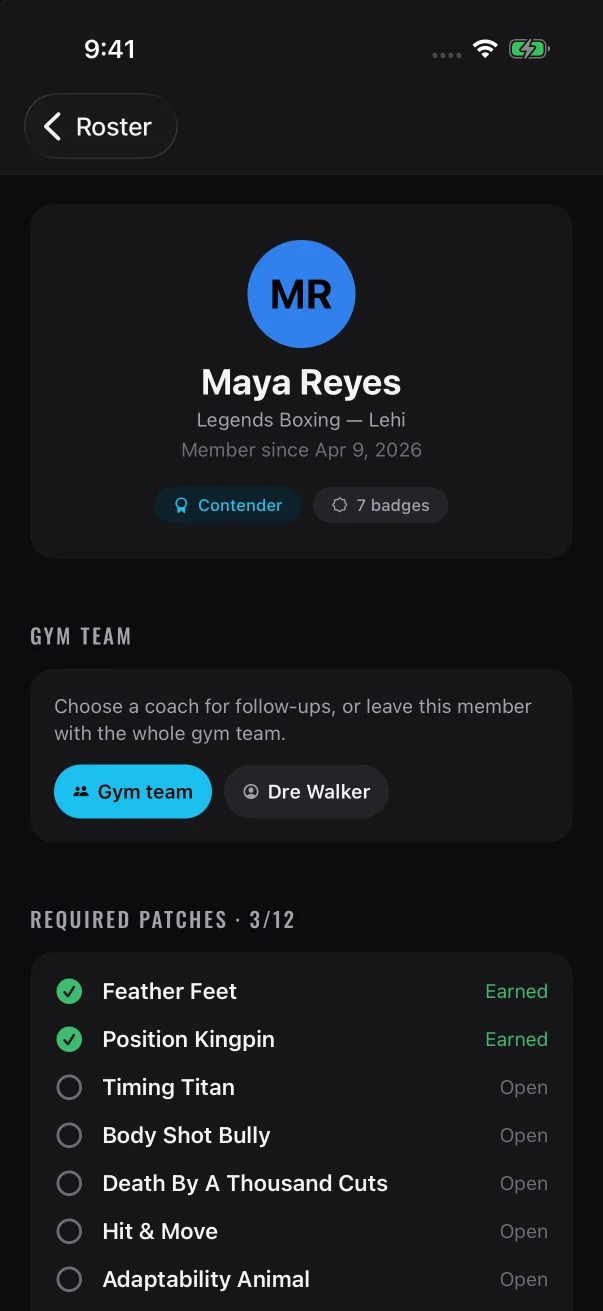
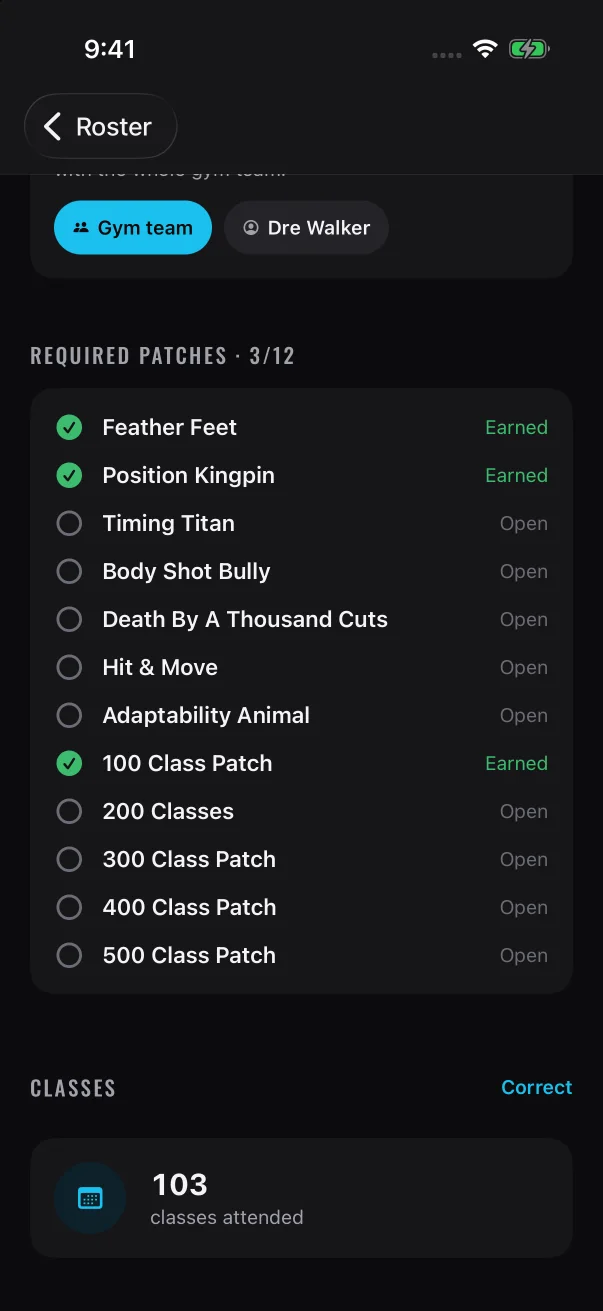
A member's detail page has a "Gym team" section: "Choose a coach for follow-ups, or leave this member with the whole gym team." Tap a coach's name to assign the member to that coach, or tap Gym team to move them back to the whole team. The change saves right away, with no confirmation step, and you'll see "Coach assignment updated" or "Assigned to the gym team".
The highlighted chip in "Gym team" shows who follows up with this member.
The assignment only tells your team who follows up with the member. Here's what it doesn't change:
Who sees requests. Approvals shows every member at your gym, whoever they're assigned to, and any coach at the gym can decide.
Who gets alerts. Assigning a coach doesn't change who is alerted about sign-off requests.
What the member sees. The member isn't notified, and the assignment doesn't show anywhere in their app.
Anyone on staff at your gym can change the assignment. Only coaches at your gym appear as choices. If the change doesn't go through, you'll see "Could not update the coach assignment".
Other things you can do for a member
Correct a class count. If the gym's records missed a class, tap Correct on the member's page and give a reason. The sheet notes: "Logged as a manual correction under your name. Earned patches are never taken back."
Award a patch outright.Award a patch gives a patch without its requirements. You add a line explaining why, and the award is recorded under your name. Keep it for real exceptions.
Program content is managed centrally. That covers patch names, descriptions, requirements and their targets, the order patches come in, what each belt takes, and patch artwork. Changes are published centrally, so every member at every Mayweather Boxing + Fitness gym gets the same version. The app picks up changes without an update, and a program change never takes back a badge a member has already earned.
Coaches also can't add or remove coaches or change which gym a staff account can access. Your program administrator handles those.
If a requirement looks wrong or unclear, don't work around it with an award. Report it: see Who to contact.
There's no separate coach app and no coach sign-up. You use Mayweather Patch, the same app your members use, and your account decides which side opens. Your program administrator turns on coach access for your email address.
How coach access works
Your program administrator sets it up. They add your email address to your gym. Coaches can't give themselves or each other access, and the sign-in screen has no coach button.
Your account decides what opens. Everyone signs in on the same screen. A coach account opens on Approvals, with Patches and Roster beside it. A member account opens on Home, with Journey, Train and Locker.
Access is per app and per gym. Each brand's app has its own accounts. Your coach access for Mayweather Boxing + Fitness works in Mayweather Patch only, at the gym your administrator added you to.
Nobody emails you. The app doesn't send a message when your access is ready. Ask your program administrator to confirm it's done, and which email address they used.
Before you sign in, give your program administrator these details:
What to give
Why it matters
The email address you'll sign in with
Your access is matched to that exact address.
Your gym location
Access is set up one gym at a time.
Whether you already have a Mayweather Patch account
An existing account is switched to a coach account. If you don't have an account yet, you become a coach the first time you sign in with Apple or Google.
Get the app
Each gym brand has its own app, so install the one for Mayweather Boxing + Fitness. On iPhone, search the App Store for Mayweather Patch. On Android, search Google Play. Install it, then follow the steps below for your phone. There's nothing separate to download for coaches.
Sign in for the first time
How you sign in depends on your phone and on whether you already have an account:
Your situation
Go to
You're new to Mayweather Patch and you have an iPhone
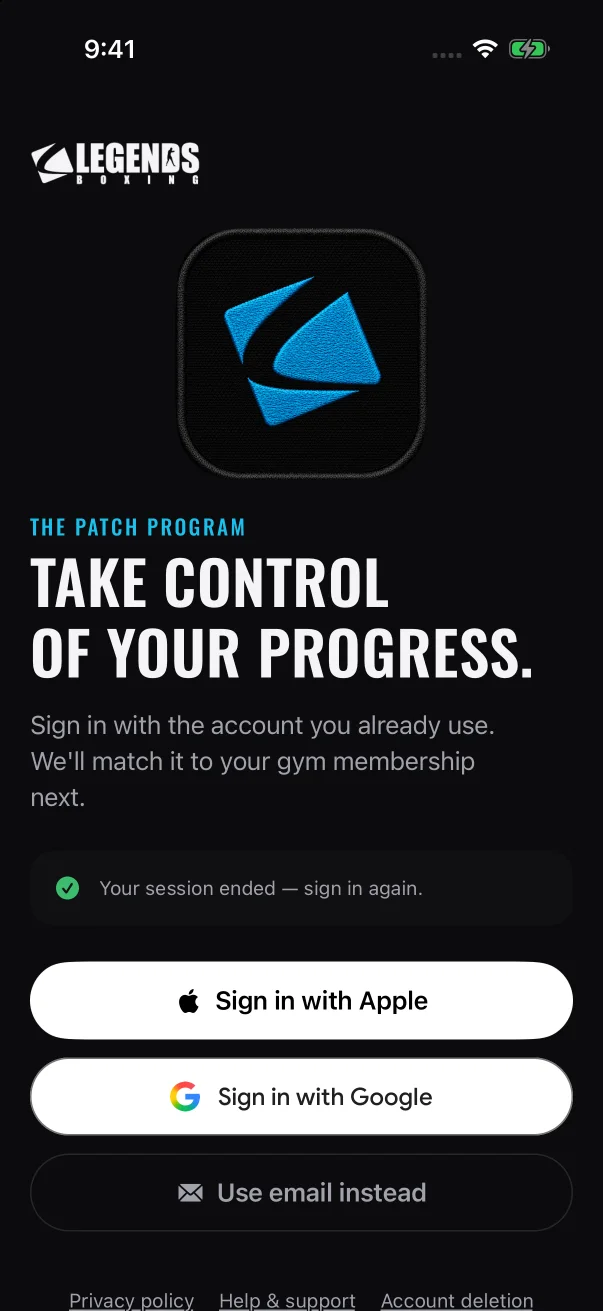
Open Mayweather Patch. If the welcome slides appear, tap Skip, or Already a member? Sign in if you're on the last slide.
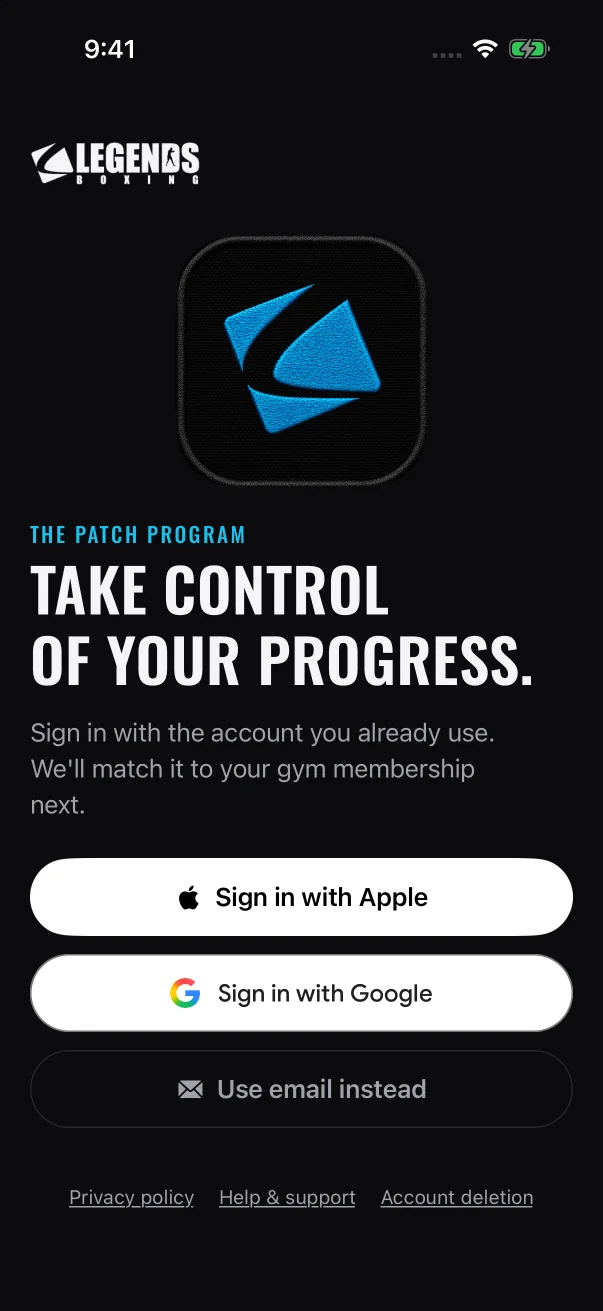
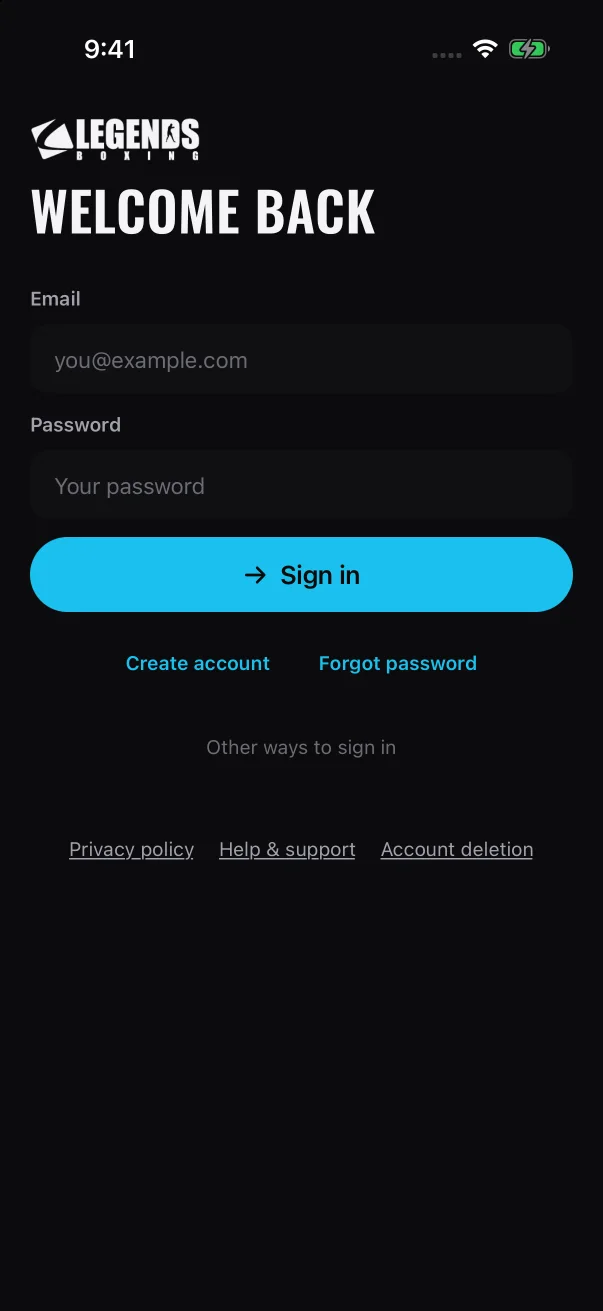
Coaches and members use the same sign-in screen. There's no coach button.
2
Tap Sign in with Apple or Sign in with Google.
3
With Apple: choose Share My Email. Check that the address Apple shows is the one your administrator added. With Google: pick the Google account that uses that address.
4
A "Confirm your age" message appears. Tap I’m 13 or older.
5
Wait while the app loads. It opens on Approvals by itself.
A coach account opens on Approvals, with Patches and Roster in the tab bar.
Your coach access is set up during this first sign-in, so you can start straight away.
You already use the app
If your administrator adds an email address that already has a Mayweather Patch account, that account becomes a coach account straight away. Your member history stays on the account, but the app opens the coach side from then on. A phone that's already signed in doesn't switch by itself. You see the coach side after you sign out and sign back in.
Until you do, the app keeps showing the member screens, but it can't refresh them. Your account is now a coach account, so the member screens no longer load for it. Within about 20 seconds while the app is open, or the next time you open it, a banner appears at the top: "Can’t reach the server — showing what we last saw. Tap to retry."
Your connection is fine. Tapping the banner tries again, but the banner stays. Closing and reopening the app doesn't clear it either. If you see this banner after asking for coach access, sign out and sign back in.
1
Ask your program administrator to add the email address your account uses. If they added it before you created your account, ask them to add it again. Wait until they confirm it's done.
2
If the app is open, the "Can’t reach the server" banner may already show on Home. You don't need to wait for it to clear. It won't clear until you sign out.
After the switch, the member screens stop refreshing and this banner stays at the top.
3
On Home, tap your avatar at the top to open You.
4
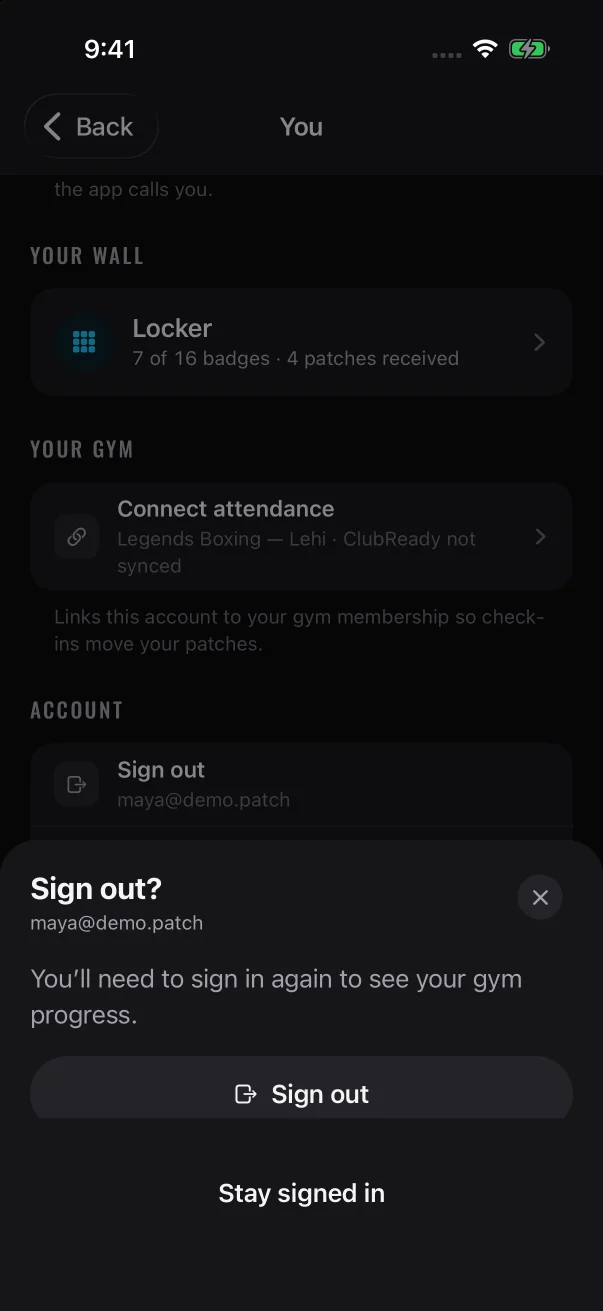
Tap Sign out, then tap Sign out again to confirm.
5
Sign back in with the same method you used to create the account. The app opens on Approvals.
On Android
The Android app has one sign-in button, Continue with email. A new email account is always a member account, so getting coach access takes two rounds:
1
Tap Continue with email, then Create account. Enter the email address your administrator will add and a password of at least 10 characters. Tick I’m 13 or older, then tap Create account.
2
Enter the 6-digit code from your email.
3
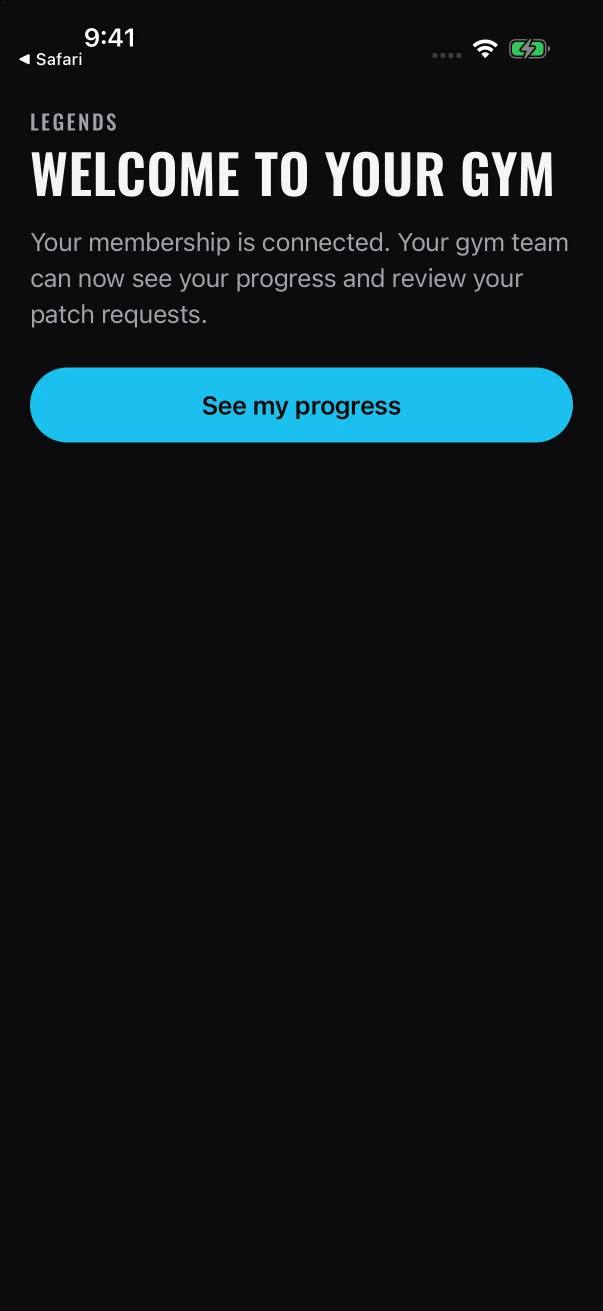
The app may check for a gym membership first. You don't need to connect a membership to get coach access. If you see "Find your gym", tap Explore the app for now. If you see "You’re connected", tap See my progress.
4
Tell your program administrator your account is ready. Ask them to add that email address to your gym. If they added it before you created the account, ask them to add it again. Adding it now is what switches your account to a coach account.
5
When they confirm, tap your avatar on Home to open You. Tap Sign out, then tap Sign out again to confirm. If the "Can’t reach the server" banner appeared on Home, that means the switch is done. Sign out anyway.
6
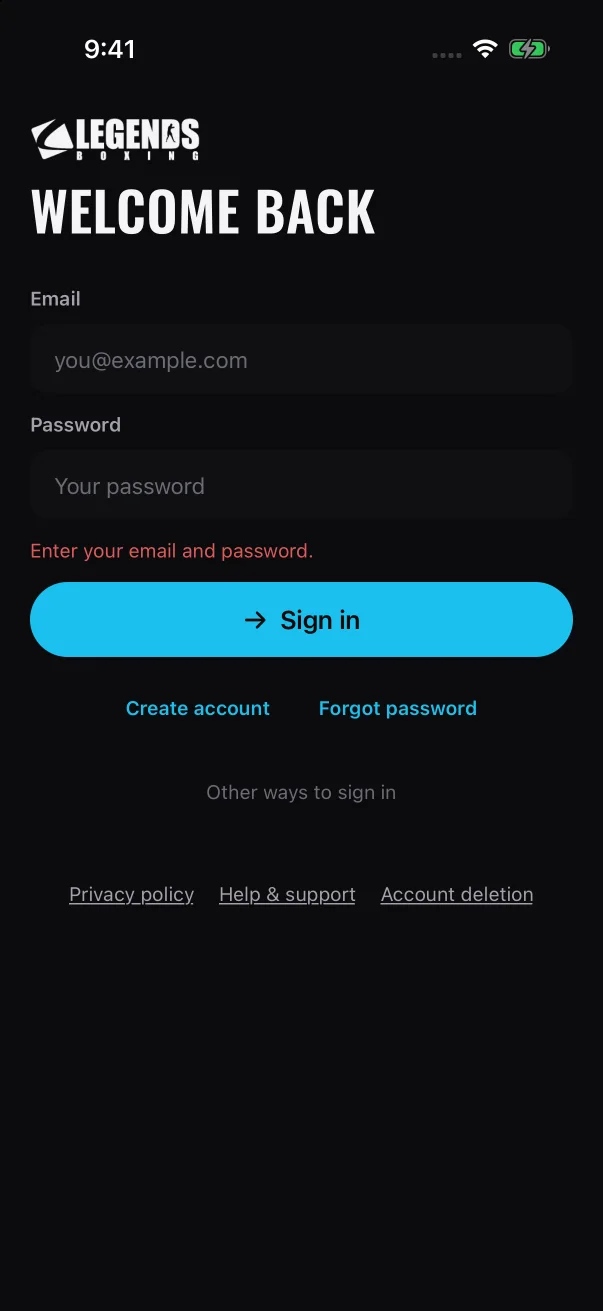
Tap Continue with email, enter your email and password, and tap Sign in. The app opens on Approvals.
These steps also work on iPhone if you'd rather use an email and password. On iPhone, the email button is called Use email instead.
If you were given a password
If your program administrator set up your account with an email address and a password:
1
On the sign-in screen, tap Use email instead (iPhone) or Continue with email (Android).
Sign in with the email address and password you were given. Don't tap Create account.
2
Enter the email address and password, then tap Sign in. The app opens on Approvals.
If you forget the password, tap Forgot password on the same form, enter the email address and tap Send reset link. If that address has an email account, a reset link is sent to it. The link works once and expires in 30 minutes. Accounts that use Apple or Google have no password to reset.
Check you're on the coach side
The tab bar shows Approvals, Patches and Roster.
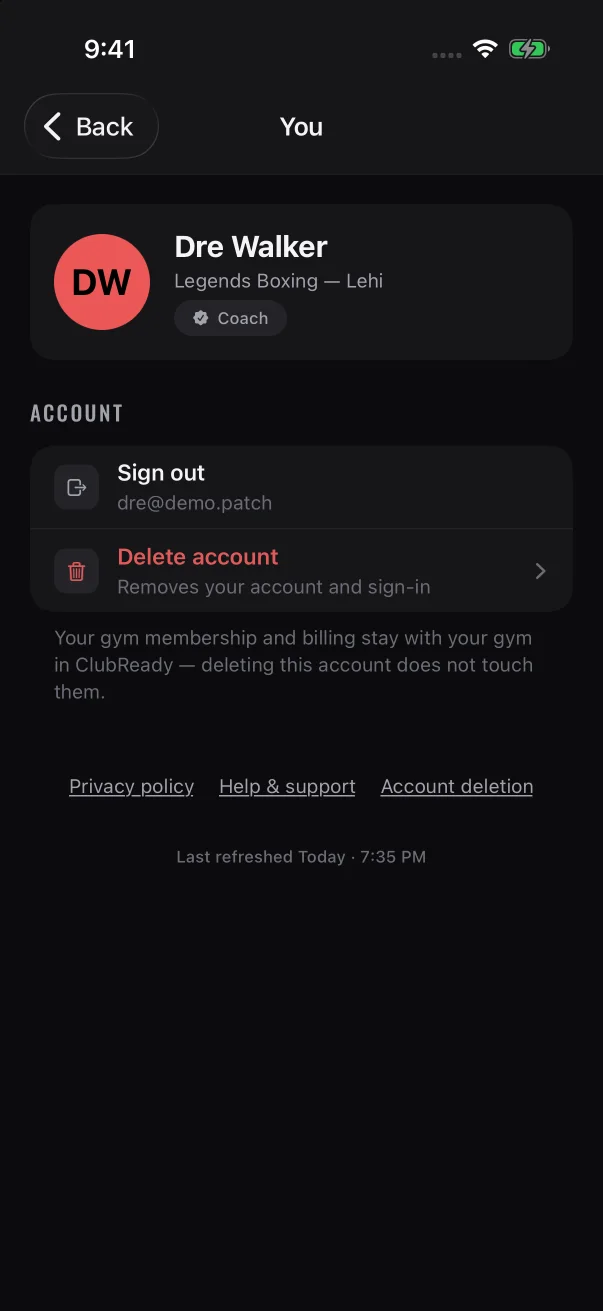
Tap your initials at the top right of any coach tab to open You. Your profile card has a "Coach" label, and the email address this account uses is under Sign out.
The "Coach" label confirms your account type. The address under Sign out is the one your administrator needs.
If the app opens on Home, with Journey, Train and Locker in the tab bar, or on "Find your gym", you're signed in with a member account. The usual reasons:
You chose Hide My Email when you signed in with Apple.
You signed in with a different address from the one your administrator added.
You created the account with Create account.
Your administrator hadn't added you yet, or added you after you last signed in.
If the member screens show "Can’t reach the server — showing what we last saw. Tap to retry." and tapping the banner doesn't clear it, your administrator has probably already switched your account. Tap your avatar on Home to open You, then sign out and sign back in, as in step 3 below.
To fix it:
1
If you're on "Find your gym", tap Explore the app for now. On Home, tap your avatar to open You. Note the email address under Sign out.
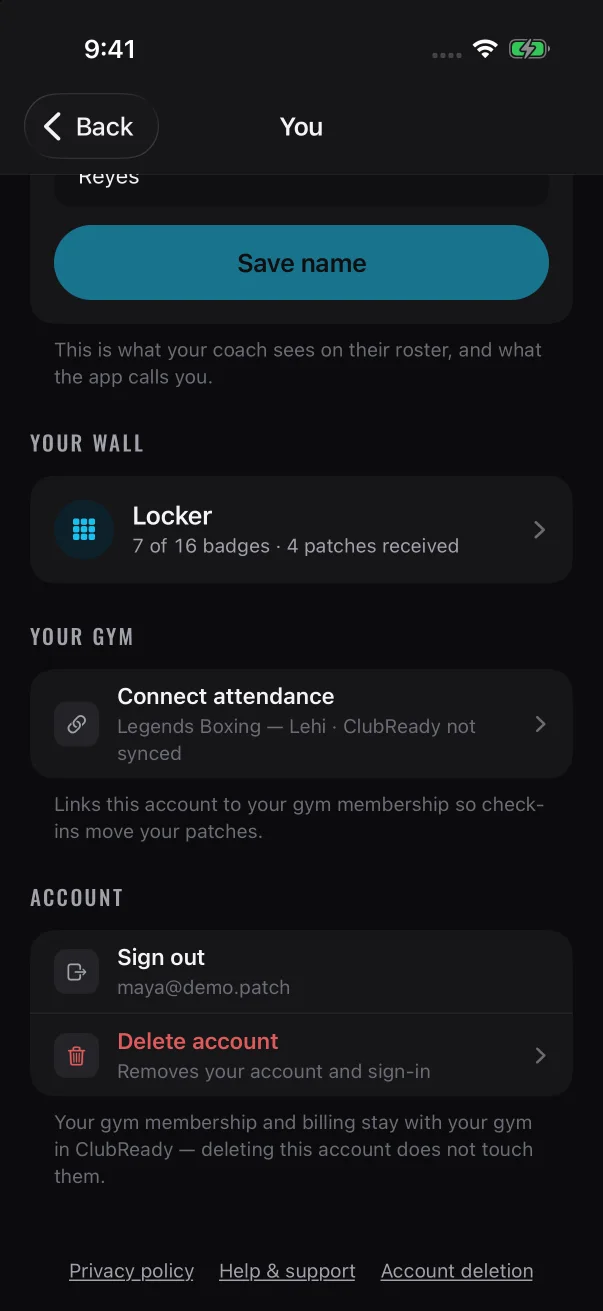
On the member side, the address your account uses is under Sign out.
2
Send that exact address to your program administrator and ask them to add it to your gym, even if they added it before.
3
When they confirm, tap Sign out, then tap Sign out again to confirm. Sign back in the same way as before. The app opens on Approvals.
When the app can't load your gym's lists, you see these messages:
Where
What you see
Top of the screen
"Can’t reach the server — showing what we last saw. Tap to retry."
Approvals
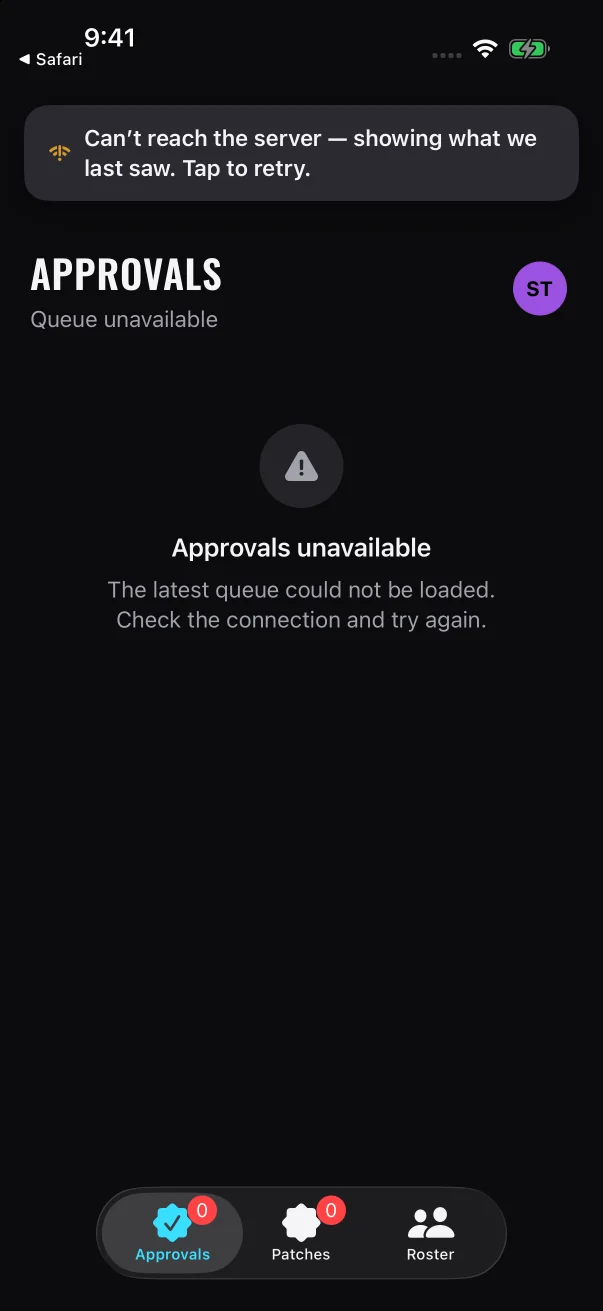
"Queue unavailable" under the title, then "Approvals unavailable" and "The latest queue could not be loaded. Check the connection and try again."
Patches
"Patch drawer unavailable"
Roster
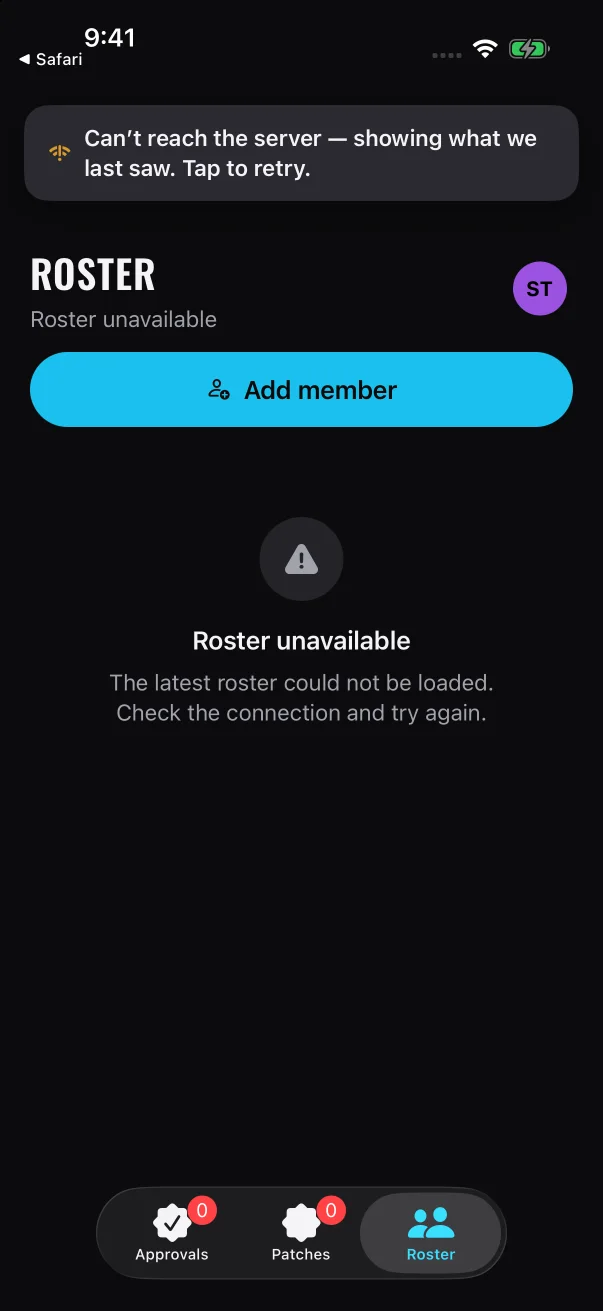
"Roster unavailable"
Add a member (from Add member on Roster)
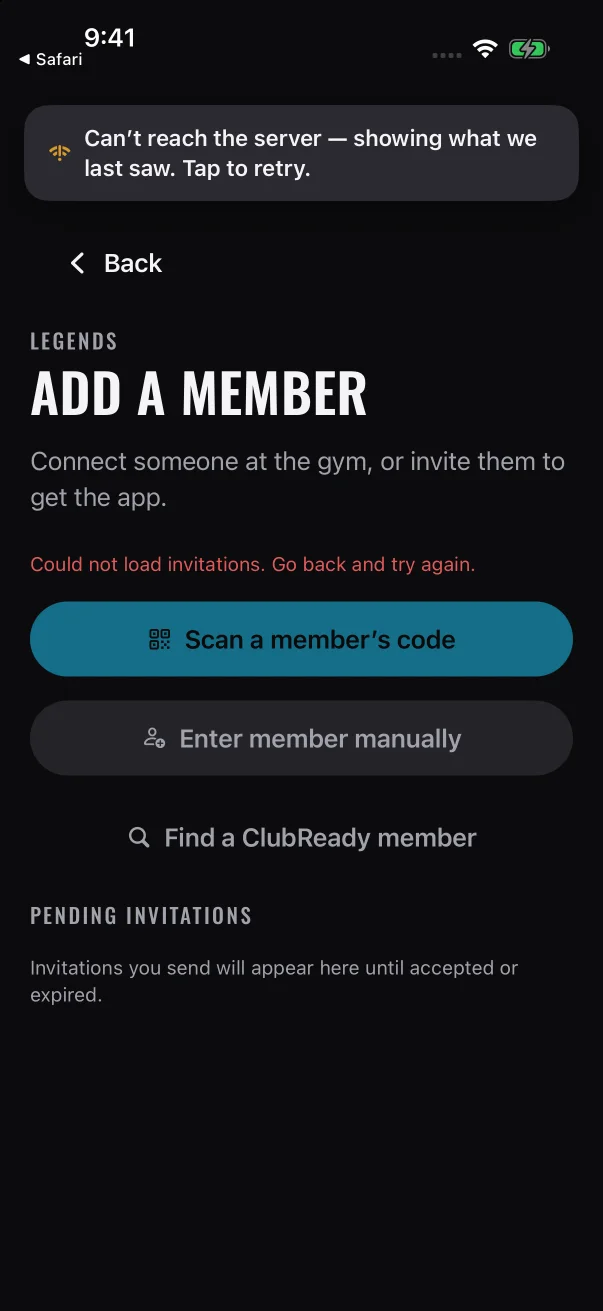
"This staff account has no gym assigned. Ask your program administrator to give this account access to your gym.", "Could not load your gyms. Go back and try again." or "Could not load invitations. Go back and try again."
Approvals, Roster and Add a member when the app can't load your gym's lists.
The messages point at your connection, but you can also see them when your coach account has no access to a gym, for example if your administrator hasn't finished setting up your gym or your access has been removed. Missing gym access doesn't stop you signing in, so the app still opens on Approvals.
While the "Can’t reach the server" banner shows, buttons that change things, such as Approve, Not yet and Hand over, stay switched off. If the app loaded your lists earlier, it keeps showing them, with the banner on top.
1
Check your Wi-Fi or mobile data, then tap the banner to try again.
2
If your connection works and the messages stay, contact your program administrator. Tell them your gym and the email address under Sign out on your You screen, and ask them to check your coach access.
3
When they confirm, tap the banner again. If the lists still don't load, sign out and sign back in.
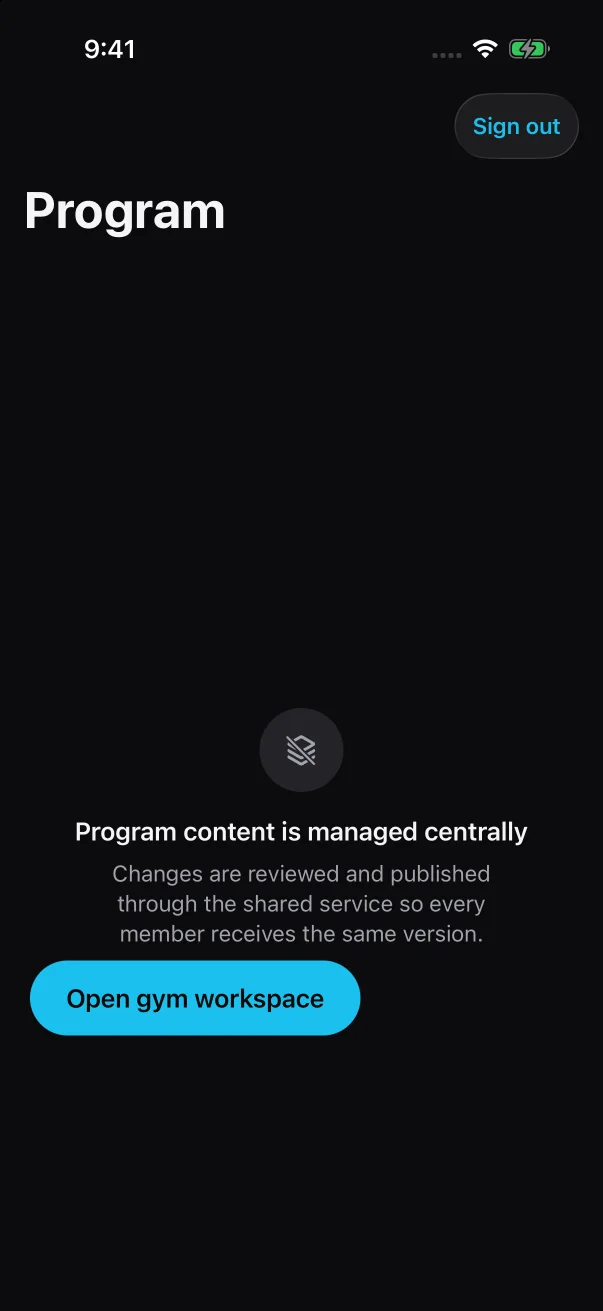
Some staff accounts are admin accounts. They open on "Program" instead of Approvals, and the You screen shows an "Admin" label.
An admin account opens on "Program". Open gym workspace leads to the tabs coaches use.
"Program content is managed centrally." Under it, the screen says "Changes are reviewed and published through the shared service so every member receives the same version." There's nothing to edit here. Patch names, requirements and artwork are changed centrally, not in the app.
Open gym workspace opens Approvals, Patches and Roster. From there you work the same way a coach does.
Sign out, at the top right, signs you out straight away. It doesn't ask you to confirm.
If the gym workspace looks empty when you expect to see your members, ask your program administrator to check that your account has access to your gym.
What your program administrator handles
Contact your program administrator when you need to:
give a new coach access, or remove someone's access
No. Coaches use Mayweather Patch, the same app as members. Your account decides which side opens.
No. The app doesn't send one. Ask your program administrator to confirm it's done before you sign in.
No. Only your program administrator can give a coach access to a gym.
It stays on your account. After the switch, the app opens the coach side instead of your member screens.
That's expected. Your account is now a coach account, so the member screens can't refresh. Tap your avatar on Home to open You, tap Sign out and confirm, then sign back in the same way as before. The app opens on Approvals.
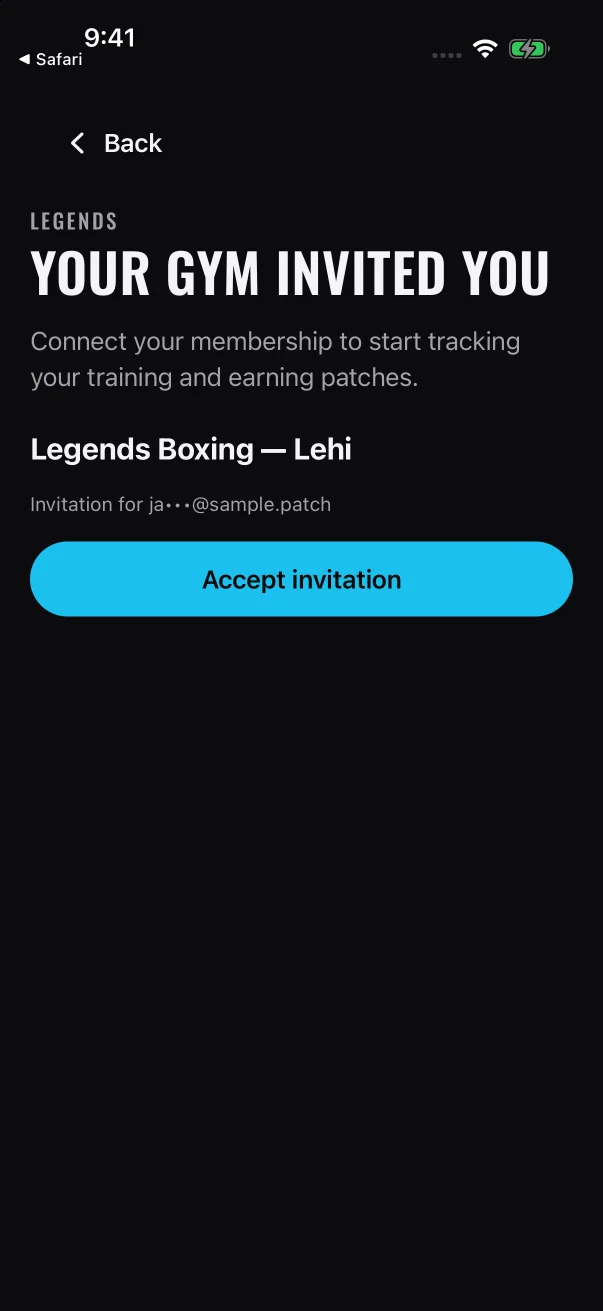
Invitations are for member accounts. The app shows "This invitation is for a member account. Sign out of your staff account and reopen the email to continue." You don't need an invitation to get coach access.
No. Keep signing in with your email and password. Sign in with Google shows "You already have an account with this email. Use your original email or Apple sign-in to keep your progress." Sign in with Apple doesn't open your email account. It creates a second, separate account, and two accounts on one address can stop your administrator from giving that address coach access.
Find your way around the Approvals, Patches and Roster tabs and your profile, learn how the app stays up to date and what it does offline, and see how it works with your phone's accessibility settings.
Coaches use the same Mayweather Patch app as members. When you sign in with your coach account, the app opens on three tabs made for the gym floor: Approvals, Patches and Roster. This page walks through each tab, your profile, what the app does when it loses its connection, and how it works with large text, screen readers, Reduce Motion and dark mode.
The three tabs
The tab bar sits at the bottom of the screen. Tap a tab to switch to it.
Tab
What it holds
The number on the tab
Approvals
Everything waiting on a coach's decision
Earned patches waiting for review, plus sign-off requests waiting for a decision
Patches
Approved physical patches waiting to be handed to members
Patches ready to hand over
Roster
The members at your gym
No number
On Android the tabs have the same labels, with Android-style icons.
On Android, the Back button or back gesture closes an open sheet. It won't close a sheet on a member's page while that sheet is still saving, or the "Delete your account?" sheet while your account is being deleted.
A coach account doesn't have the member tabs (Home, Journey, Train and Locker). To see the app the way your members do, read What your members see.
Approvals
Approvals is the first screen you see after you sign in. It lists every decision waiting on a coach, with the longest wait at the top.
The line under the title counts what's waiting, and each card shows on the right how long it has waited.
Each card shows the member's name and one of these lines:
Earned and a patch name, for example "Earned · 100 Class Patch". The member has earned a patch that comes with a physical patch. You review it before it moves to the Patches tab.
Pass-off and a patch name, for example "Pass-off · Jab & Cross". The member has asked a coach to sign off the skills that patch needs.
Sent back and a patch name. A coach has already sent this one back, and it stays in the list so you can see what happened. A sent-back sign-off request has no buttons. It says who needs to act next, for example "Sent back · waiting on Devon to ask again". A sent-back earned patch still shows Approve, so you can approve it later.
The time on the right of each card reads "today" or a number of days, such as "3d". It turns amber once an item has waited a week.
Tap a card to expand it and see the details. Tap Approve to approve it, or Not yet to pick a reason and send it back.
Not yet opens the "Why not yet" panel on that card, with the reasons to choose from.
When two or more cards are listed, Select lets you tick several cards and approve them together. You always send items back one at a time, each with its own reason. The Approvals queue covers all of this step by step.
When a member asks for a sign-off, you may get a notification such as "Maya requested a patch review". Tap it to open Approvals. See Coach notifications.
Patches
Patches is your hand-over list. It shows every physical patch that has been approved and is waiting for its member. Patches are grouped by member, and the member who has waited longest is at the top.
Each row shows the patch, the day the member earned it and how long it has waited, and a member owed two patches gets Mark all.
The line under the title counts what's owed, for example "4 owed · 3 members". Each member's card says how many patches they're owed, for example "Owed 2 patches". Each row under the name shows the patch name, then a line such as "Recognition · earned Sep 13 · 3d waiting": where the patch sits in your gym's program, the day it was earned and how long it has waited.
The wait counts from the day the member earned the patch, not the day it was approved.
A patch earned in the last 24 hours reads "earned today".
The line turns amber at 7 days.
Tap Hand over when you give a member their patch. If a member is owed two or more, Mark all hands over everything they're owed at once. See Handing over physical patches.
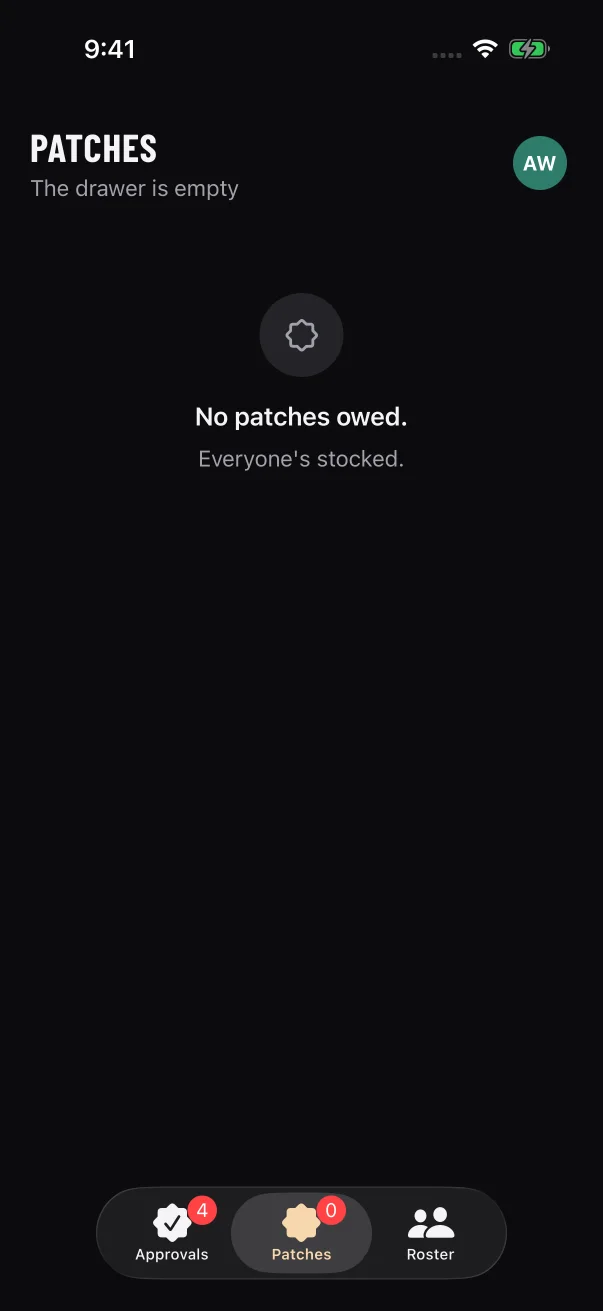
When nobody is owed a patch, the line under the title reads "The drawer is empty", and the screen says "No patches owed." and "Everyone's stocked."
Roster
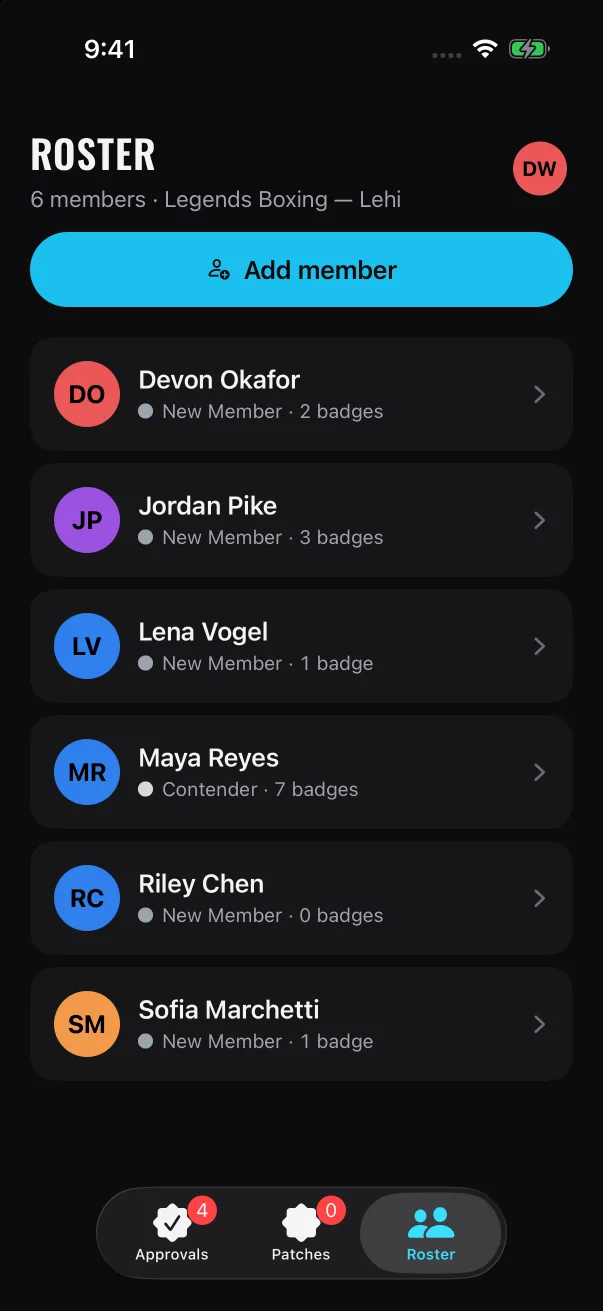
Roster lists the members at your gym, sorted by first name. The line under the title shows how many members there are and your gym's name.
Each member has a card showing their belt and how many badges they hold. Tap a card to open that member's page.
Each card shows:
the member's name
their belt and badge count, for example "Contender · 7 badges", or "No belt on record" if the member has no belt yet
an amber chip such as "Owed 2" when the member has patches waiting to be handed over
Roster has no search or filter. Scroll to find a member.
If nobody from your gym is in the app yet, the screen says "No members yet" and "Scan a member’s connection code or invite them by email to add them to your gym."
Each tab is in one of these states. For each state, the table gives the line under the title first, then the message in the middle of the screen when there is one.
State
Approvals
Patches
Roster
Loading for the first time
"Loading your queue", then "Loading approvals…"
"Loading the patch drawer", then "Loading patches…"
"Loading your roster", then "Loading roster…"
Couldn't load, with nothing saved to show
"Queue unavailable", then "Approvals unavailable"
"Patch drawer unavailable" in both places
"Roster unavailable" in both places
Nothing to show
"Nothing waiting on you", then "Queue clear."
"The drawer is empty", then "No patches owed."
"0 members" and your gym's name, then "No members yet"
A list to work through
A count such as "5 waiting · oldest first"
A count such as "4 owed · 3 members"
A count such as "6 members" and your gym's name
Your profile
Your initials sit in a circle at the top right of every tab. That button opens your profile screen, You. Screen readers call it "Profile and settings".
1
On any tab, tap your initials at the top right.
The You screen shows your name, your gym and a "Coach" chip, with Sign out and Delete account below them.
2
Check your details. You'll see your name, your gym and a "Coach" chip.
3
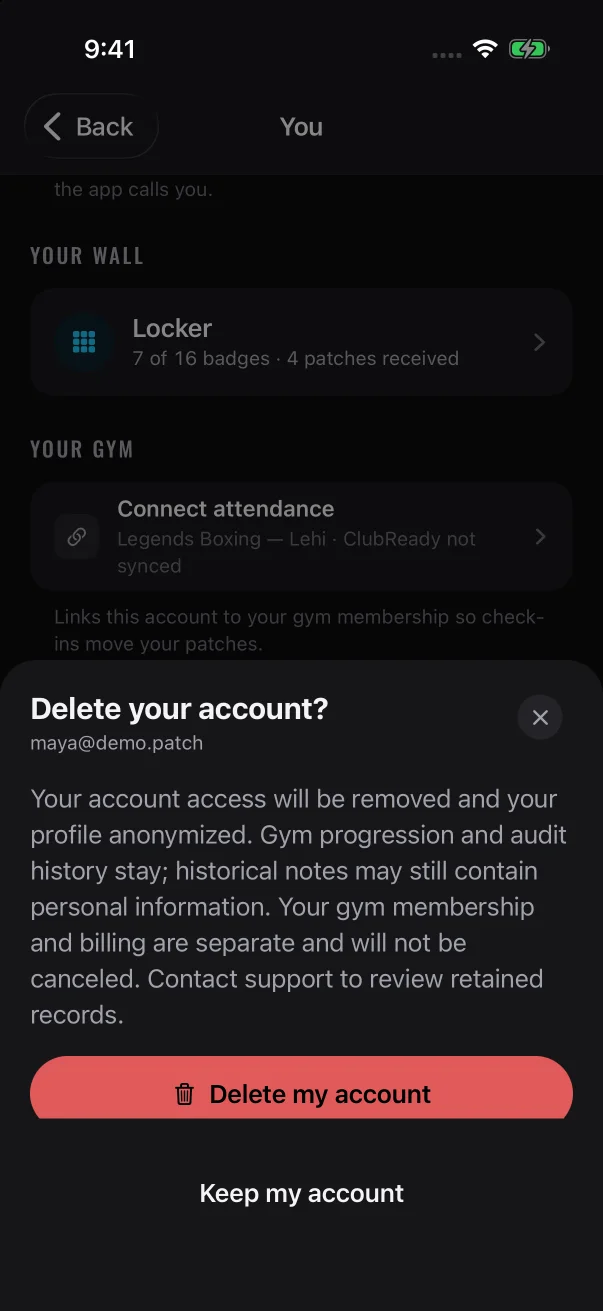
Under "ACCOUNT", find Sign out (with the email you signed in with) and Delete account.
4
At the bottom, find links to Privacy policy, Help & support and Account deletion, and a line showing when the app last refreshed, for example "Last refreshed Today · 7:35 PM".
5
To return to your tab, tap Back at the top left. On Android, tap the back arrow at the top left, or use your phone's Back button or back gesture.
The coach screens don't use pull-to-refresh. Instead, the app refreshes itself:
about every 20 seconds while it's open
whenever you switch back to it from another app
after each decision you make
If a list looks out of date, leave the app and come back to it. If the offline banner is showing, tap it.
If the app can't reach the server, a dark banner appears at the top of the screen: "Can’t reach the server — showing what we last saw. Tap to retry."
While this banner is showing:
The last lists you saw stay on screen.
Decisions are paused. Approve, Not yet, Send back, Hand over and Mark all are dimmed, and so is the approve button when you're selecting several cards.
On a member's page, correcting a class count and awarding a patch are paused too.
You can still switch tabs and open members' pages to look things up.
On You, the refresh line reads "Offline — showing what we last saw".
A decision only counts once the server saves it. The list on your screen may be out of date, and another coach may already have decided. That's why decisions pause until the app reconnects.
1
Check your Wi-Fi or mobile data.
2
Tap the banner. It shows "Syncing…" while the app tries again. The app also keeps trying by itself about every 20 seconds.
3
When the app reconnects, the banner goes away and the buttons work again. If the banner stays, the app still can't connect. Try again in a moment.
On Android, while a sheet is open, the banner also shows at the top of the screen, above the sheet. Tapping it works the same way and doesn't close the sheet.
If a tab has nothing saved to show while the app can't connect, it shows "Approvals unavailable", "Patch drawer unavailable" or "Roster unavailable", with a message asking you to check the connection and try again.
A tab with nothing saved to show says it's unavailable, and the banner at the top lets you try again.
Other problems show a short message in the same banner. It disappears after a few seconds, or when you tap it.
The coach app follows your phone's text size, screen reader, motion and appearance settings. There's nothing to turn on inside the app.
Large text
The coach app follows your phone's text size setting. On iPhone, go to Settings > Accessibility > Display & Text Size > Larger Text. On Android, use your phone's font size setting.
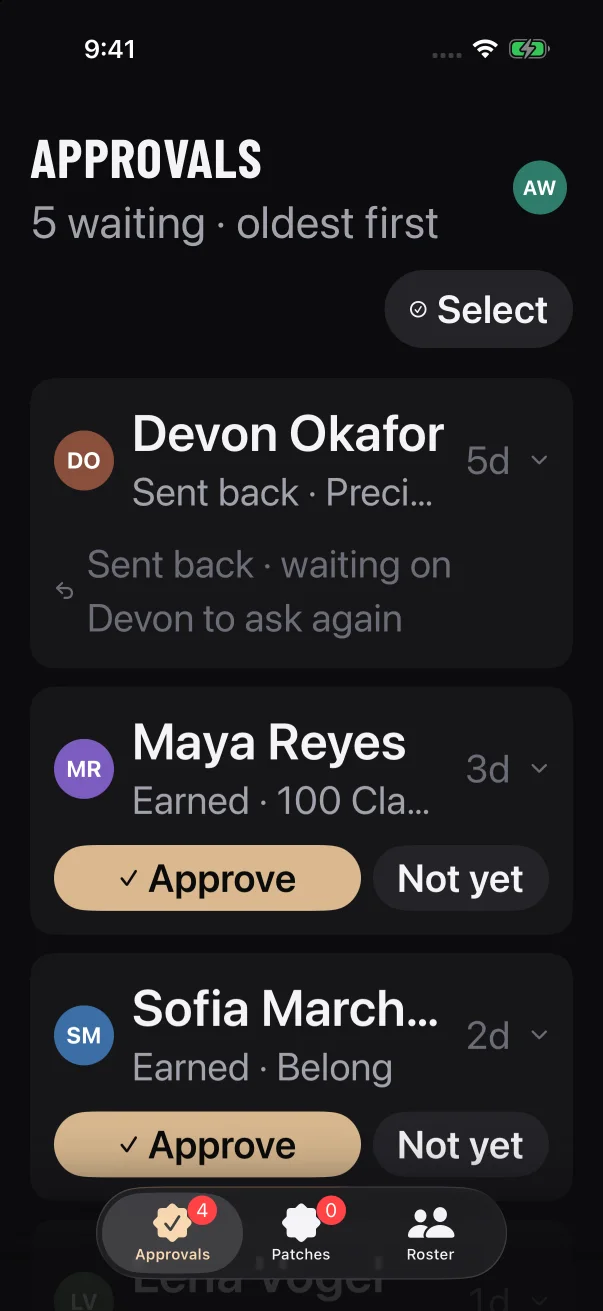
At large text sizes, names that don't fit end in "…" and longer lines wrap.
Most text can grow to twice its normal size.
Screen titles such as "APPROVALS" grow to at most 1.4 times their normal size, so they still fit.
Member and patch names in the lists stay on one line and end in "…" when they don't fit. To see a member's full name, open their page from Roster.
The initials in the avatar circles don't change size.
VoiceOver and TalkBack
Some messages appear without you tapping anything. Your screen reader reads them out when they appear:
Confirmation messages at the bottom of the screen, for example "Class count corrected · now 43 classes" on a member's page, or "Could not confirm handover. Try again." on Patches. They go away after a few seconds, and you can't tap them.
The banner at the top of the screen. The banner is a button. Its label is the message, followed by "Double tap to retry." when the app can't reach the server, or "Double tap to dismiss." for any other message.
Here's what you'll hear on the coach screens:
Where
What your screen reader says
The top of an approval card
The name, the line under it and the wait time make up one button. It reads the name and the line, then "Expand details", for example "Maya Reyes. Earned · 100 Class Patch. Expand details". The wait time isn't read out. Once the card is open, the label ends in "Collapse details" instead. Approve and Not yet are separate buttons below it.
An approval card in Select mode
The top of the card works as a tick box. After the name and line, it says "Selected", "Not selected", or "Sent back, cannot be approved" for a sign-off request that was sent back.
The X in the "Why not yet" panel
"Keep it in the queue"
A tab loading for the first time
"Loading approvals…", "Loading patches…" or "Loading roster…"
Your initials at the top right
"Profile and settings"
In Select mode each card is a tick box: ticked, empty, or grayed out when it was sent back and can't be approved.
Reduce Motion
To see less movement, turn on Reduce Motion. On iPhone, go to Settings > Accessibility > Motion > Reduce Motion. On Android, turn on Remove animations in your accessibility settings. With it on:
On Approvals and Patches, cards don't slide into their new places, and a card you've decided on disappears without fading.
On Patches, a patch you hand over disappears at once.
In Select mode, the approve button at the bottom appears without sliding up.
The arrow on an approval card flips at once instead of turning.
Confirmation messages, the top banner and sheets appear without sliding.
A card's details and the "Why not yet" panel still fade in gently.
Light and dark appearance
Mayweather Patch follows your phone's light or dark setting and switches as soon as you change it. The app has no appearance switch of its own. The screenshots in this guide show the dark appearance.
Patch work waiting on a coach at Mayweather Boxing + Fitness lands on Approvals. It's the tab Mayweather Patch opens on when you sign in. It holds two kinds of work: earned patches for you to release, and members' requests to sign off a skill.
What lands in Approvals
Each card is one decision. The gray line under the member's name tells you what kind it is.
The card says
What it is
What you can do
"Earned" and the patch name, for example "Earned · Belong"
A member has earned a patch that comes with a physical patch. The badge is already theirs in the app. The physical patch waits for your review before it goes to the patch drawer on your Patches tab.
Approve or Not yet
"Pass-off" and the patch name, for example "Pass-off · Jab & Cross"
A member has asked a coach to sign off the coach-checked requirements on a patch they're working on.
Approve or Not yet
"Sent back" and the patch name
A coach at your gym has already sent this back. It stays in the list so you can see what was decided.
Each card shows the member, what's waiting and how long it has waited. The oldest is at the top.
Keep these in mind:
It's the whole gym's queue. You see every member with an active membership at your gym, not only the members you coach. Every coach at the gym sees the same list, so the first coach to decide a card decides it for everyone. The one exception is an earned patch that was sent back: any coach can still approve it later.
Only physical patches need releasing. If a badge has no physical patch, earning it doesn't create an "Earned" card. Sign-off requests for it still come here.
Earned patches arrive without a notification. You're notified when a member asks for a sign-off, but not when they earn a patch. Check the tab even when your phone has been quiet.
When a member asks for a sign-off, Mayweather Patch sends a notification to everyone on staff at the member's gym. Tap it to open Approvals, where the request waits as a "Pass-off" card. A member can have only one open request per patch, so you won't get a second alert for a patch while its request is still open.
The notification names the member and the patch. Tapping it opens Approvals.
The queue updates on its own. It refreshes every 20 seconds while Mayweather Patch is open, whenever you come back to the app, and after each decision you make. There's no pull-to-refresh.
Reading the list
Oldest first. Cards are sorted by when the patch was earned or the request was sent. The longest wait is at the top.
Days waiting. The label on the right of each card shows how long it has waited: "today" for less than a day, then "1d", "2d" and so on. It turns amber at 7 days.
The number on the Approvals tab counts only earned patches waiting for review and open sign-off requests. It doesn't count cards that were sent back.
The line under the title also tells you the state of the queue:
The line reads
What it means
"Loading your queue"
The app is fetching the queue after you opened it.
"5 waiting · oldest first"
There are five cards in the list, counting cards that were sent back.
Tap anywhere on the top row of a card to open it. The small arrow on the right flips, and the details appear above the buttons. Tap the row again to close it.
An earned patch
An open "Earned" card lists the requirements the member met and the date they earned the patch.
"Requirements met" lists every requirement on the patch with a green tick. If a requirement has a count, the card shows it complete, for example "100/100".
A "self-logged" tag marks a requirement the member logged themselves. Give those a quick look on the floor before you release the patch.
"Earned" and a date show when the member finished the patch.
A sign-off request
An open "Pass-off" card shows the member's note first, then what to check under "Needs your eye".
The gray box holds the member's note in quotes, or "No note attached." Members often use it to say when they showed the skill.
"Needs your eye" lists each requirement on that patch that a coach signs off. The drill description sits underneath when the program includes one. Approving covers all of them.
"Requested" and a day show when the member asked, for example "Requested Yesterday".
Cards that were sent back
A sign-off request that was sent back shows the reasons and the coach's note, and has no buttons.
A sign-off request that was sent back shows a red "Sent back" tag, the reasons that were picked and, if a note was left, "You wrote:" followed by the note. The label reads "You wrote:" even when another coach sent it back. The card has no buttons. Instead it reads "Sent back · waiting on", then the member's first name, then "to ask again". The next move is the member's. When they ask again, their new request arrives as a new "Pass-off" card.
An earned patch that was sent back shows a red "Sent back" tag, with the reasons and any note in quotes. It keeps its Approve button, so you can release the patch once the member has shown you the work. It has already been sent back, so it can't be sent back a second time.
Approve an earned patch
1
Open the card and check "Requirements met".
2
Tap Approve.
There's no confirmation step. The button reads "Saving…" while the app saves your decision, and the card stays put until the save goes through.
3
The card leaves the list.
The patch moves to your Patches tab, ready to hand over, and the number on that tab goes up.
In the member's app, the patch changes from "Patch: coach reviewing" to "Patch: waiting with Coach", and Mayweather Patch sends them a notification about it. Your next step is to hand it over. See Handing over physical patches.
Approve a sign-off request
1
Watch the member show the skill in class.
Use the requirements under "Needs your eye" as your checklist.
2
Open the card, read the member's note, and tap Approve.
The button reads "Saving…" until your decision is saved. Then the card leaves the list.
One approval signs off every coach-checked requirement on that patch, and Mayweather Patch sends the member a notification.
If nothing else is left, the member earns the patch on the spot. If it comes with a physical patch, a new "Earned" card for it appears in your queue. Approve that card when you're ready to release the physical patch.
If other requirements are still open, such as a class count, the request still closes. The member earns the patch once they finish the rest.
The Select button appears above the list when two or more cards are waiting.
1
Tap Select.
A circle appears on each card, and the card buttons are hidden. A sign-off request that was sent back shows a gray minus sign instead, and you can't tick it.
Until you tick a card, the button at the bottom reads "Select patches to approve".
2
Tap each card you want to approve.
A ticked card shows a filled check and a colored outline. Tap it again to untick it.
3
Tap the button at the bottom.
It shows how many cards you've ticked.
With three cards ticked, the button reads Approve 3.
To leave without approving, tap Cancel.
Select only approves. The caption under the button says so: "Approve only — a “not yet” is one at a time, with a reason."
Each card is saved separately. If some can't be saved, the rest are still approved, and a message at the top of the screen tells you what went wrong.
If the list changes while you're selecting, for example when a new request arrives, Select mode closes and your ticks are cleared. Tap Select and start again.
When it's not ready: Not yet
If the member isn't ready yet, tap Not yet instead of Approve. Pick at least one reason, add a note for the member if you want to, and tap Send back. The card stays in the queue:
An earned patch that you send back stays earned. The member keeps the badge, and only the physical patch is held. Their app shows "Needs another look", and you can approve the patch from the same card later.
A sign-off request that you send back waits for the member to ask again.
There's no undo. Once an approval or a send-back is saved, the member's app shows it and Mayweather Patch notifies them.
Sent an earned patch back by mistake? Approve it from the same card.
Sent a sign-off request back by mistake? Ask the member to send the request again.
About to approve? The app can't reverse an approval, so open the card and check it first.
When nothing is waiting, the line under the title reads "Nothing waiting on you". The middle of the screen shows "Queue clear." and "Every earned badge is reviewed. Back to the floor."
Cards that were sent back still count as waiting, so you won't see "Queue clear." while one of them is in the list.
Mayweather Patch needs a connection to load the queue and to save your decisions.
What you see
What it means
What to do
"Loading your queue", and a spinner with "Loading approvals…"
The app is fetching the queue after you opened it.
Give it a moment.
"Approvals unavailable" with "The latest queue could not be loaded. Check the connection and try again."
The app couldn't load the queue and has nothing to show yet.
Check your connection, then tap the banner at the top to try again.
The cards you last saw, with every Approve, Not yet and Send back button dimmed
The app has lost its connection. It's showing the last queue it loaded, and decisions are paused.
Tap the banner at the top to try again. The buttons come back once the queue reloads.
A short message at the top after you tap a button, such as "Could not confirm this action. Reconnect and refresh before trying again."
Your decision may not have been saved. The card stays in the list.
Tap the message to close it. Reconnect, let the queue refresh, and check the card before you try again.
When the queue can't load, the banner at the top lets you try again.
While the connection is down, the banner reads "Can’t reach the server — showing what we last saw. Tap to retry." While the app is refreshing, the banner also shows "Syncing…". The banner can also appear for a moment when you open Mayweather Patch, while it checks for the latest queue. It goes away once the queue loads.
If another coach decided a card moments before you did, the app may show a short error message at the top. The list then refreshes to show the card as it is now. Check it again before you do anything else. See A message appears after you make a decision.
If "Approvals unavailable" keeps coming back on a good connection, your coach account may not have access to your gym yet, or it may have coach access at more than one gym. See "Approvals unavailable" or "Roster unavailable".
The same cards on a member's page
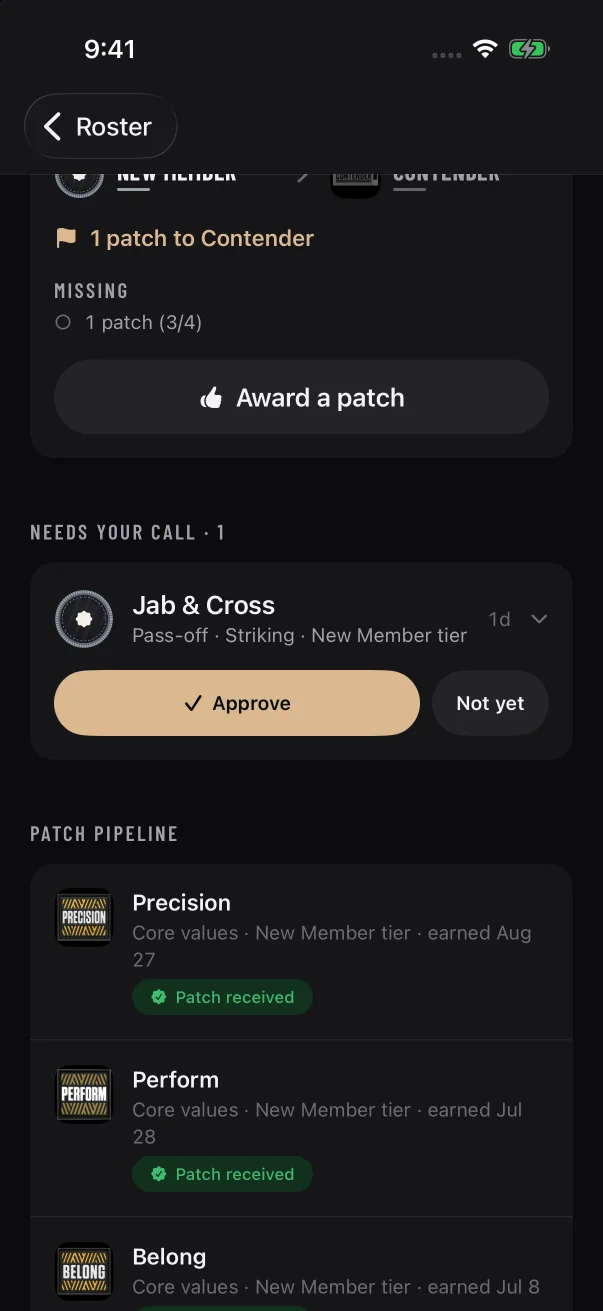
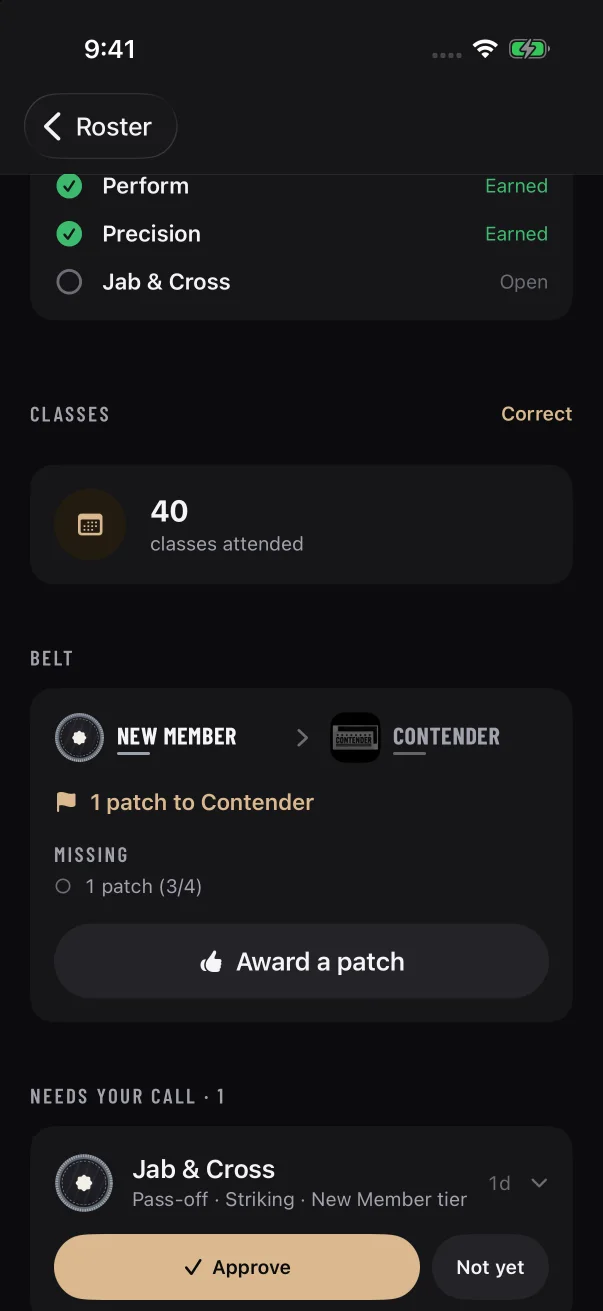
A member's page lists that member's cards from the queue under "Needs your call". Each card shows the patch name instead of the member's name, and the buttons work the same way. See A member's detail page.
On a member's page, the same card appears under "Needs your call".
Some requirements on a patch can only be ticked off by a coach. The member shows you the skill in class, then sends a sign-off request from Mayweather Patch. This article covers how to decide that request and what the member gets when you approve it.
How a request reaches you
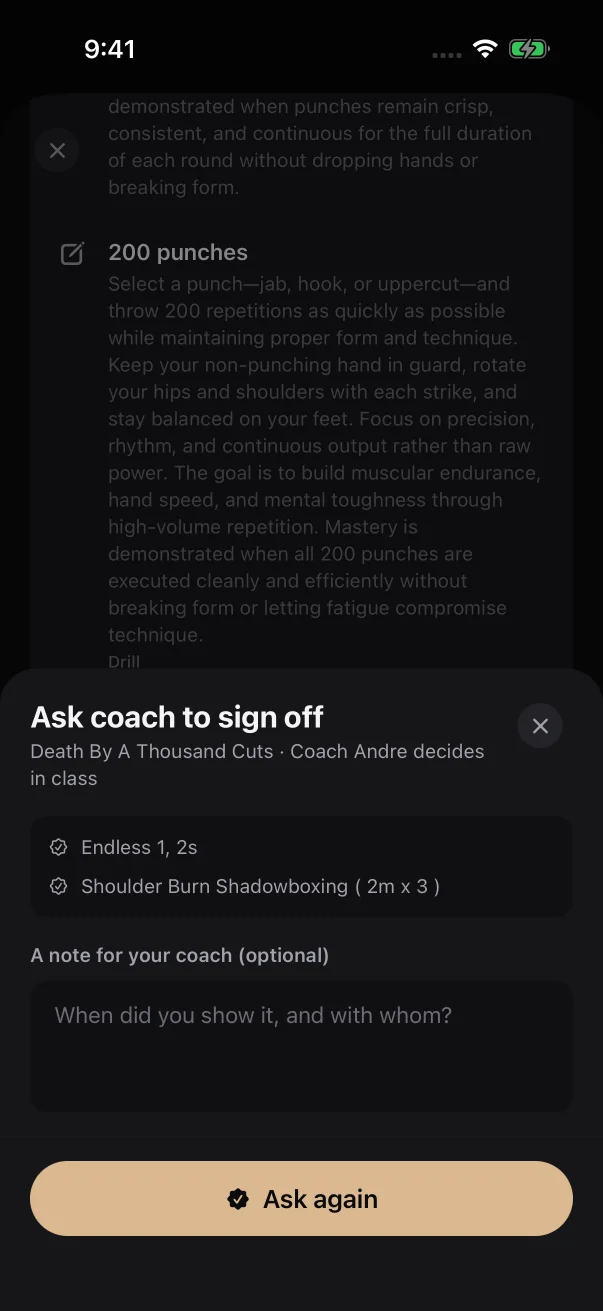
A member sends a request by tapping Ask coach to sign off on a patch they're working on. The app tells them that their coach decides in class, so your decision should rest on what you saw on the floor.
One request covers the whole patch. It includes every requirement on that patch that a coach signs off, and you decide on all of them together.
The member can add a note. The app prompts them with "When did you show it, and with whom?", so the note may say which class it was and who watched.
Each patch has one open request at a time. A member can't send a second request for the same patch while the first one is waiting.
Every coach and staff member at your gym who allows notifications from Mayweather Patch hears about it. The notification names the member and the patch, for example "Maya requested a patch review" with "Timing Titan is ready for a coach sign-off." Tap it to open Approvals.
The notification names the member and the patch, and tapping it opens Approvals.
In Approvals, the request is a card with "Pass-off" and the patch name under the member's name, for example "Pass-off · Jab & Cross".
Sign off a request
1
Watch the member show the skill in class.
Hold them to the requirement's description. If you haven't seen it yet, don't approve. Send it back instead (see Sending something back).
2
Open Approvals and find the "Pass-off" card.
Cards are sorted oldest first. The label on the right shows how long the request has waited, and it turns amber at 7 days.
A sign-off request reads "Pass-off" followed by the patch name.
3
Tap the card to open it, and read what's inside.
The buttons show even while the card is closed, so open it before you decide. Check the member's note and the list under "Needs your eye". This list is what you're signing off.
The member's note comes first, then each requirement you're signing off under "Needs your eye".
4
Tap Approve.
There's no confirmation step. The button reads "Saving…" until your decision is saved, and then the card leaves the list.
5
Check for a new "Earned" card.
If your sign-off finished a patch that comes with a physical patch, a new "Earned" card with the same patch name appears for that member. Approve it when you're ready to release the physical patch, and it moves to your Patches tab. See Handing over physical patches.
What's on an open request
Part of the card
What it tells you
The shaded box at the top
The member's note in quotes, or "No note attached."
"Needs your eye"
Each requirement on the patch that a coach signs off. When the program includes a drill description, it appears under the requirement name.
"Requested" and a day
When the member asked, for example "Requested Today", "Requested Yesterday" or "Requested Fri, Sep 11".
The label on the right
How long the request has waited, from "today" to "1d", "2d" and so on.
What the member gets
Approving marks every coach-checked requirement on that patch as done. What happens next depends on what else is left on the patch.
If
Then
Everything else on the patch is already done
The member earns the badge at that moment. They see a celebration in their app, and they get a notification that they earned it. If the patch comes with a physical patch, a new "Earned" card lands in your queue.
Something else is still open, such as classes to attend or drills to log
Your sign-off is saved, and the coach requirements show as done. The patch stays in progress, and the member earns it when they finish the rest. They don't need to ask you again.
The request card doesn't list the member's other requirements, so it won't tell you which case applies. The member's app shows them what's left.
If the member allows notifications from Mayweather Patch, here is what they receive:
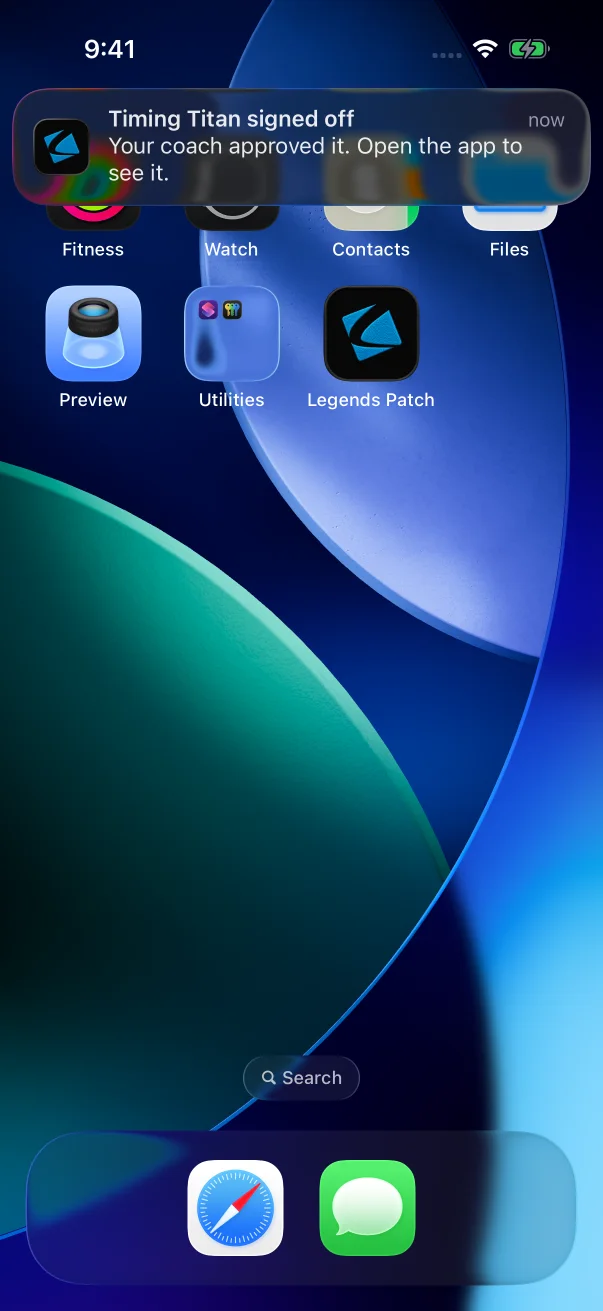
A notification with the patch name and "signed off", for example "Timing Titan signed off", followed by "Your coach approved it. Open the app to see it."
If the patch is now earned, a second notification with "You earned" and the patch name, followed by "Open the app to see it."
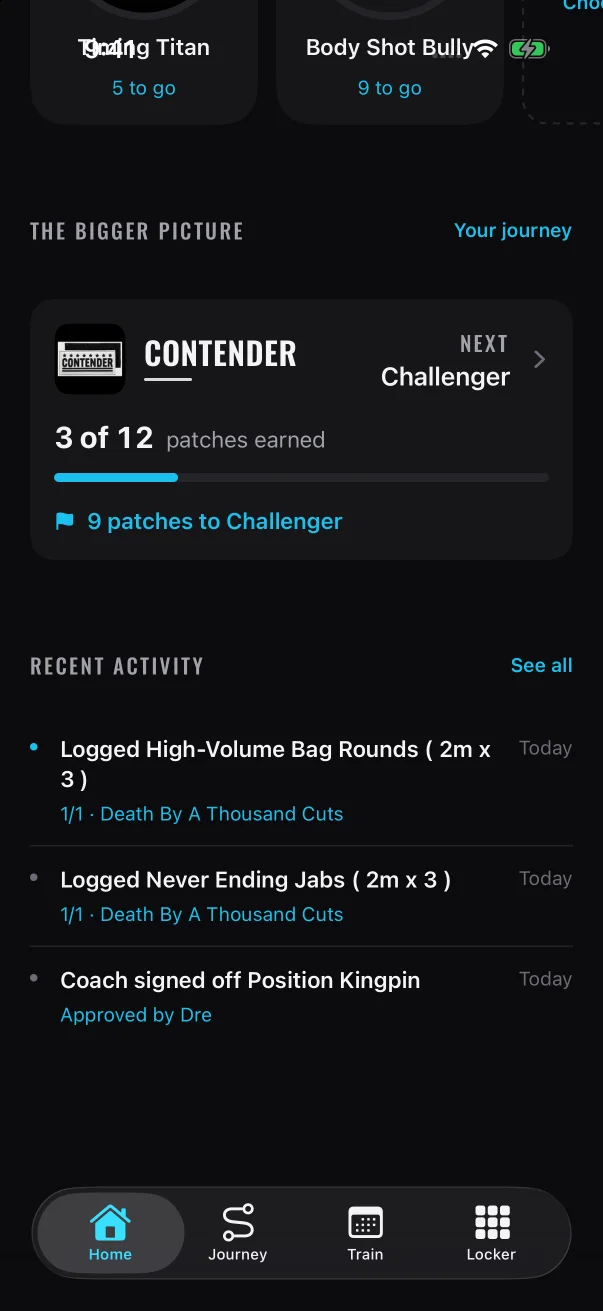
The member's recent activity on Home also shows "Coach signed off" and the patch name, with "Approved by" and your first name under it.
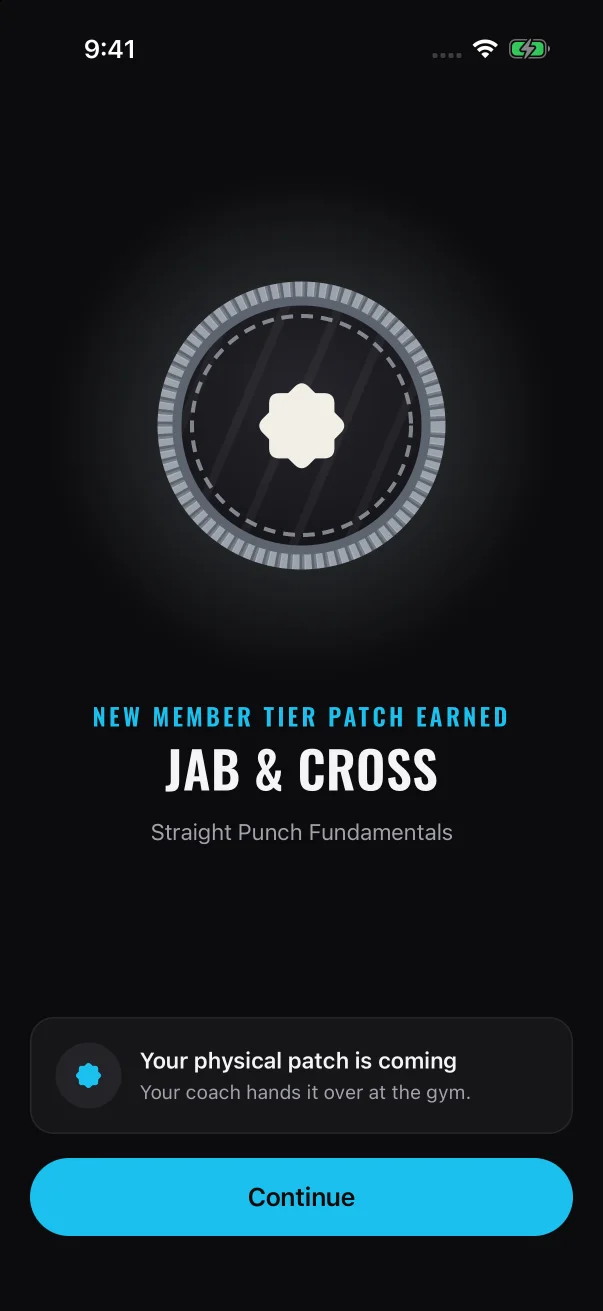
The member hears that the patch was signed off, and a celebration plays when the sign-off completes it.
Your sign-off appears in the member's recent activity with your first name.
The member's app checks for updates about every 20 seconds while it's open, and again whenever they open it. The celebration appears on that check. If the patch was the last thing they needed for a belt that has no test, they get that belt at the same time. See How members earn patches and belts.
Approve several at once
After a class where you watched several members, you can clear their requests together. The Select button appears above the list when two or more cards are waiting.
1
Tap Select.
A circle appears on each card, and the card buttons are hidden. A sign-off request that was already sent back shows a gray minus sign, and you can't tick it.
Until you tick a card, the button at the bottom reads "Select patches to approve".
2
Tap each card you want to approve.
A ticked card shows a filled check and a colored outline. Tap it again to untick it. You can tick "Earned" cards in the same pass.
3
Tap the button at the bottom.
It shows how many cards you've ticked, for example Approve 3. The button shows a spinner while the app saves.
With three cards ticked, the button reads Approve 3.
Select only approves. The caption under the button reads "Approve only — a “not yet” is one at a time, with a reason."
Each request is saved on its own. Every member you approve gets their own notifications. If some requests can't be saved, the others still go through, and a message at the top of the screen says how many were approved, how many couldn't be, and why the first of those couldn't be saved.
The list can change under you. If a card joins or leaves the list while you're selecting, Select mode closes and your ticks are cleared. Tap Select and start again.
To leave without approving, tap Cancel.
When a member is standing in front of you, it can be quicker to start from their page.
1
Tap Roster, then tap the member.
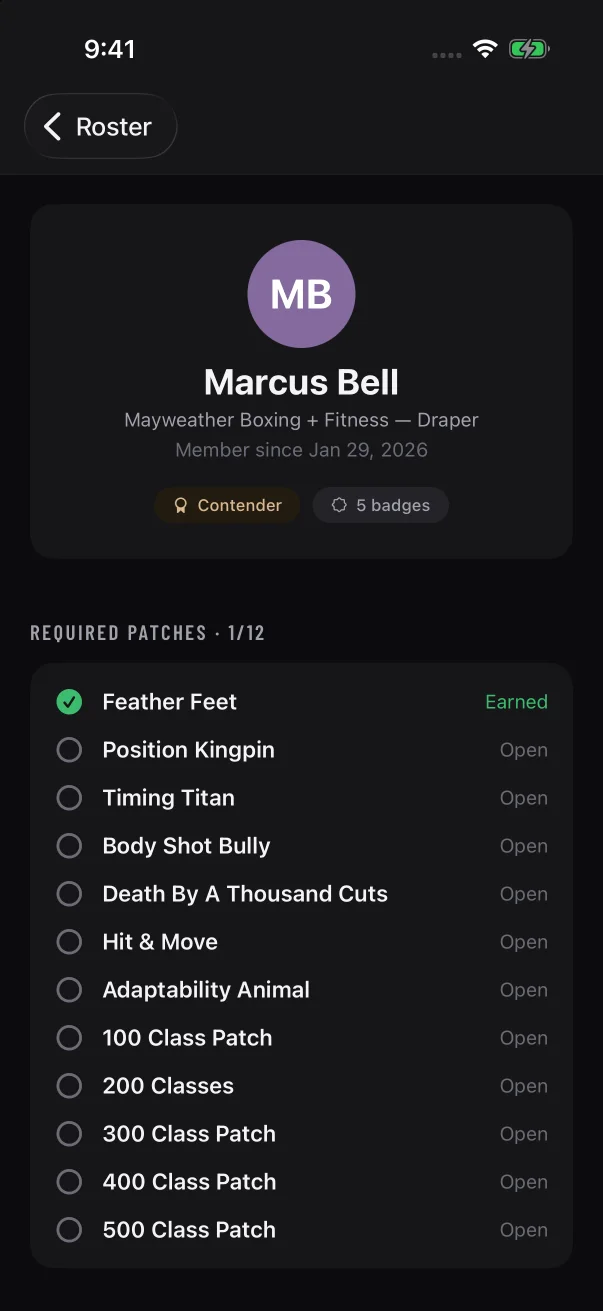
The top of their page shows their belt, their badge count and the patches that count toward their next belt.
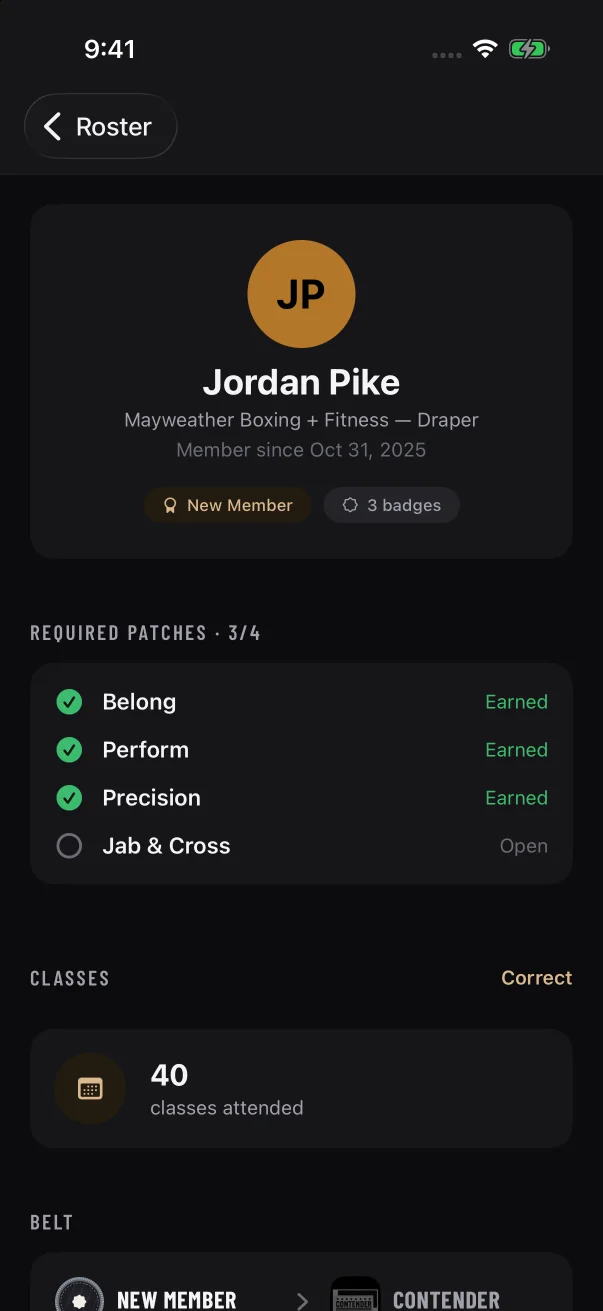
In this sample program, a required patch the member hasn't earned yet reads "Open".
2
Scroll down to "Needs your call".
The heading shows how many cards are in the section, for example "Needs your call · 1". Each card shows the patch name, with "Pass-off" and where the patch sits in the program, for example "Pass-off · Striking · New Member tier".
On a member's page, the request shows the patch name instead of the member's name.
3
Tap the card to open it, then tap Approve.
The details and buttons work the same way as on Approvals.
After you approve, the card leaves the section. If the sign-off earned a patch that comes with a physical patch, a new "Earned" card appears under "Needs your call". Approve it, and the patch moves to "Owed patches" on the same page. When "Needs your call" and "Owed patches" are both empty, the page reads "All square — nothing needs your call before class."
You can't approve several requests at once from a member's page. Use Approvals for that. For everything else on this page, see A member's detail page.
The first decision stands. Every coach at your gym sees the same requests. If another coach approved one before your list refreshed, your tap changes nothing and the card leaves your list. If another coach sent it back, a message at the top of the screen says the request can't be approved, and the list refreshes.
There's no undo. The app has no way to reverse an approval once it's saved, and the member is notified. Open the card and check it before you tap Approve.
You need a connection. If the app can't reach the server, it keeps showing the last list it loaded and dims Approve and Not yet. Tap the banner at the top to retry.
You can't approve a request from your own account. If one appears in your list, ask another coach to decide it.
Approving doesn't take a note. Notes for the member go with Not yet only. If you want to add something after approving, tell the member in class.
Common questions
Your sign-off only covers the coach-checked requirements. The member earns the patch when everything else on it is done, such as classes or logged drills. They don't need to send another request.
No. One approval covers every requirement listed under "Needs your eye".
No. If one skill isn't ready, tap Not yet and use your note to say which one needs more work. The member can ask again once they've shown it.
Your sign-off completed a patch that comes with a physical patch. Approve that card when you're ready to release the patch for pickup.
No. The request has to come from the member's app. To give a whole patch outright, use Award a patch on the member's page. See Correcting classes and awarding patches.
Ask them to open the patch. It should show "Awaiting coach". If it does, give your list up to 20 seconds to refresh, or switch away from Mayweather Patch and back to it. The list only shows members with an active membership at your gym. If the patch doesn't show "Awaiting coach", the request wasn't sent, or a coach has already decided it. See Troubleshooting for coaches.
When a card in Approvals isn't ready, tap Not yet instead of Approve. You pick at least one reason, add a line for the member if you want, and send it back. Nothing the member has already earned is taken away.
Two kinds of "not yet"
Both kinds of card have the same Not yet button, but what you hold back is different.
"Pass-off" card (sign-off request)
"Earned" card (physical patch)
What you hold back
Your sign-off on the patch's coach-checked skills. The badge isn't earned yet.
Only the physical patch. The badge is already earned and stays earned.
What the member sees
"Sent back", your reasons, your note and an Ask again button
"Needs another look" with your reasons and note
Who moves next
The member, by tapping Ask again
You, by approving the same card once you've seen the work
Can you approve this card later?
No. You decide on the member's new request instead.
Yes, from the same card
You can send something back from the Approvals tab, or from "Needs your call" on a member's page when they're standing in front of you. The buttons and reasons are the same in both places. On a member's page, the card shows the patch name instead of the member's name.
Send back a sign-off request
1
Tap the "Pass-off" card to open it.
Read the member's note, then each skill listed under "Needs your eye". One approval covers all of them, so if you haven't seen every one, this is a "not yet".
2
Tap Not yet.
The buttons change to a "Why not yet" panel. Nothing has been sent yet.
Until you pick a reason, the button reads "Pick a reason" and does nothing.
3
Pick at least one reason.
Tap a reason to select it, and tap it again to clear it. Pick more than one if more than one applies. The reasons are explained in the next section.
4
Add a line for the member, if you want to.
Type it in "A line for the member (optional)". The member reads it word for word. See Writing a good note.
5
Tap Send back.
The button reads "Sending…" until the app confirms the decision. Then the panel closes and the card changes to "Sent back".
With two reasons picked and a note written, the button reads Send back.
The five reasons
The member sees only the reason names, exactly as they're written here. Pick the ones that describe what you saw, and use your note for the detail. The table is a guide to choosing.
Reason
Pick it when
"Not yet consistent"
You've seen the skill done, but not reliably. The member needs more reps before it holds up every time.
"Technique needs work"
The form isn't right yet. Use your note to say what to fix.
"Have not seen it yet"
You haven't watched the member do it yet. Use your note to say when they can show you.
"Wrong patch for this"
What the member showed you belongs to a different patch. Use your note to say which one.
"Something else"
None of the others fits. Always add a note with this one, because the reason alone tells the member nothing.
Changed your mind before sending
Tap the X next to the button. Screen readers announce it as "Keep it in the queue". The panel closes, Approve and Not yet come back, and the card stays where it was. The app clears the reasons you picked and anything you typed.
After you send it back
The card stays in Approvals, so you and the rest of your gym team can see what happened.
The line under the member's name changes to "Sent back" and the patch name.
The card has no buttons. Instead it reads "Sent back · waiting on" followed by the member's first name and "to ask again".
Tap the card to see the member's note, a red "Sent back" chip, the reasons you picked, and your note after "You wrote:". Everyone on staff at your gym sees the same card and the same note, and the note always comes after "You wrote:", whoever wrote it.
You can't approve this card or send it back again. In Select mode it can't be ticked.
The number on the Approvals tab leaves it out. The "waiting · oldest first" line at the top of the screen still counts it, even after the member asks again. See Old sent-back cards stay in the list.
A sent-back request keeps the member's note, your reasons and your note, and waits on the member.
What the member sees
A notification. If notifications are on for their phone, they get one with the patch name and "needs another look", for example "Timing Titan needs another look", followed by "Your coach sent it back with notes. Open the app to see them."
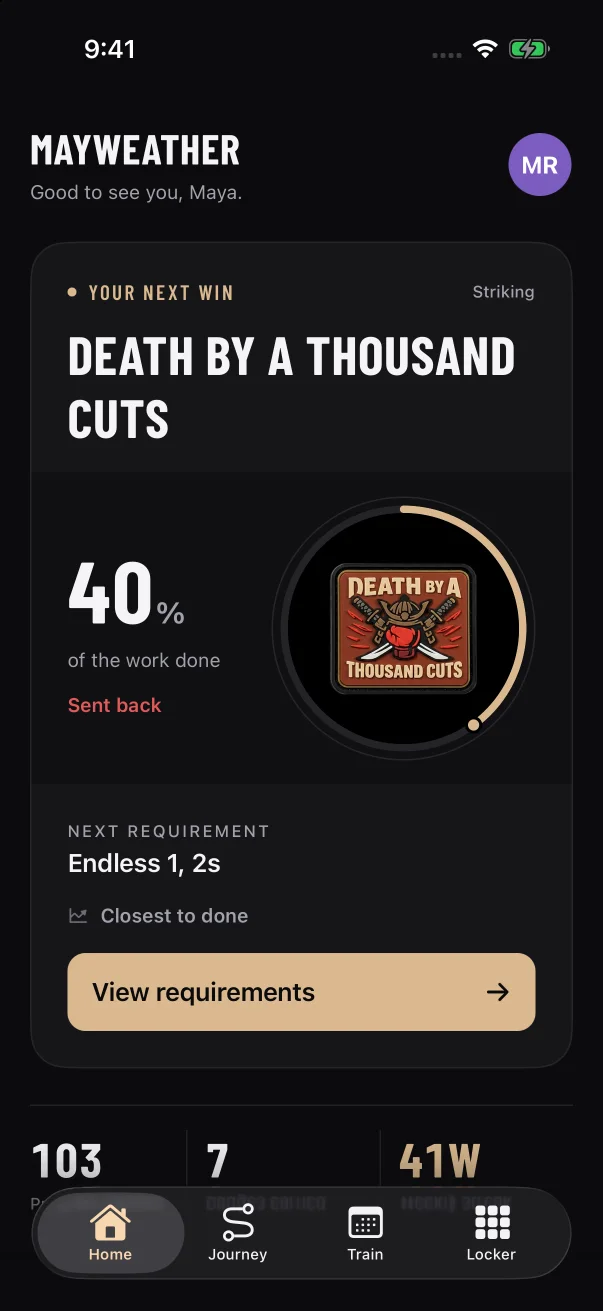
A "Sent back" status. The patch shows "Sent back" on their Home and Journey screens.
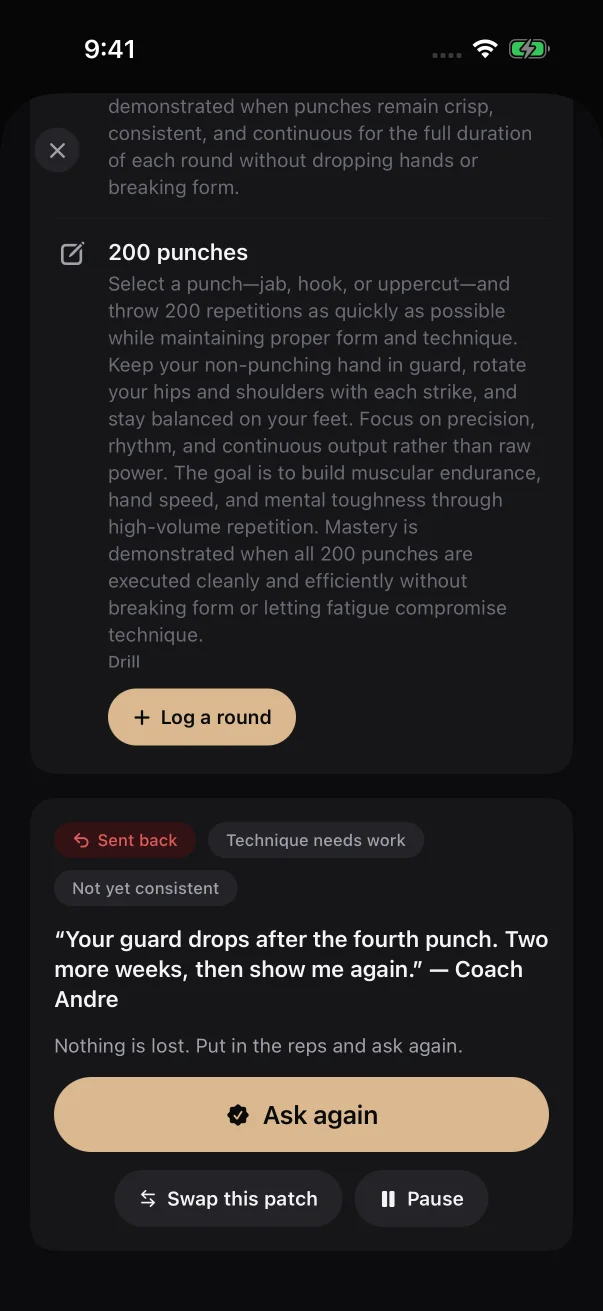
Your feedback on the patch. While they're working on the patch, they see a red "Sent back" chip, one chip for each reason, your note in quotes, the line "Nothing is lost. Put in the reps and ask again." and an Ask again button.
The member sees "Sent back" on their Home screen, and your reasons, note and an Ask again button on the patch.
Sending a request back removes nothing. The member keeps their classes, their logged drills and the patch in their working set. They can keep working on it, or swap or pause it.
When the member asks again
The member taps Ask again, can write a new note, and sends it. The app doesn't make them wait, so they can ask as soon as they feel ready. If they paused the patch, they have to resume it before they can ask again.
Everyone on staff at your gym who allows notifications from Mayweather Patch gets a notification, for example "Maya requested a patch review" with "Timing Titan is ready for a coach sign-off."
A new "Pass-off" card for that patch appears in Approvals, with the member's new note and its own Approve and Not yet buttons. Decide on that card like any other request. The old card stays in the list as well.
Any coach at your gym can decide it, not only the coach who sent it back.
After a send-back, the member's request sheet ends with an Ask again button.
Old sent-back cards stay in the list
Asking again doesn't replace the old card. The new "Pass-off" card sits in the list alongside it, and the old card still reads "Sent back · waiting on" with the member's first name and "to ask again". It stays after you approve the new request, and after the member earns the patch. A sign-off request that was sent back stays in Approvals for as long as the member has an active membership at your gym.
This changes how the screen reads:
The waiting line keeps counting them. Every sent-back request is part of the number in "waiting · oldest first". While one is in the list, the line never reads "Nothing waiting on you", and you won't see "Queue clear.".
They collect near the top. The list is sorted oldest first, and a sent-back card's wait time counts from the day the member first asked. Its day count keeps growing and turns amber at 7 days, even though there's nothing for you to do.
They show on the member's page too. Each one appears under "Needs your call" on that member's page and counts in its number.
You can't clear them. They have no buttons, and you can't tick them in Select mode.
To find the work that's waiting on you, look for cards with Approve and Not yet buttons. The number on the Approvals tab also helps, because it leaves sent-back requests out.
The sent-back card at the top has no buttons but still counts in "5 waiting", while the Approvals tab shows 4.
Send back an earned physical patch
An "Earned" card means the member has already earned the badge. The only thing you're deciding is whether the physical patch goes out now.
1
Tap the "Earned" card to open it.
"Requirements met" lists everything the member completed and the date they earned it. A requirement tagged "self-logged" is a drill the member logged themselves, so it's the one to check on the floor.
An open Earned card shows every requirement the member met and when they earned the patch.
2
Tap Not yet and pick at least one reason.
It's the same "Why not yet" panel, with the same five reasons. Add a line for the member if you want to.
On an "Earned" card, Not yet opens the same "Why not yet" reasons.
3
Tap Send back.
Once the app confirms it, the panel closes.
What changes
The card stays in Approvals, and the line under the member's name changes to "Sent back" and the patch name. Unlike a sent-back request, it keeps its Approve and Not yet buttons.
Tap the card to see a red "Sent back" chip and what you wrote, as one quoted line. The app joins your reasons with a dot and puts your note after a dash, for example "Technique needs work — Wraps loosen at the wrist". The card cuts a long line off after two lines, and the member's page shows all of it.
On the member's page, the patch appears under "Needs your call", and in "Patch pipeline" with a "Needs another look" chip and the same line.
The badge stays earned and keeps counting for the member.
You can only send a patch back once. The Not yet button still shows on the card, but a second send-back fails with "Cannot decline a patch that is declined (allowed from awaiting_approval)" at the top of the screen, and the panel stays open. Tap the X to close it. Your first reasons and note stay as they were.
What the member sees for a physical patch
A notification. If notifications are on for their phone, they get one with the patch name and "needs another look", for example "Belong needs another look", followed by "Your coach left feedback in the app."
A note on the patch. Under "Your patch" they see a red "Needs another look" chip, your reasons and note in quotes, and "Your badge stands — nothing is taken back. Show it once more in class and the patch follows."
No button. A member doesn't ask again for a physical patch. The next move is yours.
The member sees your words under Needs another look, with a line that says their badge stands.
Approve it later
When you've seen what you needed, tap Approve on the same card, either in Approvals or under "Needs your call" on the member's page. You can also tick it in Select mode and approve it with other cards. The patch moves to your Patches tab, ready to hand over, and the member gets a notification.
Nothing reminds you when the member shows the work again, and the number on the Approvals tab doesn't count these cards. Keep an eye on "Sent back" cards that still show Approve. Their wait time counts from the day the patch was earned, and it turns amber at 7 days.
Writing a good note
The note is optional. The reasons tell the member what kind of problem it is, and your note tells them what to do about it.
Say what you saw. Name the specific thing, such as the hand that drops or the round where the form breaks.
Give a next step. Tell them what to work on and when to show you again.
Keep it to a line or two. The member reads it on their phone. The note box doesn't show a limit or stop you typing, but a note that's too long is refused when you tap Send back: over 2,000 characters on a sign-off request, or over 1,000 characters for your reasons and note together on an earned patch. See If sending doesn't work.
Keep it about the work. Write it the way you'd say it on the floor, with no sarcasm. It's in writing, and everyone on staff at your gym can read it.
Leave out private matters. Anything personal belongs in a conversation, not in the note.
Instead of
Try
"Not good enough."
"Your rear hand drops on the way back. Two more weeks, then show me again."
"Needs work."
"Combo falls apart after punch six. Slow it down, two more weeks, show me again."
"Something else" picked with no note
"Catch me after Thursday's class so I can check it off."
The buttons are dimmed. The app can't reach the server, so it's showing the last list it loaded. The banner at the top reads "Can’t reach the server — showing what we last saw. Tap to retry." Tap it to try again.
An error appears at the top. The panel stays open with your reasons and note, so you don't need to start again, and the list refreshes to show the card as it is now. If the error reads "Could not confirm this action. Reconnect and refresh before trying again.", check your connection and look at the card again before you retry.
The error reads "Only a pending request can be declined", or starts "Cannot decline a patch that is". Another coach decided that card before you did. If they approved it, the card leaves Approvals. If they sent it back, the card now reads "Sent back", but your panel stays open. On a "Pass-off" card, Send back then does nothing, and on an "Earned" card it only shows the error again. Tap the X to close the panel.
The error names "coachNote" and ends "must be at most 2000 characters". Your note on a "Pass-off" card is too long. It can be up to 2,000 characters. Nothing was sent, and the panel still has your reasons and what you typed. Shorten the note and tap Send back again.
The error names "reason" and ends "must be at most 1000 characters". On an "Earned" card, the app saves your reasons and your note together as one line, and that line can be up to 1,000 characters. Nothing was sent, and the panel still has your reasons and what you typed. Shorten the note and tap Send back again.
You want to send several back at once. You can't. Select only approves, and the bar at the bottom says so: "Approve only — a “not yet” is one at a time, with a reason."
Common questions
No. A send-back never removes a badge, a class, a logged drill or a belt.
It's a sign-off request that was already sent back, and the next move is the member's. When they ask again, a new card with buttons appears, and the old card stays in the list.
A sign-off request that was sent back stays in Approvals for as long as the member has an active membership at your gym, even after a later request is approved. It counts in the "waiting" line but not in the number on the Approvals tab. There's nothing to do on it, and you can't remove it from the app.
Up to 2,000 characters on a sign-off request. On an earned patch, your reasons and note are saved together, and the whole line can be up to 1,000 characters. The note box doesn't count for you, so keep it to a line or two.
Yes. Every coach at your gym sees the new request, and whoever decides first makes the call.
No. On a sign-off request, if the member asks again and it still isn't ready, your next send-back carries a new note. On a physical patch, the note stays until you approve the patch.
The Patches tab is your drawer. It lists every physical patch that's been approved but not yet handed to its member. When you hand a patch over, tap Hand over, and the member confirms in their app that they got it.
How a patch reaches the drawer
Only physical patches come through here, and only after a coach approves them.
1
A member earns a badge that comes with a physical patch.
It appears in Approvals as an "Earned" card. The member's badge already counts.
An "Earned" card shows what the member completed. Approving it sends the patch to the drawer.
2
A coach taps Approve on that card.
The patch moves to Patches. In the member's app, the patch now reads "Patch: waiting with Coach".
3
You give the member their patch and tap Hand over.
4
The member taps I've got it in their app.
The patch now reads "Patch received", and the pickup is complete.
A few things follow from this:
Every physical patch is reviewed first. A patch you give with Award a patch also waits in Approvals before it reaches the drawer. So does a patch you sent back with Not yet. When you're happy with it, approve it from the same card and it moves to the drawer.
If a badge has no physical patch, it never comes here. The member still has the badge, but there's nothing to hand over.
The drawer covers the whole gym. It lists patches for everyone with an active membership at your gym. Any coach at the gym can hand a patch over.
You don't get a notification for this tab. The number on the Patches tab shows how many patches are ready. Check it at the start of each shift.
Each member gets one card. The member who has waited longest is at the top, and Mark all appears for anyone owed two or more patches.
The line under the title adds everything up, for example "4 owed · 3 members".
One card per member. The card shows the member's name and how many patches they're owed, such as "Owed 1 patch" or "Owed 2 patches".
Longest wait first. Cards are sorted by each member's oldest owed patch, so the member who earned theirs earliest is at the top. The list isn't alphabetical, and the order doesn't depend on when the patch was approved. Within a card, the oldest patch comes first.
Each row is one patch. It shows the patch artwork and name, a short line saying which part of the program the patch belongs to, when the member earned it and how long it has waited. For example: "earned Sep 14 · 2d waiting".
Waiting time counts from when the badge was earned, not from when it was approved. If you approve a patch today for a badge earned 10 days ago, it already shows "10d waiting". A patch earned less than 24 hours ago shows "earned today".
Amber means a week or more. Once a patch has waited 7 days, its waiting line turns amber. Hand those over first.
Hand over sits on every row. Mark all appears next to the member's name when they're owed two or more.
What you'll see
On screen
What it means
"Loading the patch drawer" and "Loading patches…"
The app is loading the drawer for the first time, for example right after you sign in.
"The drawer is empty", with "No patches owed." and "Everyone's stocked."
No approved patches are waiting to go out.
A summary such as "4 owed · 3 members", with member cards
Patches are waiting to go out.
A waiting line in amber
The badge was earned 7 or more days ago.
"Saving…" on a button
The app is saving that hand-over. The button stays disabled until the save finishes.
Dimmed buttons and the banner "Can’t reach the server — showing what we last saw. Tap to retry."
The app can't reach the server, usually because you're offline. The cards are the last ones the app loaded. You can't hand anything over until the app reconnects.
"Patch drawer unavailable" and "The latest pickup queue could not be loaded. Check the connection and try again."
The app couldn't load the drawer and has nothing to show yet.
Right after you open the app, the banner, dimmed buttons or "Patch drawer unavailable" can show for a moment until the first refresh finishes. If they stay, check your Wi-Fi or mobile data, then tap the banner to try again.
When nothing is waiting, the drawer says so.
Hand over one patch
1
Open Patches and find the member's card.
2
Give the member the patch in person.
Tap the button only once the patch is in their hands.
3
Tap Hand over on that patch's row.
The app doesn't ask you to confirm. The button reads "Saving…" while the app saves the hand-over.
4
Once the save goes through, the row disappears.
If that was the member's last patch, their whole card disappears too. The summary line and the number on the tab both go down by one.
After a hand-over, that member's card is gone and the summary reads "3 owed · 2 members".
5
The member is asked to confirm.
If they have notifications turned on, they get a notification named after the patch, for example "Belong handed over", that says "Confirm in the app that the patch reached you." The patch waits in their app until they confirm.
Hand over everything at once with Mark all
When a member is owed two or more patches, Mark all hands all of them over in one tap. Like Hand over, it saves without asking you to confirm, and it reads "Saving…" until the save finishes.
The member gets one notification for all of them, for example "2 patches were handed over" with "Confirm in the app that they reached you."
If the member is owed only one patch, Mark all doesn't appear. Use Hand over on that row.
When a member is standing in front of you, it can be quicker to work from their page.
1
Tap Roster, then tap the member's card.
2
Scroll to "Owed patches".
This section only appears when the member has at least one approved patch waiting. It lists the same rows as the drawer, oldest first, each with a Hand over button.
"Owed patches" on a member's page works the same way as the drawer.
3
Tap Hand over on a row, or tap Mark all beside the "Owed patches" heading to hand over everything.
Mark all only appears when the member is owed two or more.
4
Check "Patch pipeline" further down.
A patch you've handed over moves here with "Patch: handed over — confirm". Once the member confirms, it changes to "Patch received".
"Patch pipeline" lists patches already handed over, plus any that were sent back. A green "Patch received" means the member has confirmed it.
Anything you do on a member's page also shows on the Patches tab, and the other way round.
The member confirms they got it
Handing over doesn't finish the job. The member does that in their own app.
In the member's app, the patch asks them to confirm with I've got it. Once they tap it, the patch shows "Patch received".
Stage
In your app
In the member's app
Approved, waiting for pickup
On the Patches tab and under "Owed patches", with Hand over
"Patch: waiting with Coach". Home and Locker show "Your patch is ready — see Coach at your next class", or a count when more than one is waiting.
Handed over
Under "Patch pipeline": "Patch: handed over — confirm"
"Patch: handed over — confirm", with an I've got it button. Once nothing else is waiting, Home and Locker show "Coach handed over your patch — confirm you got it".
Confirmed
Under "Patch pipeline": "Patch received"
"Patch received"
Only the member can confirm. You can't confirm for them. Until they do, their page shows "Patch: handed over — confirm". If you see that, remind them next time they're in.
Confirming doesn't change their progress. The badge has counted since the day they earned it. Confirming only closes out the physical patch.
Sometimes a member's card, or the "Owed patches" section on their page, shows a line such as "Prefers pickup in batches of 5". That's a pickup preference saved on the member's account. Most cards won't show this line.
It's there for your information and doesn't hold anything back. Every approved patch is still listed, and you can hand any of them over at any time.
The preference only changes what the member sees about waiting patches. Until the batch is complete, their Home and Locker count patches toward it, for example "2 of 5 patches banked with Coach". If the member has notifications turned on, they still hear about each approval. The notification saying their patches are ready is sent only once the batch is complete.
If you tapped Hand over by mistake:
Keep the patch aside for that member.
Tell the member their patch is still waiting with you. Ask them not to tap I've got it until it's actually in their hands.
Give it to them at their next visit. Until they confirm, their page shows "Patch: handed over — confirm", which reminds you it's still owed.
The buttons are dimmed. Either the app is still saving ("Saving…"), or it can't reach the server. Right after you open the app, they can also stay dimmed for a moment until the first refresh finishes. When the app can't reach the server, the banner "Can’t reach the server — showing what we last saw. Tap to retry." appears at the top. Tap the banner to try again. If a different message is showing there, tap it to clear it first. The buttons come back once the app reconnects. On a member's page, Mark all is hidden while you're offline.
"Could not confirm this action. Reconnect and refresh before trying again." The connection dropped during the save, so the app doesn't know whether the hand-over went through. Wait for the list to refresh, then check the row. If it's still there, tap Hand over again. If it's gone, the hand-over was saved.
"Could not confirm handover. Try again." A Mark all didn't go through. A message at the top of the screen may say why. Check the member's card after the list refreshes, and try again if the patches are still listed.
A row disappeared before you tapped it. Another coach probably handed it over first. If you both tapped, the second tap is refused, a message appears briefly at the top of the screen, and the list refreshes.
A member's card vanished along with their patches. The drawer only lists members with an active membership at your gym. When a membership ends, the member leaves your roster and the drawer.
The lists refresh by themselves every 20 seconds while the app is open, whenever you come back to the app, and after every hand-over. There's no pull-to-refresh.
Roster lists the members at your gym. Use it to check a member's belt and badges, see who has a patch waiting, and open a member's page. It's also where you add new members.
Open your roster
Tap Roster, the third tab at the bottom of the screen. The Roster tab doesn't show a number.
The line under the title shows how many members your gym has, and each card shows one member's belt and badge count.
From top to bottom, the screen shows:
The title and a count. Under "ROSTER", a line shows how many members are on the list, followed by your gym's name.
Your initials at the top right. Tap them to open your profile.
Add member, for connecting a new member to your gym. See Add a member.
One card per member, sorted by first name.
The roster has no search, filter or sort. Scroll to find a member.
Read a member card
On the card
What it tells you
Circle with initials
The member's initials.
Name
The member's full name. A name that doesn't fit ends in "…".
Colored dot and belt name
The highest belt the member holds, for example "Contender".
Badge count
How many badges the member has earned, for example "7 badges".
Green "Test eligible" chip, with a seal and tick
The member meets everything their next belt asks for, and no test is booked yet. See The test chips.
"Test scheduled" chip in your app's accent color, with a calendar
A test for the member's next belt is booked. It takes the place of "Test eligible", so a card never shows both.
Amber chip, for example "Owed 2", under any test chip
How many approved patches are waiting to be handed to this member.
Arrow on the right
Tap anywhere on the card to open the member's page.
The badge count
The count includes every badge the member has earned. If a badge has no physical patch, it still counts. A badge counts from the moment the member earns it, even if its physical patch is still waiting for your review or waiting to be handed over. The same number appears on the member's page, for example "7 badges".
The test chips
A test chip shows where a member stands on their next belt. A card shows one test chip at most, above the "Owed" chip if there is one.
The chip reads
What it means
"Test eligible"
The member has everything their next belt asks for, and no test is booked.
"Test scheduled"
A test for the member's next belt is booked. This chip replaces "Test eligible".
No test chip
The member isn't ready for their next belt yet, they hold the highest belt in your gym's program, or the app hasn't loaded their belt standing yet.
On the roster, "Test eligible" also appears when the next belt has no test and the member has met everything it asks for. There's nothing to book in that case. The member's page tells the two apart: it shows "Test eligible" when the belt needs a test and "Requirements complete" when it doesn't. To book a test, see Belt tests.
The Owed chip
The amber "Owed" chip tells you a member has physical patches to collect.
It counts approved patches only. A patch appears here after a coach approves it, on Approvals or on the member's page, and it stays counted until someone hands it over.
Some patches don't count. Patches still waiting for review, patches that were sent back and patches already handed over don't count.
It matches the Patches tab. "Owed 2" on the roster means the member's card on Patches reads "Owed 2 patches".
It clears when you hand them over. Tap Hand over on the member's page or on the Patches tab. Once nothing is left, the chip disappears.
On a member's page, "Owed patches" lists each patch the Owed chip counts, with its own Hand over button.
If a card reads "No belt on record" instead of a belt name, and has no colored dot, the app has no belt saved for that member. Members normally get their starting belt when they create their account, so you should rarely see this. The member's own app shows a message about it too. You can't add the belt from the roster. Let your program administrator know. See Who to contact.
Open a member's page
1
On Roster, tap the member's card.
2
The member's page opens. It shows their name, gym, "Member since" date, belt and badge count, then everything you can check or change for them.
A member's page opens with the same belt and badge count as their roster card, and a back button at the top left.
3
Tap the back button at the top left to go back to the list.
If a member's page shows "Member not found" and "They may have moved off your roster.", that member is no longer on your gym's roster. Go back to Roster to see the current list.
Your roster lists every member whose membership is connected to your gym in Mayweather Patch.
It's the whole gym's roster. Every coach at your gym sees the same members. Your list includes everyone at the gym, not only the members you coach.
Members appear once their membership is connected. That happens when a member connects their gym membership in the app, when a staff member connects them at the gym with the member's connection code, or when a member accepts an email invitation from your gym.
Invited members appear once they accept. Until then, the invitation waits under "Pending invitations" on the "Add a member" screen.
A member belongs to one gym at a time. Members connected to another gym aren't on your list. Neither is someone who has the app but hasn't connected to your gym yet.
You can't remove members. The app has no way to take a member off your roster or move them to another gym. If a member changes gyms, see Who to contact.
Gym team or a named coach
Every new member starts with the whole gym team. Their page has a "Gym team" section that says "Choose a coach for follow-ups, or leave this member with the whole gym team."
1
On Roster, tap the member's card.
2
Find the "Gym team" section near the top of their page. The app needs a connection to load it. If it isn't there, check your connection, then go back and open the page again.
The highlighted chip shows who follows up with this member. Here it's still the whole gym team.
3
Tap a coach's name to make them this member's coach for follow-ups. To give the member back to the whole team, tap Gym team.
4
Check the message that appears. It reads "Coach assignment updated" or "Assigned to the gym team". If it reads "Could not update the coach assignment", check your connection and try again.
What choosing a coach changes, and what it doesn't:
Anyone on staff at your gym can change it. The chips list the coaches at your gym.
The member stays on every coach's roster. Choosing a coach doesn't hide the member from anyone else at the gym.
Their work still reaches everyone. Their cards still show on every coach's Approvals and Patches tabs. When they ask for a sign-off, the notification still goes to everyone on staff at your gym.
The roster card doesn't show it. To see who a member is assigned to, open their page.
Add a member
Tap Add member at the top of the roster to open the "Add a member" screen.
Add a member gives you three ways to connect someone, and lists the invitations you've sent under "Pending invitations".
From there you can:
tap Scan a member’s code to connect someone who is with you at the gym
tap Enter member manually to email someone an invitation to your gym
tap Find a ClubReady member to look up an existing gym membership before you send an invitation
When you connect someone in person, the screen says "Member connected. They are now on your gym’s roster." Go back, and they're on the list. A member you invite by email appears once they accept.
Mayweather Patch needs a connection to load the roster. The line under the title tells you what's happening.
What you see
What it means
What to do
A count such as "6 members", then your gym's name, and the member cards
The roster is loaded.
Nothing.
"0 members", then "No members yet" and "Scan a member’s connection code or invite them by email to add them to your gym."
Nobody is connected to your gym yet.
Tap Add member.
"Roster unavailable", then "The latest roster could not be loaded. Check the connection and try again."
The app couldn't load the roster and has nothing saved to show.
Check your connection, then tap the banner at the top to try again.
The member cards, under the banner "Can’t reach the server — showing what we last saw. Tap to retry."
The app has lost its connection and is showing the last roster it loaded.
Tap the banner to try again.
When the roster can't load, the screen says so, and the banner at the top lets you try again.
When Mayweather Patch starts up, rather than when you switch back to it, it checks the server for changes before it lets you make any. Until that check finishes, the banner can show, with "Syncing…" beside it, even on a good connection. If nobody is connected to your gym yet, you can also see "Roster unavailable" for that moment. Both go away on their own once the roster loads.
While the banner is showing, you can still open members' pages to look things up. Changes such as correcting a class count, awarding a patch, booking a belt test and handing over patches are paused until the roster loads again.
If "Roster unavailable" keeps coming back on a good connection, your coach account may not have access to your gym yet. See Troubleshooting for coaches.
The roster has no pull-to-refresh. It updates on its own:
about every 20 seconds while the app is open
whenever you switch back to the app from another app
after you make a change, such as connecting a member or handing over a patch
If the list looks out of date, leave the app and come back to it.
The test chips are the exception. Once you've opened a member's page, their test chip and the belt on their card only update while you have that page open. See The test chips.
The roster follows your phone's text size setting.
Names and belt lines stay on one line and end in "…" when they don't fit. Open the member's page to see the full name.
The test and "Owed" chips grow with your text size, so at the largest sizes they leave less room for the name.
The "ROSTER" title grows to at most 1.4 times its normal size.
The initials in the circles don't change size.
With VoiceOver or TalkBack, each card is one button. It reads the member's name, their belt and "open member detail", for example "Marcus Bell, Contender, open member detail". A member with no belt is read as "no belt".
Every member on your Mayweather Boxing + Fitness roster has a detail page. Open it before class to see where the member stands. You can also act for that one member from it: approve their patches, hand patches over, correct their class count or award a patch.
Open a member's page
1
Tap Roster.
2
Tap the member's card.
The member's page opens. It has no title. On iPhone, the back button at the top left reads Roster.
The member card sits at the top, with the "Gym team" section underneath.
3
Scroll down to see the rest of the page.
4
When you're done, tap the back button at the top left to return to your roster.
A member's page only opens from Roster. Notifications about sign-off requests open Approvals instead.
If a member has left your gym's roster, their page shows "Member not found" and "They may have moved off your roster."
From top to bottom:
Section
What it shows
When you see it
Member card
Name, gym, "Member since" date, belt, badge count and belt status
Always
"Contact"
Phone number and Call member
Only when a phone number is on file
"Gym team"
Who follows up with this member
Once the app has loaded your gym's team
"Required patches" or "Patches"
Progress toward the next belt
Always
"Classes"
Class count and Correct
Always
"Belt"
Current and next belt, what's missing, and Award a patch
Always
"Belt tests"
Scheduled and past belt tests
Only once a test has been booked for the member
"All square" card
Nothing is waiting on you
When nothing needs a decision and no patches are owed
"Needs your call"
Decisions waiting for this member
When something is waiting
"Owed patches"
Approved patches to hand over
When a patch is ready to hand over
"Patch pipeline"
Patches handed over, received or sent back
When a patch has reached one of those steps
"No badges yet"
A note that the member hasn't earned anything
When they hold no badges
"Last earned" line
The member's most recent badge and when they earned it
When they hold at least one badge
The member card
The card at the top shows the member's initials, full name, home gym and the date they joined, for example "Member since Oct 31, 2025".
The chips under the name show the member's belt and how many badges they hold.
Under the name is a row of chips:
Belt. The belt the member holds now, for example "Contender". If they have no belt at all, it reads "No belt on record".
Badges. How many badges the member holds, for example "3 badges". The count includes patches that are still going through pickup.
Belt status. A third chip appears only in these cases:
The chip reads
What it means
"Test scheduled"
A test for the member's next belt is on the calendar.
"Test eligible"
The member meets everything the next belt asks for, and that belt needs a test.
"Requirements complete"
The member has everything the next belt needs, and that belt has no test. For a belt earned by finishing a set list of patches, the member moves up on their own when they earn the last one, so you'll rarely see this chip.
If the member has a phone number on file, a "Contact" section shows the number exactly as it was entered, with a Call member button underneath.
When a phone number is on file, "Contact" shows it with a Call member button.
To call the member, tap Call member. Your phone's calling app takes over to place the call. The app doesn't log the call or tell the member about it.
If the calling app can't be opened, for example on a device that can't make calls, you'll see "Could not open the phone app". Dial the number from a phone instead.
There's no texting. "Contact" only offers a call.
A number is on file only when someone at your gym added the member by hand, filled in "Phone (optional)", and the member accepted the invitation. Members who joined any other way have no number, and the section doesn't appear for them. You can't add or change a number from the app. See Adding members to your gym.
Gym team
The "Gym team" section shows who follows up with this member: "Choose a coach for follow-ups, or leave this member with the whole gym team."
Tap a coach's name to assign the member to that coach. You'll see "Coach assignment updated".
Tap Gym team to give the member back to the whole team. You'll see "Assigned to the gym team".
The highlighted chip is the current choice. The change saves as soon as you tap, with no confirmation step. Nobody is notified, the member doesn't see the choice in their app, and every coach at your gym still sees this member's requests. If the change doesn't save, you'll see "Could not update the coach assignment". For more, see What coaches do.
Progress toward the next belt
The next section shows how far the member is toward their next belt. Its layout depends on how your gym's program sets up that belt.
"Required patches" with a count, for example "Required patches · 3/12". The next belt is earned by finishing a set list of patches. Each patch on the list shows a green tick and "Earned", or an empty circle and "Open".
"Patches · toward" and the belt name. The next belt asks for a number of patches in each category. Each category shows how many the member has against how many the belt needs, with a progress bar. A green tick appears once that category is done.
"Patches" on its own. The member is at the top of the ladder, has no belt on record, or the page is still loading. Each category shows how many skill patches the member holds.
Each patch on the list reads "Earned" or "Open", and the "Classes" card sits below it with Correct at the right.
Classes
The "Classes" card shows how many classes count toward the member's program, including any corrections. Under the number you'll see "classes attended". If the next belt asks for a minimum number of classes, the line shows that target and how many weeks they've been a member instead, and a green tick appears once the target is reached.
If the gym's records missed a class, tap Correct to add it.
1
Tap Correct next to "Classes".
The "Correct class count" sheet opens. It shows the member's name, their current count and a change of "+1".
2
Tap the plus button until the change matches the number of classes to add.
The line under the number shows the count before and after, for example "40 → 43".
3
Type why in "Reason", for example a missed front-desk check-in.
Save correction stays dimmed until you type a reason.
The sheet shows the change, the new total and your reason before you save.
4
Tap Save correction.
The sheet closes and a message confirms the new total, for example "Class count corrected · now 43 classes".
Keep these rules in mind:
You can only add classes. The sheet has a minus button, but it can't take classes away. If you try to save a change below zero, the app says "Removing classes is not supported — attendance rows are never deleted."
You can add up to 50 classes in one correction. For more, save another correction.
It's recorded under your name. The sheet says so: "Logged as a manual correction under your name. Earned patches are never taken back." Your reason is kept with the correction, and it doesn't appear in the member's app.
The member's activity shows each class as "Class added by your coach".
Extra classes can complete requirements. If the added classes finish everything a patch asks for, the member earns that patch straight away, and that can move them up a belt.
The "Belt" panel shows the member's current belt, an arrow, and their next belt in gray. Under the belts, one line sums up where the member stands.
The line under the belts says what's left, and "Missing" lists each gap.
The line reads
What it means
The number of patches left and the next belt, for example "1 patch to Contender"
The next belt needs a set list of patches, and some are still open.
The next belt and "requirements complete"
Every patch on the list is earned, and the belt has no test. Members normally move up as soon as they earn the last patch, so this line doesn't usually stay for long.
"Test eligible. Schedule it."
The member meets every requirement, and the next belt needs a test.
The belt, "test" and a day and time, for example "Sat · 6 PM"
A belt test is on the calendar.
What's still missing, ending with "from their" and the belt's test
The next belt needs a test, and the member has gaps to close before they can take it. The line can name patches in a category, classes, weeks, sparring patches and coach-picked patches.
The next belt and "test still to take", for example "Contender test still to take"
The next belt needs a test, the member can't be tested yet, and the line has no other gap to name. Check "Missing" for what's left.
The next belt and "is coming soon"
That part of the program isn't ready yet, so nobody can qualify for that belt.
"Top of the ladder"
The member holds the highest belt.
"No belt on record. See the front desk."
The app has no belt saved for the member. Let your program administrator know. See Your roster.
Under that line, "Missing" lists each thing the member still needs for the next belt. For example:
"1 patch (3/4)": patches left on the belt's list, with how many are done
a category with the member's count against the target, for example "Technical Skill & Fundamentals 1/2"
a number of classes, with the member's progress, for example "36 classes (20/36)"
a number of weeks as a member, with the member's progress, for example "12 weeks (5/12)"
sparring patches, for example "2 sparring patches (0/2)": the belt asks for a number of patches your gym's program marks as sparring patches
coach picks, for example "1 coach-selected patch (0/1)": the member still has to earn patches a coach picked for this belt. See Coach picks
"Belt test": the belt needs a test the member hasn't passed yet
"Belt requirements not authored": the belt is coming soon
When the next belt needs a set list of patches and no test, you don't need to do anything. The member moves up as soon as they earn the last patch on the list, and the page catches up on its next refresh.
At the bottom of the panel is Award a patch. See Award a patch.
You'll only see these controls if the member's next belt needs a test in your gym's program.
Schedule belt test sits in the Belt panel while no test is booked. It's filled in when the member is eligible, and gray when they aren't. You can only book a test once the member is eligible. The button can also show when the next belt is coming soon, but no test can be booked for that belt yet. You pick a day and a time from set choices, then tap Put it on the calendar. The member card then shows "Test scheduled". The member isn't notified, and their own belt screen shows the test date.
Record result takes its place while a test is booked, next to the belt, the attempt number, the day and the time. You pick Passed, Not yet or No-show, add a note if you want to, and tap Award the belt or Record. A pass checks every requirement again before the belt is awarded under your name.
You can't cancel or move a test in the app. Record the result instead, then book a new attempt.
For the full steps and every message you might see, see Belt tests in Correcting classes and awarding patches.
Test history
Once a test has been booked for the member, a "Belt tests" section lists each attempt, newest first. Each row shows the belt, the attempt number, a status chip, the day and time, and the note if one was left. Decided tests add "signed by you" or "signed by another coach".
The chip reads
What it means
"Scheduled"
The test is booked and waiting for a result.
"Passed" (green)
A coach recorded a pass, and the member got the belt.
"Not yet" (red)
A coach recorded Not yet. The belt didn't change.
"No-show" (amber)
A coach recorded No-show. The belt didn't change.
"Cancelled" (gray)
The test was marked as canceled somewhere other than the app. You can't cancel a test or record this result in the app.
Coach picks
Some belts can ask for patches that a coach chooses for the member. You'll only see this if the member's next belt uses coach picks in your gym's program.
The Belt panel then shows "Coach picks" with how many you've named and how many the member has earned, plus a Select button. Each pick is listed underneath, with a green tick once it's earned. The member isn't notified, and you can't remove a pick once it's saved. For the steps, see Coach picks.
Award a patch
Award a patch at the bottom of the Belt panel gives the member a patch outright, under your name, without waiting for its requirements. Keep it for real exceptions.
The sheet lists the patches the member hasn't earned yet, leaving out any that are more than one belt above theirs. Pick one, write a reason in "Why" and tap Award it. The button stays dimmed until you've done both. Your reason is saved with the award, and the member doesn't see it in their app. Award a patch in Correcting classes and awarding patches has the full steps.
What happens next:
The member earns the patch straight away. Its requirements are skipped, and so is any order your gym's program sets for patches. It's recorded under your name, and the member's activity shows "Earned" with the patch name and "Awarded by your coach".
A physical patch still goes through pickup. It appears under "Needs your call" as "Earned". Approve it, then hand it over. If a badge has no physical patch, it counts straight away and nothing more is needed.
It can move the member up. If the award finishes the patch list for a belt that has no test, the member moves up to that belt.
Open sign-off requests stay open. If the member had already asked for a sign-off on the same patch, that request stays under "Needs your call" until a coach approves it or sends it back.
If the award doesn't go through, the sheet shows "Couldn’t award patch" and the reason. See If the award isn't saved.
Needs your call
"Needs your call" lists every decision waiting for this member, with the oldest first. The count is in the heading, for example "Needs your call · 1". The cards are the same ones you see on Approvals, but they show the patch name instead of the member's name.
An earned patch waits under "Needs your call" with Approve and Not yet, and the patch pipeline starts below it.
The card says
What it is
"Earned"
The member earned a patch that comes with a physical patch, and it's waiting for your review.
"Pass-off"
The member asked a coach to sign off the coach-checked requirements on a patch.
"Sent back"
A coach already sent it back. A sent-back sign-off request waits for the member to ask again. A sent-back earned patch can still be approved.
The label on the right shows how long the card has waited: "today", or a number of days such as "1d". It turns amber at 7 days. Tap the top of a card to see the details. Approve and Not yet sit at the bottom of the card. A sent-back sign-off request has no buttons. Instead it reads "Sent back · waiting on" and the member's first name, followed by "to ask again".
The member's page has no Select button for approving several cards at once. Use Approvals for that.
You can't reverse an approval in the app, so check the details first.
When nothing needs a decision and no patches are owed, you'll see a card with a green tick instead: "All square — nothing needs your call before class."
When nothing is waiting, the "All square" card sits under the Belt panel.
Owed patches
"Owed patches" lists the member's approved patches that are waiting for you to hand over, oldest first.
Each owed patch has its own Hand over button, and the patch pipeline follows below.
Each row shows the patch and how long it has waited, for example "earned Sep 13 · 3d waiting". A patch earned in the last day reads "earned today". The line turns amber at 7 days.
Hand over records that you gave the member that patch. There's no confirmation step, and the button reads "Saving…" until it's saved.
Mark all appears when the member is owed two or more. It hands over all of them in one step. If it doesn't save, you'll see "Could not confirm handover. Try again."
After you hand a patch over, it leaves "Owed patches" and appears in "Patch pipeline" as "Patch: handed over — confirm" until the member confirms in their app. See Handing over physical patches.
"Patch pipeline" lists the member's physical patches that have been handed over, received or sent back, newest first. Each row shows the patch, a short line with its category (and its belt tier, for skill patches) and the date it was earned, and a status chip.
Each patch in the pipeline shows its status, and the last line shows the member's most recent badge.
The chip reads
What it means
"Patch: handed over — confirm"
A coach handed it over, and the member hasn't confirmed yet.
"Patch received"
The member confirmed they have it.
"Needs another look"
A coach sent the patch back. The reason appears underneath in quotes.
A patch that was sent back shows in two places: here as "Needs another look", and under "Needs your call" as "Sent back", where you can still approve it. The rows in "Patch pipeline" are for reference, and tapping them does nothing.
The bottom of the page
"Last earned" shows the member's most recent badge and when they earned it, for example "Last earned Position Kingpin · Today".
"No badges yet" appears instead when the member hasn't earned anything so far.
The page follows your phone's text size setting. At the largest sizes, a few things change:
Header buttons move down.Correct and Mark all drop onto their own line under the "Classes" and "Owed patches" headings when there isn't room beside them. They work the same way.
Long names are cut short. Patch names in rows stay on one line and end with "…" when they don't fit. This covers the required patch list, "Needs your call", "Owed patches", "Patch pipeline", and the lists in the Award a patch and Select sheets. Long belt names can be cut short the same way.
Headings grow less than body text. Belt names and section headings stop growing before the rest of the text does.
If you need to read a full patch name, turn your phone's text size down a step.
The page updates itself. It refreshes about every 20 seconds while Mayweather Patch is open, whenever you come back to the app, and after each change you save. There's no pull-to-refresh.
The "Gym team" section is the exception. It loads once, when you open the page. If another coach changes who follows up with this member, go back to Roster and open the member again to see the change.
When you first open a page, the app loads the member's full details. For a moment, the progress and Belt panels can show a shorter summary, and the line under the belts can read "Top of the ladder". Wait a second for the page to fill in before you act on the Belt panel.
If Mayweather Patch loses its connection, a dark banner at the top reads "Can’t reach the server — showing what we last saw. Tap to retry." The page keeps showing what it last loaded.
While the banner is showing:
Approve, Not yet, Send back and Hand over are dimmed, and Mark all is hidden.
Sheets still open, but Save correction, Award it, Put it on the calendar, Award the belt, Record and Select it stay dimmed.
Call member still works. It uses your phone's calling app, not the server.
Changes to "Gym team" won't save. You'll see "Could not update the coach assignment". Try again once you're back online.
Tap the banner to try again. The buttons come back once the page reloads.
If a change is refused, a banner at the top gives the reason. If a sheet is open, the reason also shows inside it, under a red heading such as "Couldn’t save correction". The page then refreshes to show the current state.
Most of the program runs on its own. Classes come in from your gym's check-ins, and members earn patches as they meet the requirements. When something needs a coach to step in, you handle it from the member's page in Mayweather Patch.
Where to find these tools
Open Roster and tap a member. The tools are in the "Classes" and "Belt" panels on their page.
Correct sits beside "Classes", and Award a patch sits at the bottom of the Belt panel.
Tool
Where it is
When you see it
Correct
Right of the "Classes" heading
Always
Award a patch
Bottom of the "Belt" panel
Always
Schedule belt test or Record result
"Belt" panel
Only when the member's next belt needs a test
Select beside "Coach picks"
"Belt" panel
Only when the member's next belt needs patches picked by a coach
Correct a class count
Use a correction when a member trained but the class never reached their record, for example when the front desk missed a check-in or the member did a make-up class. The number in the "Classes" panel is the count that feeds every class requirement in your gym's program.
1
On the member's page, tap Correct beside "Classes".
The "Correct class count" sheet opens. The line under the title shows the member's name and their current count, for example "Jordan Pike · 40 on record". The change starts at "+1".
2
Tap the plus button until the green number shows how many classes to add.
Under the number, the sheet shows the count before and after the change, for example "40 → 43". Screen readers call the two buttons "One more" and "One fewer".
Three classes to add, with a reason that says which check-ins were missed.
3
Under "Reason", say why you're adding the classes.
The hint reads "Front-desk check-in missed, make-up class, …". You must give a reason.
4
Tap Save correction.
The button shows a spinner while it saves. You can't close the sheet until the save finishes. Then the sheet closes and a message confirms the new total, for example "Class count corrected · now 43 classes".
To leave without saving, tap the X or tap outside the sheet. Next time you open it, it starts again at "+1" with an empty reason.
The rules
You can only add classes. The minus button is there, but a change below zero isn't saved. The sheet shows "Couldn’t save correction" and "Removing classes is not supported — attendance rows are never deleted."
You can add up to 50 classes per correction. A bigger number is refused with a message that ends "must be at most 50 classes per correction". To add more, save several corrections, each with its own reason.
A reason is required.Save correction stays grayed out until you type one. It's also grayed out when the change is zero. A reason can be up to 2,000 characters.
Classes are dated when you save. The added classes are recorded at the time you tap Save correction, not on the day the member trained.
It's logged under your name. The sheet says so: "Logged as a manual correction under your name. Earned patches are never taken back." Your reason is kept with the correction, and the member doesn't see it.
Nothing is taken away. A correction never removes a patch the member has already earned.
What happens next
The member's progress is checked again straight away. The added classes count toward every class requirement at once. If that completes a patch, the member earns it.
A physical patch goes to your queue. If a patch earned this way comes with a physical patch, it appears in Approvals as an "Earned" card. See The Approvals queue.
A belt can follow. If the new patches complete a belt that's earned by finishing a set list of patches with no test, the member moves up straight away. A belt that needs a test still needs one.
The member sees each class. Their recent activity shows one line per added class, "Class added by your coach", with a running total such as "+1 class · 43 total".
They're notified only if they earned something.Mayweather Patch sends "You earned" with the patch name. If they earned several patches, it gives the number instead.
If the correction isn't saved
The sheet stays open and shows "Couldn’t save correction" with the reason.
The message says
What it means
"Removing classes is not supported — attendance rows are never deleted."
You set a change below zero. You can only add classes.
A message that ends "must be at most 50 classes per correction"
You tried to add more than 50 classes at once. Save several corrections instead.
A message that ends "must be at most 2000 characters"
Your reason is longer than 2,000 characters. Shorten it and save again.
"This member is not in your gym"
The member is no longer on your gym's roster.
"Could not reach the server — showing what we last saw."
The app lost its connection, and the correction may or may not have been saved. The page keeps the last details it loaded, and Save correction stays grayed out. When the app reconnects, check the count under "Classes" before you try again.
"Could not save this correction. Please try again."
Something else went wrong. Close the sheet and check the count under "Classes" before you try again.
Award a patch
Award a patch gives a member a patch outright, under your name. Use it for recognition and for patches that are your call as a coach.
1
On the member's page, scroll to "Belt" and tap Award a patch.
The list shows patches the member hasn't earned yet. Award it stays dimmed until you pick a patch and fill in "Why".
2
Find the patch.
Scroll the list, or type part of the name in "Search patches". The search only looks at patch names. If nothing fits, the list says "Nothing matches."
3
Tap the patch.
The row is highlighted and ticked. You can pick one patch at a time. To change your pick, tap another row.
The patch you picked is highlighted with a tick.
4
Under "Why", say why you're awarding it.
You must give a reason.
5
Tap Award it.
When the award is saved, the sheet closes and a message confirms it: "Awarded" followed by the patch name.
What's in the list
Every skill and recognition patch the member hasn't earned yet.
Each row shows the patch's category, then the belt it belongs to followed by "tier".
The list leaves out patches more than one belt above the member's current belt, because the member can't hold those yet.
The list can include patches that members normally earn automatically, such as class milestones.
What the award does
The member earns the patch now. It's recorded as awarded by you. The award skips the patch's requirements and its place in the order of your gym's program.
The belt limit still applies. You can't award a patch that's more than one belt above the member's current belt.
A physical patch still needs approval. If the patch comes with a physical patch, an "Earned" card for it appears in Approvals and under "Needs your call" on the member's page. Approve it to move it to Patches, then hand it over. You can approve it right away. If a badge has no physical patch, it counts at once and never comes to Approvals.
The card looks like any other earned patch. When you open the card, it lists the patch's requirements under "Requirements met", even though your award skipped them.
Other progress can follow. The award can complete a patch that's earned by collecting other patches. It can also complete a belt that's earned by finishing a set list of patches.
Open sign-off requests stay open. If the member had already asked for a sign-off on the same patch, the award doesn't close that request. It stays in Approvals and under "Needs your call". Approving it later doesn't give the member the patch a second time.
The member is told.Mayweather Patch sends "You earned" with the patch name, and "Open the app to see it." If the award also completed other patches, the notification gives the number of patches instead. Their app plays a celebration. Their activity shows "Earned" with the patch name, and "Awarded by your coach" with the patch's category.
A physical patch waits under "Needs your call" as an "Earned" card until a coach approves it.
If the award isn't saved
The sheet stays open and shows "Couldn’t award patch" with the reason. The same reason can also show for a few seconds at the top of the screen.
The message says
What it means
"The member already holds this badge"
The member earned the patch, or another coach awarded it, after the page last refreshed.
"This patch is more than one belt above the member"
The member can't hold this patch yet.
"This member is not in your gym"
The member is no longer on your gym's roster.
"A coach cannot sign off their own progress"
You opened your own page. You can't award a patch to yourself.
"No such badge"
The patch isn't in your gym's program as it stands now. Close the sheet, let the page refresh, and pick again.
A message that ends "must be at most 2000 characters"
Your "Why" note is longer than 2,000 characters. Shorten it and try again.
"Could not reach the server — showing what we last saw."
The app lost its connection, and the award may or may not have been saved. When the app reconnects, check the member's page before you try again.
"Could not award this patch. Please try again."
Something else went wrong. Close the sheet, let the page refresh, and check it before you try again.
Belt tests
Your gym's program may include belts that need a test with a coach. When a member's next belt needs one, the Belt panel on their page shows the test buttons. If it doesn't need a test, you won't see them.
Know when a member is ready
The member's page shows
What it means
A green "Test eligible" tag at the top of the page. In the Belt panel, the line "Test eligible. Schedule it.", "Belt test" as the only item under "Missing", and a highlighted Schedule belt test button
The member has met every requirement for the belt except the test. You can book it.
In the Belt panel, a line saying what's still needed, a "Missing" list and a gray Schedule belt test button
The member isn't ready. "Missing" lists what's left, and "Belt test" is always the last item.
A "Test scheduled" tag at the top of the page. In the Belt panel, a box with the belt, the attempt number, the day and time, and Record result
A test is booked.
In the Belt panel, the belt's name followed by "is coming soon", and "Belt requirements not authored" under "Missing"
That part of your gym's program isn't ready yet. Nobody can test for that belt. A gray Schedule belt test button can still show, but booking is refused with "This belt has no authored requirements."
On Roster, a member's card can show the same "Test eligible" or "Test scheduled" tag, but only for members whose page you've opened on this phone. The tag shows where they stood the last time you had their page open. A card with no tag doesn't mean the member isn't ready, so open their page to check. Members who are ready see "Test eligible. Ask your coach to schedule it." in their own app, so expect them to ask you.
Schedule a test
1
Tap Schedule belt test in the Belt panel.
The sheet's title names the belt. When the member is ready, the line under the title reads "Every gate is met".
2
Under "Day", tap Tomorrow, In 3 days, Next week or In 2 weeks.
The first time you open the sheet, In 3 days is selected. If you open it again on the same member's page, it keeps your last choice.
3
Under "Time", tap 9 AM, 12 PM or 6 PM.
6 PM is selected the first time, and your last choice after that. The line below shows the day, time and attempt number, for example "Sat · 6 PM · attempt 1".
4
Tap Put it on the calendar.
The sheet closes and a message confirms the belt, day and time. The member's page now shows "Test scheduled".
You can only pick those days and times. There's no custom date or time. Times use your phone's time zone.
The member must be ready. If they aren't, the gray button still opens the sheet, but saving is refused with "Not every gate is met yet — see what is missing above."
Only one test can be booked at a time. You can only book a test for the member's next belt. Once a test is booked, the page shows Record result instead of Schedule belt test. If another coach books one before your page refreshes, yours is refused with "A test is already on the calendar."
Every attempt counts. The attempt number goes up with each test booked for that belt, whatever the earlier results.
The member doesn't get a notification. Their belt screen shows the day and time of the test.
You can't cancel or move a test. The app has no way to cancel or move a booked test. Record the result when the test happens. If the member doesn't turn up, record No-show, then book a new attempt.
If the booking is refused, the sheet shows "Couldn’t schedule test" and one of these reasons:
The message says
What it means
"Not every gate is met yet — see what is missing above."
The member isn't ready. Check "Missing" on their page.
"A test is already on the calendar."
A test for this belt is already booked, maybe by another coach.
"They already hold this belt."
The member already has this belt, and your page hasn't caught up yet.
"Only the next belt up can be tested for."
This belt isn't the member's next belt.
"This belt has no test."
The belt is earned without a test, so there's nothing to book.
"This belt has no authored requirements."
The belt is coming soon. Nobody can test for it yet.
"A coach cannot test themselves."
You opened your own page. You can't book a test for yourself.
"That belt is not in this program."
The app couldn't find the belt in your gym's program.
"The test and the member do not match."
The booking doesn't match the member whose page is open.
The reason stays in the sheet until you close it and open it again, even after you pick a different day or time. When you reopen the sheet, it keeps the day and time you picked last.
Record the result
1
Tap Record result in the test box.
The sheet's title names the belt. The line under it shows the attempt number and the day.
2
Tap Passed, Not yet or No-show.
Passed is selected when the sheet opens.
3
If you want to, add a note under "Note (optional)".
The hint reads "What stood out" for a pass and "What to work on before the retest" for the others. The member can read your note on their belt screen.
4
Tap Award the belt for a pass, or Record for the other two.
You pick
What happens
Passed
The sheet notes: "Eligibility is re-checked now, and the belt is awarded under your name." If the member still meets every requirement, the test is marked Passed and they get the belt. A message confirms the belt with "awarded · signed by you". The member gets a notification, "You earned your" with the belt name. If their app is open or running in the background, it also shows a celebration. Their activity shows "Belt test passed · signed by" with your first name.
Not yet
The test is marked Not yet, and the message reads "Recorded · not yet". The belt doesn't change, and you can book another attempt.
No-show
The test is marked No-show, and the message reads "Recorded · no-show". The belt doesn't change, and you can book another attempt.
The member doesn't get a notification for Not yet or No-show. They see the result and your note on their belt screen.
Every test is listed under "Belt tests" on the member's page, newest first. Each row shows the belt, the attempt number, a status tag, the day and time, and any note. Once a result is recorded, the row also says "signed by you", or "signed by another coach" if someone else recorded it.
If the result isn't saved, the sheet shows "Couldn’t record result" or "Couldn’t record test", and a reason:
The message says
What it means
"They no longer meet every gate — re-check before passing."
This only happens for a pass. Something has changed since the test was booked. Check "Missing" on the member's page.
"They already hold this belt."
This only happens for a pass. The member already has this belt.
"Only the next belt up can be awarded."
This only happens for a pass. The member's next belt has changed since the test was booked.
"This test has already been decided."
Another coach recorded the result first. The page refreshes to show it.
"That test no longer exists."
The app can't find the booked test. Close the sheet, let the page refresh, and check "Belt tests".
"A coach cannot decide their own test."
The test is yours. You can't record a result for your own test.
"The test and the member do not match."
The test doesn't belong to the member whose page is open.
"That belt is not in this program."
The app couldn't find the test's belt in your gym's program.
A message that ends "must be at most 2000 characters"
Your note is longer than 2,000 characters. Shorten it and try again.
Coach picks
Your gym's program may include belts that need patches a coach picks for the member. When the member's next belt does, the Belt panel shows a line that starts "Coach picks". It shows how many patches coaches have named for that belt, and how many of the picks the member has earned out of how many the belt needs.
1
Tap Select beside "Coach picks".
The sheet's title names the belt, with "Name a patch they must earn for this belt" underneath.
2
Find the patch and tap it.
Scroll the list or type in "Search patches". The list shows patches a coach can pick that the member hasn't earned and that aren't already picked for this belt.
3
Tap Select it.
The sheet closes and a message confirms the patch and the belt.
Your pick appears under "Coach picks" on the member's page. It gets a green tick once the member earns it.
It counts once it's earned. Until then, "Missing" shows how many coach-selected patches the member has earned and how many the belt needs.
The member sees it in their Journey, marked as their coach's pick. They don't get a notification.
You can't remove a pick. Choose carefully.
Watch the belt limit. The list can include patches above the member's belt. Picking one of those is refused with "That patch is above their belt — they could not earn it."
If the pick is refused, the sheet shows "Couldn’t select patch" and one of these reasons:
The message says
What it means
"That patch is above their belt — they could not earn it."
The patch is more than one belt above the member's current belt. Pick another.
"They already hold that patch."
The member has earned the patch since the page last refreshed.
"Already selected for this belt."
The patch is already a pick for this belt, maybe from another coach.
"That patch cannot be coach-selected."
Coaches can't pick this patch.
"This belt has no coach-selected patches."
The member's next belt doesn't use coach picks.
"That patch is not in this program."
The app couldn't find the patch in your gym's program.
"That belt is not in this program."
The app couldn't find the member's next belt in your gym's program.
"A coach cannot select for themselves."
You opened your own page. You can't pick patches for yourself.
What you see
Why
Save correction is grayed out
The change is zero, "Reason" is empty, or the app has lost its connection.
Award it is grayed out
You haven't picked a patch, "Why" is empty, or the app has lost its connection.
Select it is grayed out
You haven't picked a patch, or the app has lost its connection.
Put it on the calendar, Award the belt or Record is grayed out
The app has lost its connection.
When the connection drops, a banner at the top reads "Can’t reach the server — showing what we last saw. Tap to retry." The page keeps the last details it loaded. Tap the banner to try again. The buttons work again once the page reloads.
When a save is refused, the sheet stays open and shows a red heading with the reason under it. The heading is one of these:
"Couldn’t save correction"
"Couldn’t award patch"
"Couldn’t schedule test"
"Couldn’t record result" or "Couldn’t record test"
"Couldn’t select patch"
The reason can also show for a few seconds at the top of the screen. When you're done, close the sheet with the X.
The reason stays in the sheet until you close it. Picking a different day, time, result or patch doesn't clear it. To start fresh, close the sheet and open it again.
If the app can't confirm whether a test or pick was saved, the reason reads "Could not confirm this action. Refresh before trying again." Close the sheet, let the page refresh, and check "Belt tests" or "Coach picks" before you try again.
There are two ways to add someone to your gym in Mayweather Patch. You can connect them in person with a code from their phone, or you can email them an invitation to accept in the app. Both start from Add member on your Roster.
Pick the right way in
ClubReady is where your gym keeps memberships and check-ins. Once a member's app account is linked to their ClubReady membership, their check-ins sync into Mayweather Patch and count toward patches and belts. Without that link they're still on your roster, but their check-ins don't reach the app.
The person is
Use
Do their check-ins sync?
With you, with Mayweather Patch on their phone, and has a ClubReady membership
Scan a member’s code, then find their membership
Yes
With you, but you can't find a ClubReady membership for them
Scan a member’s code, then Connect without ClubReady
Not until their membership is linked
Not at the gym, and has a ClubReady membership
Find a ClubReady member
Yes, once they accept
Not at the gym, and you don't have their ClubReady details
Enter member manually
Not until their membership is linked
In person is the quickest way, and you can check who the member is before you connect them.
Open Add a member
1
Tap Roster, then tap Add member under the title.
Add member sits right under the Roster title.
2
The "Add a member" screen opens.
It has three buttons, and below them a "Pending invitations" list of the email invitations your gym has sent.
Scan a code for someone standing with you. The other two buttons send an email invitation.
The three buttons stay dimmed until the app has loaded your gym. On any later step, Back brings you back to this screen, not to the step before.
Connect a member in person
What the member does first
The member needs Mayweather Patch on their phone and a member account.
1
They open the gym connection screen.
A member who isn't connected to a gym goes there after signing in. The "Connect your gym" prompts on Home and on their You screen lead there too. The app first shows "Finding your membership" while it looks for their membership. If it connects them on its own, they see "You’re connected" and you don't need to add them. If it can't, they see "Find your gym".
2
On "Find your gym", they choose your gym, then tap Connect with staff.
3
Their app shows "Show this to staff", with a QR code and an 8-character code under it.
The member's screen. Scan the QR code, or type the 8-character code under it.
Keep these in mind about the code:
It lasts 10 minutes. "Expires in" counts down under it. When it runs out, the member taps Get a new code.
It works only while their screen stays open. If the member leaves "Show this to staff", the code stops working. Ask them to keep it open until you've finished.
A new code replaces the old one. Only the code on their screen right now works.
It works only for the gym they chose. If they picked a different gym, you'll see "This account has no active staff access to that gym".
Read their code
1
On "Add a member", tap Scan a member’s code.
Open the camera to scan, or type the code in the box and tap Find member.
2
Tap Open camera.
The first time, your phone asks for permission to use the camera. Allow it.
On iPhone, the prompt says the camera is for scanning a member's connection code.
3
Point the camera at the member's QR code.
The camera closes as soon as it reads the code, and the screen shows "Code read. Finding this member…".
4
If the camera won't scan, type the code into "Or enter their connection code" and tap Find member.
The box capitalizes letters for you. Find member turns on once all 8 characters are in.
5
Check the name that appears.
The screen reads "Find the gym membership for", followed by the member's first name. A card shows the name on their app account and your gym. Under the card are Connect without ClubReady and the note "If they have a ClubReady membership, find it below to sync their classes."
The card shows the member's name as it is in their app, with your gym underneath.
If the camera doesn't open or doesn't read the code:
You see
What to do
"Camera access is off. Open Settings to allow it, or enter the member’s code below."
The button changes to Open Settings. Tap it, allow the camera for Mayweather Patch, come back and tap it again. Or type the code.
"Camera access is unavailable. Enter the member’s code below."
Type the code, or tap Open camera to be asked for permission again.
"Could not open the camera. Enter the member’s code below." or "Could not start the camera. Enter the member’s code below."
Type the code.
"This is not a Patch Program connection code. Ask the member to open Connect with staff."
The camera read a different QR code. Check that the member is on "Show this to staff", then tap Open camera again.
Link their ClubReady membership
Use this when the member has a ClubReady membership at your gym. It's what makes their check-ins count.
1
Type the email address on their gym membership into "Email on gym membership".
It can be different from the email they use to sign in to the app. Ask them which address the gym has.
2
If the email doesn't find them, tap Use member number instead and type their ClubReady member number.
Tap Search by email instead to switch back. Switching clears the box.
3
Tap Find membership.
When the app finds exactly one active membership, the title changes to "Confirm the connection". A card shows the name, gym and email from ClubReady.
4
Check the details with the member.
The screen asks whether to connect this membership to the member's app account, and reads "Check with the member before continuing." Make sure the ClubReady record belongs to the person in front of you.
5
Tap Confirm and connect.
You're back on the first screen, with "Member connected. They are now on your gym’s roster."
The message at the top confirms that the member is on your roster.
Watch the clock:
Confirm within 5 minutes. The time starts when you tap Find membership. It's shorter if the member's code runs out first.
Stay on this screen. Only the coach who ran the search can confirm it. If you tap Back, read the member's code again and search again.
Each code can find a membership 5 times. Searches that find nothing don't count. After the fifth match, ask the member for a new code.
Once the membership is linked:
From then on, the member's ClubReady check-ins sync into Mayweather Patch and count toward their patches and belts.
If their app account is still called "Member" or has no name, it takes the name from their ClubReady membership. Any other name stays as it is.
Their "member since" date comes from ClubReady. If your gym's program has patches for time as a member, they can earn one straight away and get a notification about it.
New members start with the whole gym team rather than one coach. To assign a coach, see A member's detail page.
Connect without ClubReady
Use this when the member has no ClubReady membership, or you can't find it.
1
On the screen with the member's name card, tap Connect without ClubReady.
2
Confirm who they are.
The screen asks whether to add this member to your gym, and reads "Confirm their identity with them before continuing." Check the name against the person in front of you.
The note under the question says what this connection does and doesn't do.
3
Tap Confirm gym connection.
The app doesn't ask again. You're back on the first screen, with "Member connected. They are now on your gym’s roster."
Here's what that means for the member:
They're on your roster straight away, and they can ask for coach sign-offs. You decide those as usual.
Their check-ins don't sync, so their class count won't go up on its own. The screen warns you: "Their classes will not sync until a ClubReady membership is linked." A coach can still add classes by hand. See Correcting classes and awarding patches.
Their You screen shows Connect attendance, with "ClubReady not synced" under it.
You can't link their ClubReady membership by scanning their code again. Once they're on your roster, Connect with staff shows them "You’re connected" instead of a code. To link it later, you have two options:
Ask them to tap Connect attendance on their You screen. If the app can't find their membership on its own, they enter the email on their gym membership.
What the member sees
When you finish, their "Show this to staff" screen changes to "You’re connected". Their app checks about every 20 seconds, or straight away if they tap Check connection. Mayweather Patch doesn't send them a notification about the connection.
How you connected them
Their screen says
You linked their ClubReady membership
"Your gym team has connected your membership. Your classes and patch requests now have a home."
You used Connect without ClubReady
"You’re on your gym’s roster and can request coach sign-offs. Staff can link ClubReady later to sync your classes."
They tap See my progress to go to their Home screen.
Invite someone by email
An invitation is a link that works once, for 24 hours after you send it. To accept it, the person needs Mayweather Patch and a member account. They don't appear on your roster until they accept.
Enter member manually
Use this for someone who isn't at the gym, when you don't have their ClubReady details or they don't have a membership.
1
Tap Enter member manually.
2
Check "Your gym".
If you work at one gym, it's already ticked. If more than one is listed, tap the gym this person trains at. If it reads "No staff gyms are available for this account. Go back and try again.", see Opening the screen.
Your gym is ticked at the top. The note above the button says this invitation doesn't link ClubReady.
3
Fill in "First name", "Last name" and "Email". You can leave "Phone (optional)" blank.
Send invitation stays dimmed until a gym is ticked, both names are in and the email has an @.
With the gym, the name and the email filled in, Send invitation turns on.
4
Tap Send invitation.
You're back on the first screen with "Invitation sent to" and the address, and the invitation shows under "Pending invitations".
Each open invitation shows who it's for, when it was sent and when it expires.
Before you send:
Type the name the way the member wants it. When they accept, the first name, last name and phone number you entered replace the ones on their app account. If you leave the phone blank, any phone number already saved for them is removed. A phone number shows under "Contact" on their member page, with a Call member button.
Use the email they sign in with, if you can. If the invitation goes to another address, they have to confirm that address with a code before they can accept.
This doesn't link ClubReady. The note on the form says so: "Their classes stay at zero until a real ClubReady membership is linked separately." Link it later the same way as for Connect without ClubReady.
A second invitation to the same email replaces the first. Only the newest link works.
Find a ClubReady member and invite them
Use this for someone who isn't at the gym but has a ClubReady membership. When they accept, their membership is linked and their check-ins sync, the same as if you'd connected them in person.
1
Tap Find a ClubReady member.
The screen reads "Find their existing gym membership before sending an invitation."
2
Check "Your gym", then type the email on their gym membership.
Or tap Use member number instead and type their ClubReady member number.
3
Tap Find membership.
The title changes to "Invite this member". A card shows the name, gym and email from ClubReady.
4
Leave "Send invitation to" as it is.
The app fills it in with the email on the ClubReady record, and the invitation can only go to that address. If the address is wrong, get it updated in ClubReady, then search again.
5
Tap Send invitation.
You're back on the first screen with "Invitation sent to" and the address, and the invitation shows under "Pending invitations".
A second invitation for the same membership replaces the first.
What the member gets
1
An email invitation.
The subject line is your gym's name followed by "invited you to join Patch Program". The email holds the link, says it works once and asks them to sign in with that email address, or verify it as an alternate gym email, before accepting. An invitation from Find a ClubReady member says your gym invited them to connect their membership, rather than to join.
2
A web page that opens from the link, headed "Your gym invited you."
It shows your gym's name and part of the invited email address, with a button that opens the app. If they don't have the app yet, they install it, then go back to the email and tap the link again. Installing the app doesn't carry the invitation over.
3
"Your gym invited you" in Mayweather Patch.
It shows your gym and "Invitation for", followed by part of the email address. If they aren't signed in, they tap Continue to sign in, sign in or create a member account, and the invitation is waiting when they come back.
4
They tap Accept invitation.
If their account hasn't confirmed the address the invitation went to, usually because they sign in with a different email, the app asks for "Email that received the invitation". They tap Send verification code, enter the 6-digit code from that inbox, then tap Accept invitation again. The app tells them "Your sign-in email will stay the same."
5
They see "Welcome to your gym" and tap See my progress.
They're now on your roster.
The member checks the gym name and taps Accept invitation, then lands on "Welcome to your gym".
If they get stuck, this is what they'll see:
The member sees
What it means
"This invitation is no longer active." on the web page, or "This invite is invalid or expired" in the app
The link expired, was replaced by a newer email, was already used or was revoked. If the invitation is still under "Pending invitations", ask them to open the newest email, or resend it. If it isn't, send a new invitation.
"This invitation is for a member account. Sign out of your staff account and reopen the email to continue."
They're signed in with a staff account.
"This invitation belongs to another brand. Open the invitation email and use its app link to continue." or "That gym belongs to a different brand"
They opened it in a different gym brand's app, or with an account from a different gym brand. They need Mayweather Patch, signed in with a Mayweather Patch member account.
"This invitation was already used" or "This link is expired, revoked or already used"
The invitation was used, revoked or ran out at the moment they tapped Accept invitation. For example, they accepted it on another device. Check your Roster. If they aren't there, send a new invitation.
"This invitation is incomplete; ask your gym for a new one"
The invitation is missing details it needs. Send a new invitation. It replaces the old one.
"The ClubReady record changed; ask your gym for a new invite"
The email on their ClubReady record changed after you sent the invitation. Search again and send a new one.
"That membership is already connected to another account"
Their ClubReady membership is linked to a different Mayweather Patch account. Ask which account they use.
"This account is already connected to a membership"
Their app account is already linked to a ClubReady membership, so they don't need this invitation.
You don't get a notification when someone accepts. Their invitation leaves "Pending invitations", and they appear on your Roster.
Pending invitations
"Pending invitations" lists every open invitation for your gym, newest first, including ones other coaches sent. Each card shows the person's name and email address, with "Sent" and "Expires" dates. A card for a ClubReady invitation shows only the email.
The cards don't say which gym an invitation is for. If you work at more than one gym, the list includes invitations for all of them, so check the name and email before you resend or revoke. If a card reads "Not sent yet" instead of a sent date, the email didn't go out, so tap Resend invitation. When nothing is open, it reads "Invitations you send will appear here until accepted or expired."
An invitation leaves the list when the person accepts it, when someone revokes it, when a newer invitation replaces it or when it expires. The list reloads each time you open "Add a member", and after a send, resend or revoke goes through. If one fails, the list isn't refreshed until you open Add member again.
Tap Resend invitation to email a new link with another 24 hours. The old link stops working, so tell the person to use the newest email. No message appears on screen. You can resend each invitation up to 5 times.
Tap Revoke invitation to cancel it on the spot. The app doesn't ask you to confirm, and you can't reverse it. The link then shows "This invitation is no longer active." To invite the person again, send a new invitation.
Opening the screen
You see
What to do
"This staff account has no gym assigned. Ask your program administrator to give this account access to your gym."
Your coach account isn't set up for a gym yet. Contact your program administrator. See Getting your coach account.
"Could not load your gyms. Go back and try again." or "Could not load invitations. Go back and try again."
Check your connection, tap Back, then open Add member again. If it keeps happening, ask your program administrator to check your access.
"No staff gyms are available for this account. Go back and try again." under "Your gym"
The app has no gym for your account. Tap Back until you're on your Roster, then open Add member again. If the three buttons stay dimmed, contact your program administrator.
On any step
You see
What to do
"Could not reach the server. Check your connection and try again."
Your phone lost its connection. Try again once you're back online.
"Something went wrong. Please try again.", "Something went wrong" or "Your account changed. Open this screen again."
The code ran out or was already used. It also stops working when the member leaves their screen or makes a new code, and once it has found a membership 5 times. Ask the member for a new code, and ask them to keep the screen open.
"This account has no active staff access to that gym"
The member chose a different gym. Ask them to go back, choose your gym and tap Connect with staff again. If they did choose your gym, ask your program administrator to check your access.
Finding and confirming the membership
You see
What to do
"No membership at this gym uses that email" or "No membership at this gym uses that ClubReady user id"
Check the spelling or the number, and ask which email your gym has on file. Or try the other kind of search.
"More than one membership at this gym uses that email"
Search by member number instead.
"That ClubReady membership is not active"
Get the membership sorted at the front desk first, or use Connect without ClubReady for now.
"This ClubReady record has no email address"
The membership needs an email address in ClubReady before it can be linked.
"This link code has reached its lookup limit"
The code has already found a membership 5 times, which is its limit. Ask the member for a new code.
"Could not finish the ClubReady lookup"
The ClubReady search couldn't finish. Try again. If it keeps happening, tell your program administrator.
"This gym is not connected to ClubReady" or "ClubReady is not configured for this gym chain"
Your gym can't search ClubReady yet. Use Connect without ClubReady for now, and tell your program administrator.
"This confirmation is expired, revoked or already used" or "This link is expired, revoked or already used"
More than 5 minutes have passed, or the member's code ran out, was already used or stopped working because they left their screen. Tap Back, read the member's code again, or a new one if it no longer works, and search again.
"The ClubReady record changed; review it again" or "This link code changed; scan it again"
Tap Back, read the member's code again and search again.
"That membership is already connected to another account"
This ClubReady membership is linked to a different Mayweather Patch account. The member may have two accounts. Ask which one they use.
"This account is already connected to a membership"
The member's app account is already linked to a ClubReady membership, so you don't need to link it. Check your Roster.
"This code expired or was already used. Ask the member for a new code."
Ask the member for a new code, then start again from Scan a member’s code.
"This member already has a ClubReady connection"
Their app account is already linked to a ClubReady membership, so you don't need to connect them this way. Check your Roster.
"This account is no longer active"
The member deleted their app account after showing you the code, so you can't add it. If they still want to join, they need to create a new member account and show you a new code.
Sending invitations
You see
What to do
"First and last name are required" or "Enter a valid email address"
Check both name boxes and the email address, then tap Send invitation again.
"Member invitation email is not configured"
The email couldn't be sent, so the invitation was canceled. This also happens when you resend, and the canceled card stays in the list until you open Add member again. Connect the member in person instead, and tell your program administrator.
"The intended recipient email does not match the ClubReady record"
The address in "Send invitation to" doesn't match the ClubReady record. Put the record's address back, or tap Back and search again.
"That membership is already connected to an account"
This ClubReady membership is already linked to an app account. The member may already be on your roster.
"This invite has reached its resend limit"
You've resent it 5 times. Send a new invitation instead.
"This invite is no longer active" or "This invite changed; refresh and try again"
The invitation changed after the list loaded. Tap Back and open Add member again to refresh the list.
Move or remove a member. A member belongs to one gym at a time. The app can't move them to another gym or take them off a roster, including someone you connected by mistake. If you try to add a member of another gym, you'll see "This member already belongs to another gym". See Who to contact.
Add coaches. Adding someone here always makes them a member. Coach access comes from your program administrator. See Getting your coach account.
Common questions
For the in-person way, yes. They need a member account and "Show this to staff" open on their phone. An email invitation can go out first, and they install the app when it arrives.
The member's code lasts 10 minutes, and only while their screen stays open. After you tap Find membership, you have 5 minutes to confirm. An email invitation works for 24 hours after the latest send.
You can't reverse the connection, but you can still link their membership. Send them an invitation with Find a ClubReady member, or ask them to tap Connect attendance on their You screen.
No. It has to go to the email on the ClubReady record. Enter member manually can go to any address, but it doesn't link ClubReady.
Ask them to check their spam folder, then tap Resend invitation on their card. Each resend replaces the earlier link, so they should open the newest email. If their card is no longer under "Pending invitations", send a new invitation.
The rules Mayweather Patch follows for requirements, class counts, working sets, belts and physical patches, and which step is the app's, the member's or yours.
Use this page when a member asks why something hasn't counted yet, or when you want to know what a tap will do before you make it. It sets out the rules Mayweather Patch follows at Mayweather Boxing + Fitness, and who moves each step.
Words used on this page
Word
What it means
Patch
One step in the program, with its own list of requirements
Badge
The digital award for a patch. It's the member's the moment the patch is earned.
Physical patch
The real patch for the member's gloves. It follows the badge through its own review and hand-over.
Requirement
One row on a patch. Each row has a target and an icon that shows who completes it.
Working set
The patches a member has chosen to work on right now
Belt
A rank. Members move up one belt at a time.
Recognition patch
A patch that marks a milestone, such as a number of classes. Members don't choose these.
Tier
The belt a patch belongs to, shown after its category, for example "Striking · New Member tier". A patch without a tier shows the first belt.
Requirement types and who completes them
Every requirement row starts with an icon. For most rows, the icon tells you who can complete it. The star is the exception, covered below. When a row is done, the icon changes to a green check and the text is struck through.
Icon
Requirement
Who completes it
How
Calendar
A number of classes
The app
From the gym's attendance records. A class requirement can also count only the classes within a set number of days.
Flame
Weeks in a row with enough visits
The app
From attendance
Clock
Weeks as a member
The app
Whole weeks since the member's "Member since" date
Grid
A number of patches earned
The app
Can be limited to one category
Seal
A skill a coach has to see
You
By approving the member's sign-off request
Thumbs-up
A coach's call
You
By approving the member's sign-off request
Star
Attending a set event or workshop
You, when the program sets the row for a coach to check
By approving the member's sign-off request, like any other coach row
Pencil
A drill the member does and logs
The member
Each tap on Log a round adds one
Not every program uses every type of requirement.
What this means on the floor:
You never approve the automatic rows. The app ticks them as the records come in. If those rows are the last ones left, the badge is earned without anyone doing anything.
Members can't tick coach rows. Seal and thumbs-up rows have no button in the member's app. The member asks for a sign-off instead.
One approval covers the whole patch. When you approve a sign-off request, every seal and thumbs-up row on that patch is done at once, along with any star row set for a coach to check. See Signing off a member's skills.
Check the request card for star rows. The star icon looks the same whoever checks the row. A star row set for a coach to check works like any other coach row. The member can ask for a sign-off on it, and the row shows "Awaiting coach" while the request waits. Open the request card in Approvals: every row your approval will complete is listed under "Needs your eye". If a star row isn't listed there, your approval won't tick it.
Logged drills rely on the member's word. Each tap adds one, and a row never goes past its target. When an earned patch with a physical patch reaches Approvals, open its card: logged rows carry a "self-logged" tag so you know what to watch for.
The gray label under an open row is only a description. Some rows carry a word such as "Drill" or "Technique". It reads "Drill · Coach Signs Off" when a coach checks the row. The word doesn't change who completes the row. The icon tells you that. For a star row, the request card tells you.
Seal rows wait for a coach and carry "Coach Signs Off". Pencil rows give the member a Log a round button.
When a patch is earned
A patch is earned when every requirement on it is at its target, unless it's still waiting on an earlier patch or a higher belt (see below).
The app checks the whole program again after every change: a synced class, a logged round, your approval or a class correction. One class can finish several patches at once, and earning one patch can finish another that was waiting on it.
The badge is the member's straight away. Their app plays a celebration, at once if their own logged round finished the patch, otherwise the next time the app refreshes.
An earned badge is never taken back. A "Not yet" on the physical patch doesn't remove it, and neither does a class correction or a change to the program.
When a patch isn't open yet
The member's patch shows
What it means
"Comes after" and a patch name
The program runs in order. Progress still builds, and if everything else is done, the patch is awarded the moment the earlier patch is earned.
"Unlocks at" and a belt name
The patch belongs to a higher belt. A member can work on patches up to one belt above the belt they hold.
A patch showing either label has no Log a round or Ask coach to sign off button, even when it's in the member's working set.
One lifetime class count
Every class requirement in the program reads the same number: the member's class count. The one exception is a class requirement limited to a set number of days, which counts only the classes in that window. The app keeps one count per member, not one per patch.
A class counts toward every class requirement at once. That includes patches the member hasn't started, so a patch can open with its class row already ticked.
Rows don't split the count. For example, a patch with a "Hit 20 Classes" row and a "Hit 30 Classes" row reads the same count for both.
Class milestones read it too.
You and the member see the same number. It's the "Classes" card on the member's page. The member's Home shows it as "Program classes".
The count only goes up. Classes come from the gym's attendance records once the member's app is linked to their gym record, plus any you add with Correct. A correction can't remove classes.
Attendance arrives on a schedule. The gym's records reach the app about once a day, overnight, so a class from today may not show yet.
This sample member hasn't started the patch, but its class row is already done because every class requirement reads the same count.
Recognition patches mark milestones rather than skills. Class milestones are the main example. Their page shows "Recognition" above the patch name.
The app awards them. Nobody signs off a class milestone. It's earned as soon as the class count reaches its number.
Members don't choose them. They can't go in a working set. Choose a patch doesn't list them, and their page has no Start working on this button.
They can come with a physical patch. If so, they reach Approvals like any other earned patch, for example "Earned · 100 Class Patch".
They can wait on the program order. If a milestone comes after another patch, a member who is already past the number earns it the moment that patch is earned.
A class milestone counts up from the same class total, here 103 of 500.
Members choose the patches they want to work on. Those patches are their working set.
There's a limit on active patches. It's five unless your gym's program sets another number. Choose a patch shows it, for example "3 of 5 in your working set".
Paused, earned and dropped patches don't use a slot. Pausing keeps all progress.
A full set can still change. The member swaps a patch out or pauses one. A swap pauses the old patch and starts the new one in one step.
Logging and sign-offs need an active patch. A paused patch or one outside the set can't take a logged round or a sign-off request. Automatic requirements count either way.
Choose a patch lists skill patches by category. Recognition patches are never on it and can't be chosen. Core-value patches aren't listed there either.
New members can start with a patch in their set. The program decides which one. In the sample program it's Belong.
Earning a patch frees its slot. The patch leaves the working set on its own.
Choose a patch shows how many slots are in use and whether each patch is earned, active, paused or free to start.
The ladder
In the sample program, the ladder runs New Member, Contender, Challenger, Warrior, Elite, Icon and Legend.
Everyone starts on the first rung. A member gets the first belt on the ladder when their account is created. In the sample program that's New Member, and the first belt they earn is Contender.
One step at a time. Members move up exactly one belt at a time, and a belt is never taken away.
Some belts aren't ready yet. In the member's ladder, a belt with no requirements shows "Coming soon — this part of the program is being authored", and nobody can earn it. A member whose next belt is one of these shows a verdict such as "Warrior is coming soon" on their page.
A missing belt is a record problem. A member with no belt shows "No belt on record" on their page. See Troubleshooting for coaches.
The ladder in the member's app says what each belt takes. Belts that aren't ready show "Coming soon".
Belts earned with a set path of patches
Some belts list the exact patches that earn them. When a belt like this has no test, it's granted the moment the member earns the last patch on the list. There's nothing for you to do. The member's activity shows "Reached" and the belt name, with "Every patch on the way there earned", and their app may also play a belt celebration.
In the sample program, both earnable belts work this way:
Belt
What earns it in the sample program
Contender
The three core-value patches and Jab & Cross
Challenger
Every patch after that: Feather Feet, Position Kingpin, the five skill patches and the five class milestones
Warrior, Elite, Icon, Legend
Coming soon
On a member's page, a belt like this shows "Required patches" with a count, for example "Required patches · 3/4", and marks each patch "Earned" or "Open". Under "Belt", the verdict counts what's left, for example "1 patch to Contender", and "Missing" says the same thing, for example "1 patch (3/4)".
The Belt panel shows the next belt, how many patches are left and what's missing.
Belts earned with patch counts and gates
Other belts ask for a number of patches in each skill category (Technical, Striking, Ring IQ and Conditioning), or in a set number of those categories. They can also set gates:
Gate
What it counts
Classes
The member's class count
Weeks as a member
Whole weeks since "Member since"
Sparring patches
Sparring patches earned, when the belt asks for them
Coach-picked patches
Patches a coach named for this member that the member has since earned
Belt test
A test you run and record
Recognition and core-value patches never count toward the category numbers. On a member's page, a belt like this shows "Patches · toward" and the belt name, with a bar for each category. "Missing" lists each gap: a category with its count, a number of classes or weeks, sparring or coach-selected patches, or "Belt test".
Belt tests
Only belts set up with a test need one. In the sample program, Contender and Challenger don't. Where a belt does have a test:
You can schedule it only for the member's next belt, only once every other gate is met, and only one at a time. The Schedule belt test button can show before then, but the app won't book the test until those gates are met. When the member is ready, their page shows "Test eligible. Schedule it." and their app shows "Test eligible. Ask your coach to schedule it."
You record the result as Passed, Not yet or No-show. Attempts are numbered, so a member can test again.
When you record a pass, the app checks every gate again at that moment and awards the belt under your name.
A belt can ask for patches that a coach names for the member. When it does, the member's page shows "Coach picks" with how many are named and earned, and a Select button. A pick counts toward the belt once the member earns that patch. A saved pick can't be removed. None of the belts in the sample program use coach picks.
Core-value patches have their own group in the program. On their page, the line above the patch name starts with "Core values". Your gym's program decides which core-value patches there are and what each one asks for.
They work like any other patch. Each one has its own requirements, and the same rules apply to earning it.
They never count toward category numbers. A belt set up with patch counts ignores them. A belt that lists its patches by name can still include them.
Members don't find them on Choose a patch. Members open them from their Journey or Locker.
In the sample program in these screenshots, the first three patches are core values, for example Belong, and all three are on the path to Contender.
"Core values" above the name marks a core-value patch, and in the sample program the Journey opens with them.
This section only applies to patches that come with a physical patch. If a badge has no physical patch, it skips these steps entirely. Whether a patch comes with one is fixed when the member earns it, so a later program change doesn't cancel a patch that's already owed.
The member sees
Where you see it
Who moves it next
"Patch: coach reviewing"
Approvals as "Earned" and the patch name, and "Needs your call" on the member's page
You: Approve or Not yet
"Needs another look"
Approvals as "Sent back" and the patch name, with Approve still on the card. It also shows under "Needs your call" and "Patch pipeline" on the member's page.
You: Approve when you're satisfied. The member has no button for this.
"Patch: waiting with Coach"
Patches, and "Owed patches" on the member's page
You: Hand over, or Mark all when more than one is owed
"Patch: handed over — confirm"
"Patch pipeline" on the member's page
The member: I've got it
"Patch received"
"Patch pipeline" on the member's page
Nobody. It's done.
Nobody has to request a review. The physical patch enters at "Patch: coach reviewing" as soon as the badge is earned.
Those are the only moves. A patch can't go back a step, and once you approve it you can't send it back. There's no undo.
The badge counts the whole time. A "Not yet" here holds only the physical patch.
In the member's app, "Your patch" shows where the physical patch is. The badge stays earned in both states.
"Patch pipeline" lists physical patches that were handed over, received or sent back.
Some members would rather collect their patches a few at a time. A member's pickup preference can be 1, 3, 5 or 10 patches. The default is 1.
You'll see it next to their owed patches. When a member's preference is more than 1, "Prefers pickup in batches of" and the number appear under their patches on Patches and on their page.
Their app banks patches until the batch is complete. It shows, for example, "2 of 5 patches banked with Coach". Once enough patches are waiting, it reads, for example, "5 patches ready — see Coach at your next class".
You can still hand over any approved patch. The preference doesn't lock anything.
Members can't change it in the app.
Every "Not yet" needs at least one of these five reasons. They appear in this order, and you can pick more than one. You can also type a note in the "A line for the member (optional)" field.
Reason
A good fit when
"Not yet consistent"
The member can do it, but not every time
"Technique needs work"
The form needs fixing before you'd sign
"Have not seen it yet"
You haven't watched them do it
"Wrong patch for this"
What they showed doesn't match this patch
"Something else"
None of the others fit. Add a note so the member knows what to work on.
What the member sees depends on what you sent back:
"Sent back"
"Needs another look"
What you sent back
A sign-off request
A physical patch
Is the badge earned?
Not yet
Yes, and it stays earned
What the member sees
Your reasons, your note and "Nothing is lost. Put in the reps and ask again."
Your reasons and note as one quoted line, and "Your badge stands — nothing is taken back. Show it once more in class and the patch follows."
The program is managed centrally, not in the coach app. That includes:
patch names, descriptions, artwork and the order patches come in
every requirement, its target and who completes it
which patches come with a physical patch
each belt and what it takes, including any test
the working set limit, and any patch new members start with
Changes reach members' apps without an app update. A change never takes back a badge a member already holds. If a target is lowered, members who already meet the new target earn the patch.
Coaches can't edit any of this. If a requirement looks wrong or unclear, report it instead of working around it with Award a patch. See Who to contact.
Members use the same Mayweather Patch you do, but their account opens a different set of screens. This page walks through those screens from a coach's point of view: where members track their patches, how they ask you for a sign-off, what changes on their phone after you decide, and how they connect their gym membership.
Members have their own guide that covers each screen in more detail. This page is for when a member holds out their phone and asks you what something means.
The member app at a glance
A member account opens on Home, with four tabs along the bottom. The circle with their initials at the top right of Home opens their profile, called You.
Where
What the member uses it for
Home
The patch featured as their next win, their class and badge counts, pickup reminders, the rest of their working set and their belt progress
Journey
Their path through the program, belt by belt, with every patch they've earned and what comes next
Train
Their recorded classes, the last 7 days and a monthly activity calendar
Locker
Their whole collection: patches earned, in progress, ready to start and still to come
You (their initials)
Their name, gym connection, sign out and account deletion
Tapping any patch, on any tab, opens the patch sheet. That's where members start a patch, log their own drills, ask you for a sign-off and confirm they've received a physical patch.
Home is the first thing a member sees when they open the app.
The big card features one patch from the working set, with the next open requirement and the reason it was picked underneath.
From top to bottom:
"Good to see you" and the member's first name, with their initials on the right.
"Connect your gym" with "Your classes are not counting yet.", only when the member hasn't connected a gym. See Connecting their gym.
"Your next win": one patch from their working set, with the percentage of the work done, the first requirement still open under "Next requirement", and a line explaining why it's featured, such as "Closest to done". Tapping the card opens the patch sheet.
The training record: "Program classes", "Badges earned" and "Weekly streak".
"Also in progress" or "Working on": the other patches in their working set, then a Choose a patch tile. The tile shows how many patches they're working on and how many they're allowed, for example "3 of 5". A link such as "1 paused" appears when they've paused any.
"The bigger picture": the belt they hold, the next belt, and a line saying what's left before it, such as how many patches to go. Tapping the card opens Your belt, which shows what the next belt still needs and any belt tests.
"Recent activity": the three newest events, such as "Attended a class", "Coach signed off" followed by a patch name, or "Class added by your coach".
Under the percentage, a short line tells the member where that patch stands. The same line appears under each patch in the working set.
The line reads
What it means
A count, such as "3 to go"
That many requirements are still open. It counts requirements, not classes.
"Awaiting coach" (amber)
The member has asked for a sign-off and it's in your Approvals queue.
"Sent back" (red)
A coach sent the sign-off request back. The member can read why on the patch sheet.
Members can pull down on Home to refresh it. The app also refreshes when they open it and about every 20 seconds while it's open.
Journey draws the member's path as a trail, one belt at a time. It opens on the patch they're working toward, with its percentage in a bubble above it.
Journey opens on the member's current place, with the belt they hold named at the top.
Patches they've earned carry a green check and the date.
Patches in progress sit inside a progress ring. The line under each one reads "Working on", or "Paused", "Awaiting coach" or "Sent back" when that applies.
Dashed circles with a + are open slots: patches their next belt still needs that they haven't started. Tapping one opens a list of patches to choose from.
Below that are the next belt, marked "Next", and the belts above it. A belt your gym's program hasn't finished yet reads "Coming soon — this part of the program is being authored".
If a member asks how far they are from their next belt, the "Next" row on Journey and the belt card on Home both answer it. See How members earn patches and belts.
Train is the member's training journal. It shows classes the program has recorded. Members can't book classes here. The screen says "Book classes through your gym. ClubReady-linked check-ins appear here after sync."
This sample member is on the gym roster but their check-ins aren't syncing yet, so the line under the count says so.
The big number is the member's program class count, the same number as "Program classes" on Home.
The line under it says how current their attendance is. It changes with the member's connection:
The line reads
What it means
"Attendance updated" and a time, such as "Attendance updated 9 hours ago"
The member's gym membership is connected, and this is when the gym's attendance last synced.
"Saved and staff-recorded classes are shown. ClubReady check-ins are not syncing."
The member is on your gym's roster, but their gym membership isn't linked yet. Their check-ins don't arrive until it is. Classes staff add still count.
"Connect your gym to bring your class attendance into the program."
The member hasn't connected a gym. A Connect your gym button sits underneath.
"Last 7 days" marks each recent day: a check for a day with a recorded class, a dot for a tracked day without one, and a dashed outline for a day the gym's records don't cover yet. "Some days were not tracked." usually means today hasn't synced yet, or that the member's check-ins aren't linked. Tapping the card, which shows "Calendar" at the top right, opens the monthly activity calendar.
"Recent classes" lists each recorded class as "Completed class" with the date, the time in your gym's time zone and "Recorded". The rows don't name the class or the coach. View all next to the heading also opens the activity calendar.
Check-ins reach the app when the gym's attendance syncs, about once a day, overnight. A class a member attended today usually appears by the next morning. A class you add with Correct on their page doesn't wait for the sync. It appears the next time their app refreshes, dated when you saved it, and Home shows "Class added by your coach". See Correcting classes and awarding patches.
The Locker is the member's collection.
The count at the top right shows badges earned, and the line under the title counts physical patches the member has confirmed.
The count, for example "07" over "of 16 earned", covers every badge in your gym's program.
The line under the title counts physical patches the member has confirmed receiving, for example "4 physical patches collected. Your work, on display."
All, Earned and In progress filter the grid.
The sections are "Earned" (newest first, with dates), "In progress" (with a percentage), "Ready to start" and "Still to come" (locked, with "Locked"). A patch the member has paused is listed under "Ready to start".
The Locker tiles don't show pickup status. To see where a physical patch is, the member opens the patch and scrolls to "Your patch".
Tapping a patch anywhere in the app opens its sheet. At the top is the patch artwork, which the member can turn over to see an engraved metal back. Below it are the patch name, how many requirements are done, a description and the list of requirements.
Each requirement row starts with an icon. Once a row is done, a green check replaces the icon and the text is struck through. Open skill rows that a coach checks usually show a seal icon, and can carry a caption such as "Drill · Coach Signs Off". Those are the rows your approval covers. Rows the member logs themselves show a pencil icon, and on a patch in their working set they have a Log a round button.
At the bottom of a patch the member is working on, the card says how many requirements need a coach and offers Ask coach to sign off.
The card at the bottom of the sheet changes with the patch's state:
The member sees
When
What the member can do
"Add it to your working set and every round you log counts. Your coach signs off the rest in class."
They haven't started the patch
Start working on this
"One requirement needs a coach. Show it in class and ask for the sign-off." (or the number of requirements)
They're working on it and a coach requirement is open
Ask coach to sign off, plus Swap this patch and Pause
An amber "Awaiting coach" chip with when they asked, their note, and "Your coach decides in class. The moment they sign off, the patch is yours."
Their request is in your queue
Wait for your decision. There's no button to cancel or resend the request.
A red "Sent back" chip, the reasons and your note if you wrote one
A coach sent the request back
Ask again
Book a class or Log a round
No coach requirement is open, and the next open one is a class count or a drill they log
Book a class closes the patch and opens Train. Log a round logs the drill.
"Paused — nothing is lost. Pick it back up whenever you are ready."
They paused it
Resume or Drop it
A "Your patch" section
They've earned it and it comes with a physical patch
"Unlocks at" and a belt name, with a note that they can work one belt ahead of the one they hold
The patch belongs to a belt more than one step above theirs
Nothing yet. It opens as they move up.
"Comes after" and another patch's name, with "The program runs in order"
Your gym's program sets an order, and an earlier patch isn't earned yet
Finish the earlier patch first. Classes they attend still count toward this one.
Members can work on a limited number of patches at once. The limit comes from your gym's program, and Home shows it, for example "3 of 5". Pausing or swapping a patch keeps its progress, and a patch they swap out is paused.
How a member asks you for a sign-off
This is the member's side of every "Pass-off" card in your Approvals queue.
1
The member opens a patch they're working on and taps Ask coach to sign off.
If they haven't started the patch, they won't see the button. They need to tap Start working on this first.
2
A sheet lists every open requirement that a coach checks on that patch. Under the patch name, it says the coach decides in class.
The sheet lists every coach-checked requirement the request covers, above an optional note.
3
The member can add a note under "A note for your coach (optional)". The prompt reads "When did you show it, and with whom?"
4
The member taps Send to coach.
Everyone on your gym's staff who has notifications turned on gets an alert, and the request lands in Approvals.
5
The member sees "Sent to your coach", and the card on the patch changes to "Awaiting coach · sent today". Home and Journey show "Awaiting coach" for that patch.
After sending, the card shows the amber chip, the member's note and a line saying the coach decides in class.
A few rules members run into:
Only patches they're working on. The button appears only on a patch in their working set.
One request per patch. While a request waits, the button is replaced by "Awaiting coach". If the member tries again, for example from another phone, the app says "Your coach already has this one."
No canceling. Once sent, the request waits for a coach's decision.
Self-logged drills can wait. A member can ask before logging their own drills. Your approval ticks the coach rows, and the patch is earned once the rest is done.
The member's app picks up your decision the next time it refreshes: when they open the app, or within about 20 seconds if it's already open.
You tap
The member sees
Approve on a "Pass-off" card
The coach rows are ticked. If nothing else is open, the member earns the badge and a full-screen celebration plays. Home's activity shows "Coach signed off", the patch name and "Approved by" with your first name.
Not yet, then Send back
"Sent back" on Home, Journey and the patch. The patch sheet shows the reasons you picked, your note (if you wrote one) in quotes signed "— Coach", "Nothing is lost. Put in the reps and ask again." and an Ask again button.
A sent-back request shows each reason as a chip, then your note, then the Ask again button.
When the member taps Ask again, the same sheet opens, and its button also reads Ask again. Sending it puts a new "Pass-off" card in your queue. The old "Sent back" card stays in the list too, so decide on the new one. See Old sent-back cards stay in the list. For what to write when you send something back, see Sending something back.
When a member earns a patch that comes with a physical patch, the celebration tells them "Your physical patch is coming" and "Your coach hands it over at the gym." From then on, the "Your patch" section of the patch sheet follows your actions.
Your action
"Your patch" on the member's sheet
Line on their Home and Locker
Nothing yet. The patch is an "Earned" card in your Approvals.
"Patch: coach reviewing" and "Your coach gives every patch a once-over first. Your badge already counts."
None
Approve on the "Earned" card
"Patch: waiting with Coach" and "Waiting with your coach — grab it at your next class."
"Your patch is ready — see Coach at your next class"
Hand over or Mark all
"Patch: handed over — confirm", "Your coach handed it over. Confirm it made it into your hands." and an I've got it button
"Coach handed over your patch — confirm you got it"
The member taps I've got it
"Patch received" and "In hand since" with the date
None
Not yet on the "Earned" card
A red "Needs another look", your reason and note in quotes, and "Your badge stands — nothing is taken back. Show it once more in class and the patch follows."
None
Left: after you approve, Home tells the member their patch is ready. Right: after you hand it over, the member confirms on the patch.
Things to know about confirming:
The pickup line opens the Locker. From there the member opens the patch and scrolls to "Your patch". Tapping the "handed over" notification opens the patch directly.
Each patch is confirmed on its own. The line says "Coach handed over your patch" even when you handed over several, and there's no button that confirms them all.
If a patch is also waiting, the line shows the "ready" message instead, so the member may not notice a handed-over patch still needs confirming.
The member can't take backI've got it, and the button is dimmed while their app can't reach the server.
"Needs another look" has no button. The member shows you the work again in class, and you approve the patch from the same card.
A member's classes only count once their account is connected to your gym. Until then, Home shows "Connect your gym" and "Your classes are not counting yet." Train and the activity calendar show a Connect your gym button, and You has a Connect your gym row under "Your gym".
Every one of those leads to Find your gym.
On Find your gym, the member picks your gym, checks their email, and either connects or asks staff to help.
On that screen, the member can:
Pick your gym and tap Connect membership. The app looks for exactly one active membership at that gym with the email entered under "Email on your gym membership". If that email isn't one their account has already confirmed, the app emails a 6-digit code to it first. The button stays dimmed until they've picked a gym and typed an email with an @.
Tap Connect with staff to have you connect them in person. They need to pick your gym first.
Tap Explore the app for now to skip connecting. The reminders stay until they connect.
When a member without a connected gym signs in, the app takes them to this screen automatically.
When the member can't connect on their own
If Connect membership can't link the membership, a red message appears near the top of the screen and the member stays on Find your gym. Most of these messages send the member to you.
The member sees
What it means
What to do
"No membership at this gym uses that email"
Your gym has no membership under the email they typed, or they picked a gym that isn't theirs.
Check that they picked your gym. Ask which email your gym has on their membership, which can differ from the one they sign in with, and have them try that. Or connect them in person and search by member number.
"More than one membership at this gym uses that email"
Several memberships at your gym share that address, for example in a family. The app can't tell which one is theirs.
Connect them in person. After you read their code, tap Use member number instead and search with their member number.
"That ClubReady membership is not active"
The membership exists but isn't active. The app can't link it from their phone or from yours.
Check the membership with your front desk. Once it's active, the member can try again.
"This gym is not connected to ClubReady" or "ClubReady is not configured for this gym chain"
Your gym's membership records aren't linked to the program yet, so no membership at your gym can be linked.
Tell your program administrator. Meanwhile, you can add the member with Connect without ClubReady so they can ask for sign-offs.
"That membership is already connected to another account"
The membership is already linked to a different Mayweather Patch account. A membership can be linked to only one account.
Ask whether they've signed in to Mayweather Patch another way before, for example with a different email address, and to use that account. Connecting them in person shows the same message. If they don't know of another account, see Who to contact.
"This member already belongs to another gym"
Their account is already on another gym's roster.
The app can't move members between gyms. See Who to contact.
"Could not reach the server. Check your connection and try again."
Their phone couldn't reach the service.
Check their Wi-Fi or mobile data, then have them tap Connect membership again.
If the app had to email a code first, it tries to connect again as soon as the member enters the code. When that attempt fails, they're back on Find your gym with "Your email is verified. Try connecting again, or ask staff to help find your membership." The reason isn't shown yet. Ask them to tap Connect membership once more to see the red message.
If no gyms are listed at all, the screen reads "No gyms are available right now. Try again, or return when your gym has opened registration." with a Try again button. The email box, Connect membership and Connect with staff are hidden, so the member can't make a code for you either. The app shows the same words when it couldn't load the list, so check their connection first and have them tap Try again. If the connection is the problem, a red "Could not reach the server. Check your connection and try again." appears. If the message stays once their connection works, ask your program administrator to check your gym's listing. Do the same if other gyms are listed but yours isn't, after checking the member is using Mayweather Patch. Explore the app for now still works in the meantime.
The member taps Connect with staff. Their phone shows "Show this to staff" with a QR code and an 8-character code under "Or ask staff to enter this code".
The member's code screen shows a QR code, the same code as text, and how long it has left.
2
On your phone, tap Roster, then Add member, then Scan a member’s code. Scan the QR code, or type the 8-character code. The full steps are in Adding members to your gym.
3
Check the member's identity with them before you confirm the connection.
4
The member's screen changes to "You’re connected" within about 20 seconds, or straight away if they tap Check connection. They tap See my progress to go to Home.
What the member reads on "You’re connected" depends on how you connected them:
You chose
The member sees
What changes for them
A gym membership you found and confirmed
"Your gym team has connected your membership. Your classes and patch requests now have a home."
Their check-ins start counting after the next attendance sync.
Connect without ClubReady
"You’re on your gym’s roster and can request coach sign-offs. Staff can link ClubReady later to sync your classes."
They can ask for sign-offs straight away. Their check-ins don't count yet, Train says so, and You shows a Connect attendance row.
The member doesn't get a notification when you finish connecting them. If connecting brings in their gym start date and that completes a patch, they get a "You earned" notification and a celebration.
Members who allow notifications from Mayweather Patch hear about your decisions. In this table, "Jab & Cross" stands in for the patch name.
When
The member gets
Tapping it opens
You approve a sign-off request
"Jab & Cross signed off" and "Your coach approved it. Open the app to see it."
That patch
You send a sign-off request back
"Jab & Cross needs another look" and "Your coach sent it back with notes. Open the app to see them."
That patch
You approve an earned physical patch
Usually "Your patch is ready" and "Jab & Cross is waiting for you at the front desk." If another patch is already waiting, "Jab & Cross approved" and "Your patch is in the pickup queue."
That patch
You send an earned physical patch back
"Jab & Cross needs another look" and "Your coach left feedback in the app."
That patch
You tap Hand over
"Jab & Cross handed over" and "Confirm in the app that the patch reached you."
That patch
You tap Mark all
"Your patch was handed over", or a count such as "2 patches were handed over", and "Confirm in the app that they reached you."
The patch, or the Locker when there are several
A badge is earned because of something you did (a sign-off, an award or a class correction), or when a member connects their gym membership
"You earned Jab & Cross" and "Open the app to see it." Several at once read, for example, "You earned 2 badges".
That patch, or the first of several
You choose "Passed" on a belt test and tap Award the belt, if your gym's program uses belt tests
"You earned your" followed by the belt name and "belt", with "Congratulations — open the app to see it."
Your belt
Some changes send the member no notification: badges earned overnight, when the gym's attendance syncs, a physical patch going into review in your queue, a belt earned without a test, booking a belt test and a belt test result other than "Passed". Members see those the next time they open the app. You don't get a notification when a member taps I've got it either. Every change a notification reports also shows on Home, in the Locker, on the patch sheet or on Your belt, so members who turn notifications off don't miss anything. For the alerts you receive, see Coach notifications.
What members can't do in the app
Knowing these saves a lot of back and forth at the front desk.
Book classes. They book through your gym as usual.
Cancel a sign-off request once it's sent, or send a second one for the same patch.
Take back a logged round, or reverse I've got it.
Tick a coach requirement themselves.
Change gyms or disconnect their gym membership.
Choose how they collect patches. There's no pickup setting in the member app.
See which coach they're assigned to. Their screens say "your coach".
When a member asks you for help
The member says
What to tell them
"I can't find the sign-off button."
Open the patch. If it shows Start working on this, tap that first. If it already shows "Awaiting coach", the request is in the queue.
"It says Your coach already has this one."
Their request is already waiting. Check Approvals.
"My classes aren't showing."
Check the line under the count on Train. If it says "Attendance updated…", today's class should appear after the next sync. If it says check-ins aren't syncing, or asks them to connect their gym, help them connect.
"My class count is lower than the gym's."
The program counts from the day they connected. If a class is missing since then, you can add it with Correct on their page.
"It says Connect your gym."
Ask them to tap it, pick your gym and tap Connect with staff, then scan their code.
Mayweather Patch sends coaches one kind of notification: a member asking for a sign-off. Everything else waits for you in the app. Most of your decisions send the member a notification, so it helps to know what they'll read.
Turn notifications on
Your phone asks for permission the first time you sign in to Mayweather Patch.
1
Sign in to Mayweather Patch with your coach account.
The prompt appears as soon as you're signed in. On iPhone it reads "“Mayweather Patch” Would Like to Send You Notifications".
2
Tap Allow.
Mayweather Patch links this phone to your coach account, so sign-off requests from your gym's members can send it an alert.
If you tap Don’t Allow, the app works the same. You won't get alerts, but every request still shows up in Approvals. On iPhone, the prompt doesn't come back, so turn notifications on in your phone's Settings if you change your mind.
Change it later
Mayweather Patch has no notification switch. Your phone's Settings controls notifications.
Your profile screen has your account controls, but no notification settings. Those are in your phone's Settings.
1
Open your phone's Settings and find Mayweather Patch.
On iPhone, go to Settings, then Mayweather Patch, then Notifications.
2
Turn notifications on or off.
3
If you turned them on, close Mayweather Patch completely, then open it again.
The app links your phone to your account when it starts, so it picks up the change after a restart.
The alert you get: a sign-off request
When a member sends a sign-off request from a patch, you get an alert with their first name and the patch name. For example, "Maya requested a patch review", followed by "Timing Titan is ready for a coach sign-off."
The alert gives the member's first name and the patch. It doesn't include their note.
Every coach at the member's gym gets it. Every staff account at the member's gym gets the alert, not only the member's usual coach. The first coach to decide handles it. If that coach approves, the card leaves everyone's queue. If they send it back, the card stays, marked "Sent back".
It arrives while you're in the app too. If Mayweather Patch is open, the alert drops in at the top of the screen. The queue also refreshes by itself every 20 seconds.
You get one alert per request. A member can have only one open request per patch, so they can't send repeat alerts for the same patch. If you send a request back and the member taps Ask again, you get a new alert.
There's no number on the app icon.Mayweather Patch doesn't put a count on its home-screen icon. Inside the app, the number on the Approvals tab counts the open sign-off requests and earned patches waiting for you. Cards marked "Sent back" aren't in that count.
Tap the alert
Tapping the alert opens Approvals. The request is a card with "Pass-off" and the patch name under the member's name. To decide it, see Signing off a member's skills.
A sign-off request waits in Approvals as a "Pass-off" card, with the patch name after it.
What happens
What it means
Mayweather Patch opens on Approvals
This is what normally happens. Find the "Pass-off" card for that member.
Mayweather Patch opens, but not on Approvals
You're signed out, signed in to a different account, or your session has ended. Sign in with your coach account, then open Approvals.
The card isn't in the list
Another coach may already have approved it. If another coach sent it back, the card is still there, marked "Sent back".
What doesn't send you an alert
Only sign-off requests send an alert. The app doesn't send one for any of these:
A member earning a patch. "Earned" cards arrive in Approvals without an alert.
Cards that have been waiting a while. There are no reminders. A card's day count turns amber once it has waited 7 days.
A member confirming they got their patch.
Another coach's decisions.
A new member joining your gym, including someone accepting an email invitation.
Most of your decisions send the member a notification as soon as the app saves them, so the member may read it within seconds. Tapping it opens the right screen in their app.
The table uses sample patch names. The member's notification uses the real patch name.
You tap
The member gets
Tapping it opens
Approve on a "Pass-off" card
"Timing Titan signed off" with "Your coach approved it. Open the app to see it."
That patch
Approve on a "Pass-off" card, and nothing else is left on the patch
The sign-off notification above, then "You earned Timing Titan" with "Open the app to see it."
That patch
Not yet, then Send back, on a "Pass-off" card
"Timing Titan needs another look" with "Your coach sent it back with notes. Open the app to see them."
That patch, with your reasons, your note and Ask again
"Belong needs another look" with "Your coach left feedback in the app."
That patch, marked "Needs another look" with your reason
Hand over
"Belong handed over" with "Confirm in the app that the patch reached you."
That patch, with I've got it
Mark all
One notification for all of them, for example "2 patches were handed over" with "Confirm in the app that they reached you."
Their Locker
Award it on the "Award a patch" sheet
"You earned Body Shot Bully" with "Open the app to see it."
That patch
Save correction, when the added classes finish a patch
"You earned 100 Class Patch" with "Open the app to see it."
That patch
Approve 3 in Select mode
A separate notification for each card, as if you'd approved them one at a time
As above
What a member sees after you sign off a skill, and after you approve their patch.
If one action finishes more than one patch, the member gets a single notification, for example "You earned 3 badges" with "Belong and 2 more. Open the app to see them." Tapping it opens the first patch named.
A sign-off that finishes a patch that comes with a physical patch starts a chain. The member gets the sign-off notification and "You earned" right away. They get a third notification later, when you approve the new "Earned" card.
When your sign-off finishes a patch, the member's app shows a celebration and tells them the physical patch is on its way.
The notification itself doesn't include your reasons or note. The member sees them on the patch's page after tapping it.
What the member sees after tapping the notification: a request you sent back, a patch you held back, and a patch you handed over.
Ready or approved?
When you approve an "Earned" card, the member gets one of two notifications. Which one depends on how many of their patches are already waiting for pickup.
The member gets
When
"Your patch is ready" with "Belong is waiting for you at the front desk."
This approval brings the patches waiting for them up to the number they pick up at a time. That number is one unless the member's card on Patches reads "Prefers pickup in batches of" and a number. With a number of one, this is the first patch waiting for them.
"3 patches are ready" with "Belong and 2 more are waiting for you at the front desk."
The same moment, for a member whose card on Patches says "Prefers pickup in batches of" and a number.
"Belong approved" with "Your patch is in the pickup queue."
Any other approval, for example when a patch is already waiting for them.
Actions that don't notify the member
Scheduling a belt test with Put it on the calendar.
Recording a belt test result other than "Passed".
Choosing patches under "Coach picks" on a member's page.
Choosing a coach under "Gym team" on a member's page.
A belt the member reaches without a test. It shows in their app, with no notification.
Adding a member to your gym. An invitation reaches the member by email, not as an app notification. If connecting their membership brings in past classes that finish a patch, they get a "You earned" notification.
If your gym's program uses belt tests, choosing "Passed" and tapping Award the belt sends the member "You earned your" followed by the belt name and "belt", with "Congratulations — open the app to see it." Tapping it opens their belt screen. See How members earn patches and belts.
Your phone gets alerts for the last account that signed in on it. If someone else signs in to Mayweather Patch on your phone, the phone gets their alerts instead of yours. Sign back in with your account to get yours again.
More than one phone works. Each phone where you're signed in and have allowed notifications gets the alert.
What you notice
What to try
A member says they asked, but your phone stayed quiet
Open Approvals first. If the request went through, it's there even without an alert. Then check that notifications for Mayweather Patch are on in your phone's Settings.
You turned notifications on in Settings, but nothing arrives
Close Mayweather Patch completely and open it again, so it can link your phone to your account.
Someone else used Mayweather Patch on your phone
Sign out of their account and sign in with yours.
Tapping an alert doesn't open Approvals
Sign in with your coach account, then open Approvals.
Your You screen shows which account you're signed in with. You also sign out and delete your account there. Signing out only lasts until you sign back in. Deleting your account is permanent and ends your coach access.
Open your You screen
1
On Approvals, Patches or Roster, tap your initials in the circle at the top right.
Your initials are at the top right of every coach tab.
2
The You screen opens. Screen readers call the button "Profile and settings".
3
To return to your tab, tap the back button at the top left (Back on iPhone).
A coach's You screen has your profile card, the Account section and the help links, and nothing to edit.
Part
What it shows
Profile card
Your initials, your name and your gym, with a "Coach" label under them. If your profile has no gym name, you see your email address instead. Admin accounts show an "Admin" label.
"ACCOUNT"
Sign out, with the email address this account uses under it. Below that, Delete account in red, with "Removes your account and sign-in".
The note under Account
"Your gym membership and billing stay with your gym in ClubReady — deleting this account does not touch them."
Links
Privacy policy, Help & support and Account deletion. See The help links.
A coach's You screen doesn't have the member sections, such as name fields, a belt or a Locker.
Your name
You can't change your name in the app. If it's wrong or incomplete, tell your program administrator. See Who to contact.
The Coach label and your email address
The "Coach" label confirms that you're signed in with a coach account. Check it after your program administrator sets up your access, or if the app ever opens on member screens.
The email address under Sign out is the address your coach access is matched to. If you ask your program administrator about your access, give them this exact address. If you signed in with Apple and chose Hide My Email, this is Apple's private relay address. See Getting your coach account.
The refresh line
While the app is open, it loads new information about every 20 seconds, and again each time you come back to it. The line at the bottom of You tells you how that's going.
What you see
What it means
"Last refreshed Today · 7:35 PM"
The last time the app loaded new information. Older times show "Yesterday", or a day and date such as "Mon, Sep 14".
"Offline — showing what we last saw"
The app couldn't load new information, so you're seeing what it loaded last. A banner at the top of the screen usually reads "Can’t reach the server — showing what we last saw. Tap to retry." Check your connection, then tap the banner.
"Not refreshed yet"
The app is still loading your information. Wait a moment.
Sign out
Sign out when you stop using Mayweather Patch on this phone. If you share a phone with other staff, sign out before you hand it over, because the app records every decision under the name of the account that's signed in. Your coach access stays on your account.
1
On You, tap Sign out under "ACCOUNT".
2
A sheet asks "Sign out?" and shows your email address under the title. It says "You’ll need to sign in again to see your gym progress."
Every account gets this sheet (shown here over a member's You screen), so check the email address before you confirm.
3
Tap Sign out to confirm. To stay signed in, tap Stay signed in, the X, or anywhere outside the sheet.
4
The sign-in screen opens. To come back, sign in the same way you did before.
After you sign out, the app opens on the sign-in screen.
What signing out does
Removes your account's information and your saved sign-in from this phone straight away.
Stops notifications from Mayweather Patch to this phone for your account. Sign back in to turn them on again.
Signs out this phone only. Any other phone you use stays signed in.
Leaves your gym's work as it is. Everything in Approvals and Patches stays there for your gym team, and your past decisions stay on record.
Delete your account
Deleting your account removes your sign-in and your coach access. It happens straight away, and you can't undo it.
What deletion does to a staff account
Removed:
Your coach access, at every gym you had access to. You can no longer open Approvals, Patches or Roster.
Your sign-in: your password if you have one, the link to your Apple or Google sign-in, and your account's email addresses.
Your sign-in on every phone. Each one is signed out.
Notifications to all your phones.
Your name and gym from your profile. Your name becomes "Deleted Member".
Stays:
The decisions you made, such as approvals, send-backs, hand-overs, class corrections and awarded patches. They're part of your gym's records and your members' progress.
Your first name in members' recent activity. When you approve a member's sign-off request or pass their belt test, the entry the app adds for that member names you. Deleting your account doesn't change those entries.
The notes you wrote for members and the reasons you gave for corrections and awards. These may still contain personal information. To have them reviewed, contact support through Help & support.
Not affected:
Your gym's work. Approvals, Patches, the roster and any pending invitations stay with the rest of your gym team.
Your members' patches, badges, belts and classes.
Your own gym membership and billing, if you have them.
If your account was a member account before it became a coach account, the member profile is anonymized the same way. Its progress stays in your gym's records.
Delete in the app
1
On You, tap Delete account under "ACCOUNT". A sheet opens titled "Delete your account?", with your email address under the title.
2
Read the explanation. It says: "Your account access will be removed and your profile anonymized. Gym progression and audit history stay; historical notes may still contain personal information. Your gym membership and billing are separate and will not be canceled. Contact support to review retained records." To stop, tap Keep my account, the X, or anywhere outside the sheet.
Staff and members get the same sheet (shown here over a member's You screen), and nothing is deleted until you tap Delete my account.
3
Tap Delete my account. If you signed in with Apple on an iPhone, Apple asks you to confirm first. See If you use Sign in with Apple.
4
Wait while the button shows a spinner. You can't close the sheet until deletion finishes.
5
The sign-in screen opens with this confirmation: "Your Patch Program account has been deleted. Your gym membership and billing are held by your gym in ClubReady under its own terms." Read it before you move on. It disappears when you leave the sign-in screen.
The confirmation appears in this card above the sign-in buttons. This example shows a different notice.
If the app can't confirm the deletion, the sheet closes and a message says "Could not delete your account — try again." Check your connection, wait a few minutes, then try again.
A lost connection can hide a deletion that went through. If the app then opens the sign-in screen with "Your session ended — sign in again.", your account may already be gone. Don't sign in to check, because signing in after a deletion can start a new account. Contact support through Help & support on the sign-in screen and ask them to confirm.
If you use Sign in with Apple
If you signed in with Apple, the sheet has an extra note: "Apple may ask you to sign in again so we can disconnect this app. If Apple cannot be disconnected automatically, we’ll explain how to remove its access after deleting your account."
On an iPhone, Apple's sign-in prompt appears when you tap Delete my account. Confirm with the Apple ID you use for Mayweather Patch.
What happens
What it means
What to do
You close Apple's prompt
Nothing is deleted, and the sheet stays open. VoiceOver reads "Deletion canceled. Your account is still active."
Tap Delete my account to try again, or Keep my account to stop.
"Could not reconnect to Apple. Try again, or delete your app account here and disconnect Apple manually."
Apple didn't confirm. Nothing is deleted.
Try again, or tap Delete and disconnect Apple manually.
A red message that starts "Use the Apple account that signed in to this app."
You confirmed with a different Apple ID. Nothing is deleted.
Try again with the Apple ID you use for Mayweather Patch.
Another red message that ends "Your app account is still active. You can retry or disconnect Apple manually after deletion."
The app couldn't remove its Apple access. Nothing is deleted.
Try again, or tap Delete and disconnect Apple manually.
Delete and disconnect Apple manually deletes your account without contacting Apple.
If Apple access wasn't removed, for example because you used Delete and disconnect Apple manually, the confirmation on the sign-in screen goes on: "Apple access has not been revoked. Open Settings, tap your name, choose Sign in with Apple, select this app, then tap Delete and confirm." It ends with "Instructions:" and the web address of Apple's help page. Follow those steps on your iPhone.
Apple deletion attempts are limited. If you've tried several times and see "Could not delete your account — try again.", wait 15 minutes before you try again.
After you delete
Other phones signed in to your account go back to the sign-in screen the next time they connect. They show "Your session ended — sign in again."
You can't sign in to the deleted account again.
If you sign in later, even with the same email, Apple ID or Google account, you start over with a new account. Your old coach access doesn't carry over. To coach again, ask your program administrator to set up your access again.
Delete without the app
If you can't sign in, tap Account deletion at the bottom of the sign-in screen. The page that opens explains how to ask for deletion by email:
Send the request from the email address on your account.
Name every app you have an account in. Each brand's app has its own account.
Never include your password or a verification code.
The three links at the bottom of You open web pages in your browser. The same links are on the sign-in screen, so anyone can use them, even when signed out.
Link
What it covers
Privacy policy
How the Patch Program apps handle personal information, and how long it's kept.
Help & support
How to contact app support, plus help with signing in, connecting a gym, missing classes or patches, and deleting an account.
Account deletion
How to delete an account in the app or by email, and what deletion does.
If a page doesn't open, the app shows a message that starts "Could not open this page." and gives the page's web address. Copy that address, or type it into your browser.
Common questions
No. A coach's You screen has no name fields. Ask your program administrator.
Your profile has no gym name saved. Your coach access is set up separately. If Approvals, Patches and Roster load, your access is working.
No. Your coach access and your past decisions stay on your account. Sign in again the same way, and the coach tabs come back.
Signing out only affects the phone you're holding, so sign out on each phone. Deleting your account signs out every phone, but it's permanent.
No. Ask your program administrator to remove your coach access. Delete your account only if you want the account itself gone.
No. Membership and billing stay with your gym. Talk to the front desk to change them.
No. If you sign in again, you get a new account. Your program administrator has to set up coach access for it again.
What to check when sign-in fails, a list won't load, a decision is refused, you can't find or connect a member, an invitation goes missing, or a count, patch or notification isn't what you expect.
Most problems in Mayweather Patch come from one of three things: your connection, your coach access, or where a member or patch is in the process. Find what you're seeing below, check the likely cause, then follow the fix.
You can't sign in
Coaches and members use the same sign-in screen. If sign-in fails, the app says why in a red line on that screen.
Signing in with email and password
If a field is empty, the reason appears in red above Sign in.
What you see
What it means
What to do
"Enter your email and password."
One of the fields is empty.
Fill in both, then tap Sign in.
"Email or password is incorrect."
The password is wrong, or that address has no email-and-password account. You also see this if the address only has an account through Sign in with Apple or Google.
Check the address and password. If you usually sign in with Apple or Google, tap Other ways to sign in and use that button. If you've forgotten your password, tap Forgot password.
"Too many attempts. Wait before trying again."
There have been too many sign-in attempts in a short time, for example more than 10 for the same account in 15 minutes.
Wait up to 15 minutes, then try again. Check the password before you do.
"Can’t reach the server at", followed by an address
You close the Apple or Google window. Nothing happens, and no message appears. That's on purpose. The buttons come back, so tap one again when you're ready.
Apple doesn't respond. After about 45 seconds, the app opens the email form instead. To go back to the Apple button, tap Other ways to sign in.
If Google can't finish, you see one of these:
What you see
What to do
"Google didn’t respond. Close its sign-in window and try again, or use email."
Close the Google window if it's still open, then tap Sign in with Google again.
"Finish or close the Google sign-in window before trying again."
A Google window from your last try is still open. Finish signing in there, or close it, then try again.
"Google sign-in couldn’t finish. Try again, or use email."
Tap Sign in with Google again. If it keeps failing, sign in another way you've used before.
A notice above the sign-in buttons
Sometimes the sign-in screen opens with a notice in a card above the buttons. It tells you why you were signed out.
The notice card sits above the sign-in buttons and says why you need to sign in again.
Notice
What it means
What to do
"Your session ended — sign in again."
You were signed out, for example because your password was reset, or your sign-in ran out while the app was open.
Sign in again the same way as before.
"Your session expired — sign in again."
Each sign-in lasts 30 days. You opened the app after it ran out.
Sign in again the same way as before.
"Verify your email to sign in again."
Your email-and-password account hasn't confirmed its email address yet.
Sign in with your email and password. The app shows "Check your email" and sends a 6-digit code to your address. Enter it and tap Verify email.
"This account belongs to another brand. Open that brand’s app to continue."
The account was made in another brand's app. Each brand's app has its own accounts.
Sign in with the account you use for Mayweather Patch.
These messages mean the app couldn't load your gym's lists and has nothing saved to show.
Where
What you see
Top of the screen
"Can’t reach the server — showing what we last saw. Tap to retry."
Approvals
"Queue unavailable" under the title, then "Approvals unavailable"
Patches
"Patch drawer unavailable"
Roster
"Roster unavailable"
When the queue can't load, Approvals says so, and the banner at the top lets you try again.
You can see these screens for three different problems: no connection, no gym access on your coach account, or coach access at more than one gym. Check the connection first.
If your connection is down
1
Check your Wi-Fi or mobile data.
2
Tap the banner at the top. "Syncing…" appears while the app tries again.
3
When the lists load, the banner goes away.
If your connection works and the messages stay
Your coach account probably has no access to your gym. The app can show this as a connection problem even when your connection is fine. You can still sign in, but your gym's lists won't load. Other signs on Add a member:
It shows "This staff account has no gym assigned. Ask your program administrator to give this account access to your gym." or "Could not load invitations. Go back and try again."
Scan a member’s code, Enter member manually and Find a ClubReady member are grayed out.
Roster and Add a member when your account can't load your gym.
This can happen when your program administrator hasn't finished setting up your access to your gym, or has removed it.
1
Tap your initials at the top right of any coach tab to open You. Note the email address under Sign out.
2
Send that exact address and your gym location to your program administrator. Ask them to check your coach access.
3
When they confirm, tap the banner. If the lists still don't load, sign out and sign back in.
If Mayweather Patch opens on Home, with Journey, Train and Locker in the tab bar, you're signed in with a member account instead. See If you land on the member side.
If you work at more than one gym
The coach tabs work with one gym at a time. If your account has coach access at two or more gyms, your Approvals, Patches and Roster lists don't load, even though your connection is fine. You may see the same "unavailable" messages and the "Can’t reach the server" banner.
Changes you try to save can be refused with "Choose which gym you are working in".
The coach tabs have no way to choose a gym, so tapping the banner or signing in again won't fix it.
Add member still works. When you send an invitation, choose the gym under "Your gym". When you scan a member's code, the member joins the gym they picked on their phone.
If you work at two gyms and your lists won't load, contact your program administrator. Tell them the email address under Sign out on your You screen and both gym locations.
If the connection drops after your lists have loaded, the app keeps showing what it last loaded, with the banner on top. You can still scroll and open members' pages. Anything that saves a change is paused until the app reconnects. Buttons such as Approve, Not yet, Send back, Hand over, Mark all, Save correction and Award it are grayed out. On a member's page, Mark all is hidden instead.
What you see
What it means
What to do
"Could not confirm this action. Reconnect and refresh before trying again." or "Could not reach the server — showing what we last saw."
The app lost the connection while saving. Your change may or may not have been saved.
Tap the message to clear it. When you're back online, let the list refresh. Then check the card or row before you try again.
"Could not confirm handover. Try again."
Mark all didn't go through.
Wait for the list to refresh. If the member's patches are still in the drawer, tap Mark all again.
The sign-in screen, with "Your session ended — sign in again." or "Your session expired — sign in again."
When the service refuses a change, the reason appears in the banner at the top of the screen. It goes away after a few seconds, or when you tap it. On a member's page, the same reason can appear inside the open sheet instead, under a heading such as "Couldn’t award patch".
Many of these reasons use the service's own wording. Most mean that someone else got there first, and the list will catch up on its own.
What you see
What it means
What to do
"The request was decided by someone else"
Another coach decided this sign-off request while you were deciding it.
Nothing. Wait for the list to refresh.
"Only a pending request can be approved — this one was declined; the member can re-request"
Another coach already sent this request back.
Nothing. If the member asks again, their new request arrives as a new card.
"Only a pending request can be declined"
Another coach already decided this request.
Nothing. Wait for the list to refresh.
"Cannot approve a patch that is ready_for_pickup (allowed from awaiting_approval, declined)"
Another coach already approved this patch. It's in the Patches drawer.
Wait for the list to refresh.
"Cannot hand-over a patch that is handed_over (allowed from ready_for_pickup)"
Another coach already handed this patch over.
Wait for the list to refresh.
"Cannot decline a patch that is declined (allowed from awaiting_approval)"
This patch was already sent back once. It can't be sent back again.
Tap Approve on the card when the member is ready.
"A coach cannot sign off their own progress"
The member on this card or page is your own account.
Ask another coach at your gym to take care of it.
"This member is not in your gym"
As far as the service knows, the member is no longer connected to your gym.
Wait for the list to refresh. If the member should be at your gym, contact your program administrator.
"That member has not earned that badge", "This digital badge has no physical patch to fulfill" or "No such pass-off request"
The record changed, so the card you tapped is out of date. The second message means that badge has no physical patch to hand over.
Wait for the list to refresh, then check the card again.
"Cannot approve: belt_locked"
The patch is more than one belt above the member's current belt, so it can't be signed off yet.
Check the member's belt on their page. The patch can be signed off once the member is no more than one belt below it.
"Choose which gym you are working in"
Your account has coach access at more than one gym.
The words in these messages name where a patch is:
Word in the message
Where the patch is
awaiting_approval
Waiting for approval on Approvals
declined
Sent back
ready_for_pickup
In the Patches drawer
handed_over
Handed over, waiting for the member to confirm
If you approved several requests at once, the message starts with a count, for example "4 approved · 1 could not be:", then the reason for the first one that failed.
If you see a message that isn't listed here, the app is showing the service's words as they are. Let the list refresh and check the card before you try again. If the same message keeps coming back, contact app support and include the exact words. See Who to contact.
Your roster lists members whose membership is connected to your gym in Mayweather Patch. It's sorted by first name, and it has no search, so scroll to find them.
Reason
What to do
They haven't connected to your gym yet. Having the app doesn't put a member on your roster. Their membership has to be connected to your gym.
You invited them by email and they haven't accepted.
Check "Pending invitations" on the "Add a member" screen. They appear on the roster once they accept.
They're connected to another gym.
You'll see "This member already belongs to another gym" if you try to add them. The app can't move members between gyms. See Who to contact.
They're signed in with a different account from the one that was connected, or in another brand's app.
Ask them to open Mayweather Patch and tap their initials on Home to open You. If a "Your gym" section shows Connect your gym, that account isn't connected to any gym.
Their name on the app is different from the one you expect.
The roster shows the name on their app account. Look for them under that first name.
You connected them a moment ago.
The roster updates within about 20 seconds. Leave the app and come back to refresh it.
A card reads "Deleted Member"
That card belongs to someone who deleted their app account. Deleting an account doesn't end their gym membership, so their history stays with your gym without their personal details:
They stay on your roster as "Deleted Member", sorted with the first names that start with D.
Their phone number is removed, so their page has no "Contact" section.
Sign-off requests they had open stay on Approvals. Patches they earned stay where they were, on Approvals or in the Patches drawer. All of them show "Deleted Member".
Notes they wrote on their sign-off requests are wiped. Those cards show "No note attached."
The app has no way to take a member off your roster. See Who to contact.
The member makes a connection code on their own phone. On "Find your gym", they pick your gym and tap Connect with staff. The "Show this to staff" screen then shows a QR code and an 8-character code.
The member's code screen shows the QR code, the 8-character code and how long the code has left.
Each code:
lasts 10 minutes, and the screen counts down with "Expires in"
works once
stops working if the member leaves that screen or makes a new code
can find a membership up to 5 times
Ask the member to keep the screen open until you've finished.
What you see
Why
What to do
"This link code is invalid or expired"
The code ran out, was already used or has found a membership 5 times, or the member left the screen or made a new one. It also appears if the code was typed wrong.
Check the code. If it's right, ask the member for a fresh one. On an expired code, their screen shows Get a new code.
"This link code has reached its lookup limit"
The code has already found a membership 5 times.
Ask the member for a new code.
"This link code changed; scan it again"
Another search used the same code at the same moment.
Scan or type the code again, then search again.
"This account has no active staff access to that gym"
The member picked a different gym from yours on "Find your gym".
Ask the member to go back, pick your gym and show you the new code.
"This is not a Patch Program connection code. Ask the member to open Connect with staff."
You scanned a different QR code.
Ask the member to open Connect with staff and scan the code on that screen.
Find member stays grayed out
The code isn't 8 characters long.
Check what you typed.
If the camera won't cooperate, type the member's 8-character code under "Or enter their connection code".
When you type a code:
The field changes letters to capitals and drops spaces and dashes, so you can type it however the member reads it out.
Codes never use the characters 0, O, 1 or I.
If the camera won't open, you'll see "Camera access is unavailable. Enter the member’s code below." or "Camera access is off. Open Settings to allow it, or enter the member’s code below." In the second case, the camera button becomes Open Settings. Tap it and allow camera access for Mayweather Patch, or type the code instead.
If the member's screen reads "You’re connected" instead of showing a code, their account is already connected. Check your roster for them.
After the code is recognized, you search for the member's ClubReady membership, the membership record your gym keeps. Search with the email on their gym membership, or tap Use member number instead to search with their ClubReady member number. There's no search by name.
After you tap Use member number instead, the field asks for the ClubReady member number. Search by email instead switches back.
What you see
What to do
"No membership at this gym uses that email"
Check the address with the member. It must match the email on their membership at your location, which can differ from the one they use in the app. Or search with their member number.
"More than one membership at this gym uses that email"
Several memberships share that address, for example in a family. Search with the member's number instead.
"No membership at this gym uses that ClubReady user id"
Check the number. The membership must be at your location.
"This ClubReady record has no email address"
The membership needs an email address before it can be connected. Have one added to their membership, then search again.
"That ClubReady membership is not active"
Check the membership's status with whoever manages memberships at your gym.
"This gym is not connected to ClubReady" or "ClubReady is not configured for this gym chain"
Your gym's membership records aren't linked to the program yet. Tell your program administrator.
"Could not finish the ClubReady lookup"
Wait a moment and search again. If the member's code has run out, ask for a fresh one first.
If you can't find the membership, you can still tap Connect without ClubReady, then Confirm gym connection. The member joins your roster straight away and can ask for sign-offs. The screen warns you: "Their classes will not sync until a ClubReady membership is linked."
To link their membership later, the member taps Connect attendance on their You screen, or you send them an invitation with Find a ClubReady member. Scanning their code again won't help, because their code screen shows "You’re connected" instead of a code.
When you confirm the connection
What you see
What to do
"This confirmation is expired, revoked or already used"
After Confirm and connect. You have 5 minutes after finding the membership, and no longer than the member's code lasts. It also appears if the member left their code screen. Scan the code again, or ask for a fresh one if it has run out, then search again.
"This code expired or was already used. Ask the member for a new code."
After Confirm gym connection. Ask the member for a new code and start again.
"Only the staff member who reviewed this record can confirm it"
Confirm on the same account that ran the search.
"The ClubReady record changed; review it again"
Search for the membership again.
"This account is already connected to a membership" or "That membership is already connected to another account"
The member's app account, or the membership, is already linked. The member may have a second app account. See Who to contact.
"This member already belongs to another gym"
The app can't move members between gyms. See Who to contact.
The member didn't get the email
1
Ask the member to check their spam or junk folder. The subject line starts with your gym's name.
2
On Roster, tap Add member. Under "Pending invitations", check the email address on their card.
Each pending invitation shows the address it went to, when it was sent and when it expires.
3
If the address is right, tap Resend invitation. The app sends a new link, and the 24 hours start again.
4
Tell the member to open the newest email. Each resend stops the older links from working.
After 5 resends you'll see "This invite has reached its resend limit". Send a new invitation the same way you sent the first one. It replaces the old one.
"Member invitation email is not configured" means the email couldn't be sent, and the invitation was canceled. Tell your program administrator. Meanwhile, connect the member in person with their code.
A card reads "Not sent yet" instead of a sent date. The email didn't go out, and any earlier link for that invitation no longer works. Tap Resend invitation. If the card still reads "Not sent yet", tell your program administrator and connect the member in person with their code.
The invitation expired or is no longer active
An invitation works once and expires 24 hours after it was last sent. Expired invitations drop off "Pending invitations". When the member opens an expired, used, replaced or revoked link, the page says "This invitation is no longer active."
A used or expired link opens this page. The member needs a new invitation.
Send a new invitation from Add member. If the member tells you about another message in their app:
The member sees
What it means
"This invite is invalid or expired"
The link has expired, was replaced by a resend, was revoked or has been used. Send a new invitation.
"This invitation belongs to another brand. Open the invitation email and use its app link to continue."
They opened it in a different brand's app. They need Mayweather Patch.
"This invitation is for a member account. Sign out of your staff account and reopen the email to continue."
They're signed in with a staff account. Invitations are for member accounts.
"This invitation was already used"
The invitation has already been accepted. Check your roster.
"This member already belongs to another gym"
Their account is connected to another gym. See Who to contact.
The member doesn't need to sign in with the invited address. If their app account uses a different email, the app asks them to confirm the invited address with a code before they accept. Their sign-in email stays the same.
You used the wrong address
An invitation from Enter member manually: tap Revoke invitation on its card, then send a new one with the right address. Revoking happens straight away, with no confirmation.
An invitation from Find a ClubReady member: it can only go to the email on the member's gym membership. Any other address is refused with "The intended recipient email does not match the ClubReady record". If the email on the membership is wrong, have it updated first, then send the invitation again.
You see a member's class count on their page, under "Classes". It counts classes for the program, so it can differ from your gym's own records.
Why the count looks low
What to do
Only classes since the member's gym attendance was connected count. Earlier classes don't.
Nothing. This is how the program counts.
Attendance reaches the app about once a day, overnight, so a recent class may not be there yet.
Wait until the next day before you add anything.
The gym didn't record the class as attended.
Add it with a correction (see below).
The member was connected without ClubReady, so their check-ins don't come through. On their Train screen, the line under the count reads "Saved and staff-recorded classes are shown. ClubReady check-ins are not syncing."
Ask them to tap Connect attendance on their You screen, or send them an invitation with Find a ClubReady member.
On Roster, tap the member's card. Next to "Classes", tap Correct.
2
The "Correct class count" sheet opens at +1. Tap the plus button to add more. The line under the number shows the count before and after.
The line under +3 shows the count going from 40 to 43, and the reason explains the change.
3
Type a reason, for example a missed check-in. Save correction stays grayed out until you do.
4
Tap Save correction. A message confirms the new total, for example "Class count corrected · now 43 classes".
You can add up to 50 classes at a time. For more, save another correction.
You can't remove classes. Saving a lower count shows "Removing classes is not supported — attendance rows are never deleted." If a count is too high, the app can't lower it.
It's recorded under your name. Each added class is dated today. The member's activity shows "Class added by your coach".
Patches can follow. The member's progress is checked again straight away, so a correction can earn patches. Earned patches are never taken back.
First check what the member should see:
What you approved
What changes for the member
An "Earned" card
The badge was already theirs. On the patch's page, "Patch: coach reviewing" changes to "Patch: waiting with Coach". Home shows a line about patches waiting with Coach, for example "Your patch is ready — see Coach at your next class".
A "Pass-off" card, with nothing else left on the patch
They earn the patch and see a celebration.
A "Pass-off" card, with other requirements still open
The coach-checked requirements are ticked off, but the patch isn't earned yet. They earn it when they finish the rest, such as a class count or drills they log.
If the change is missing:
Check your decision was saved. The card should be gone from your list. If you saw "Could not confirm this action. Reconnect and refresh before trying again.", open the member's page and check.
Ask the member to refresh. Their app updates when they open it, when they switch back to it and about every 20 seconds while it's open. They can also pull down on Home.
Check their connection. If their app shows "Can’t reach the server", they're seeing old information.
Check the account. If they have more than one app account, the one on your roster is the one that changed. Their You screen shows their gym under their name.
Notifications are optional. The member's app shows your decision whether or not a notification arrives.
The drawer only lists physical patches that a coach has approved and nobody has handed over yet. To see where a patch is, open the member's page from Roster and look for it:
Where the patch shows on the member's page
What it means
What to do
Under "Needs your call", as an "Earned" card
It's waiting for approval.
Tap Approve. It moves to the drawer.
Under "Needs your call", marked "Sent back"
A coach sent it back.
Tap Approve when the member is ready.
Under "Owed patches"
It's in the drawer.
Scroll the Patches tab to find the member, or tap Hand over here.
Under "Patch pipeline", with "Patch: handed over — confirm" or "Patch received"
It has already been handed over, possibly by another coach.
Nothing. If it still says "Patch: handed over — confirm", the member confirms receipt in their app.
Not on the page
The member hasn't earned it yet, or the badge has no physical patch.
Check the member's progress with them.
"Owed patches" lists what's in the drawer for this member, and "Patch pipeline" shows patches already handed over or received.
Two situations catch coaches out:
Approving a sign-off can create a new card. If your sign-off completes a patch that has a physical patch, a new "Earned" card for it appears on Approvals. Approve that card too.
Patches you award go to Approvals first. A physical patch you give with Award a patch appears as an "Earned" card. It reaches the drawer after it's approved.
The numbers on the tabs are a quick guide. For the real state, go by the line under each title:
Patches: "The drawer is empty", or a count such as "3 owed · 3 members".
Approvals: "Nothing waiting on you", or a count such as "5 waiting · oldest first".
The number on the Approvals tab can be lower than the "waiting" count, because the tab leaves out anything that was sent back. Those cards are still in the list. See Reading the list.
Coaches get one kind of notification: a member asking for a sign-off, for example "Maya requested a patch review". Earned patches arrive on Approvals without a notification, so check the tab even when your phone has been quiet.
If sign-off notifications don't arrive:
Notifications may be off.Mayweather Patch asks for permission after you sign in, and it has no notification setting of its own. If you said no, open your phone's Settings, find Mayweather Patch, and turn notifications on.
Someone else may have signed in on your phone. A phone gets notifications only for the account that signed in on it most recently. Sign back in with your coach account.
You may be signed out. Signing out stops notifications to that phone.
The member may not be connected to your gym. Only requests from members at your gym reach you. Check your roster.
The member may already have a request waiting for that patch. A member can't send a second request for the same patch, so there's no repeat notification.
When a member asks again, their new request arrives as a new "Pass-off" card, with their new note, and your gym's staff get a notification. Decide that card.
The earlier "Sent back" card also stays in your list. It has no buttons and needs nothing from you. Open it to see the reasons and note from the earlier decision.
A request that was sent back has no buttons. It reads "Sent back · waiting on", then the member's name, then "to ask again".
If the member says they can't ask again:
They open the patch and tap Ask again, which appears under the coach's reasons.
If they paused the patch, they tap Resume first.
If their patch shows "Awaiting coach", their request is already waiting on Approvals.
If a screen fails, Mayweather Patch replaces it with "This screen couldn't load" and "Try opening it again. Your saved progress will stay in place."
1
Tap Try again. Screen readers call this button "Try loading this screen again".
2
If the same page comes back, close Mayweather Patch completely and open it again.
3
If it still happens, contact app support. Say which screen you were opening. See Who to contact.
Unmatched Route
An old or mistyped app link can open a plain black page that reads "Unmatched Route" and "Page could not be found." It doesn't use your gym's colors.
Tap "Go back" to return to the app. Don't tap "Sitemap". It opens a technical list of the app's screens, not a help page.
Common questions
No. The app has no undo. If you sent an earned patch back by mistake, approve it from the same card. If you sent a sign-off request back by mistake, ask the member to ask again. Approvals and hand-overs can't be reversed in the app.
The app can't reach the server, or it's saving your last change. Tap the banner at the top to try again. The buttons come back once the app reconnects.
The rest were approved. The message gives the first reason. Look it up in A message appears after you make a decision, then open the remaining cards and decide them one at a time.
It's still saving. Wait. When the save works, the sheet closes and a message confirms it. If it fails, the error shows inside the sheet.
These are the questions coaches and front-desk staff at Mayweather Boxing + Fitness ask most often. Tap a question to open the answer. Each answer links to the full article when there's more to know.
Access and your account
There's no separate coach app. You use Mayweather Patch, the same app your members use, and your account decides which side opens. Your program administrator adds your email address to your gym. Nobody emails you when it's done, so ask them to confirm it and to tell you which address they used.
You already use Mayweather Patch with that address. Sign out, then sign back in the same way as before. The app opens on Approvals.
You're new, on iPhone. Tap Sign in with Apple and choose Share My Email, or tap Sign in with Google. Use the exact address your administrator added.
You're on Android. The app offers Continue with email only, and Create account always makes a member account. Create the account first, then ask your administrator to add that address (again, if they added it before the account existed). When they confirm, sign out and sign back in.
You're signed in with a member account. The usual reasons are choosing Hide My Email with Apple, signing in with a different address from the one your administrator added, creating the account with Create account, or your administrator not having added your address yet.
On Home, tap your avatar to open You, and note the email address under Sign out.
Send that exact address to your program administrator and ask them to add it to your gym.
When they confirm, tap Sign out, confirm, and sign back in. The app opens on Approvals.
The coach tabs work with one gym at a time, and the app has no way to choose a gym. If your account has coach access at more than one gym, Approvals, Patches and Roster don't load, even on a good connection. Changes you try to save can be refused with "Choose which gym you are working in". Signing out and back in doesn't fix it.
Send your program administrator the email address under Sign out on your You screen, and both gym locations. See If you work at more than one gym.
Not your name. Only member accounts can edit their name in the app. If yours is wrong, tell your program administrator.
There's no password setting either. If you sign in with an email and password, sign out first. On the sign-in screen, tap Use email instead (iPhone) or Continue with email (Android), then Forgot password. Enter your email and tap Send reset link. Open the email on the phone that has Mayweather Patch and use the link within 30 minutes. It works once. Setting a new password signs you out on all your devices. If you sign in with Apple or Google, you have no password to change.
Open You from your initials, tap Delete account, read the explanation and tap Delete my account. Your staff access ends at every gym, your profile is anonymized, and you can't sign in to that account again. The decisions you recorded stay in your gym's history. If you only want to leave this phone, tap Sign out instead. See Your profile, sign out and account deletion.
Approvals and sign-offs
"Earned" means the member has already earned a patch that comes with a physical patch. The badge is theirs. Approving releases the physical patch to your Patches tab. A requirement tagged "self-logged" is one the member logged themselves, so give it a quick look on the floor first.
"Pass-off" means the member is asking you to sign off the requirements on a patch that only a coach can check. Approving signs off all of those requirements at once. If nothing else is left on the patch, the member earns it on the spot.
No. Approvals, Patches and Roster cover every member connected to your gym, and every coach there sees the same lists. Choosing a coach on a member's page doesn't change that.
Whichever coach decides first, that decision stands. If another coach got to a card moments before you, your tap doesn't change their decision. You may see a message at the top of the screen, and the list refreshes to show where the card now stands.
No. Each decision is final once the app saves it, and the member's app shows the result. What you can still do:
Sent an "Earned" card back by mistake? The card stays on Approvals, marked "Sent back". Tap Approve on it.
Sent a sign-off request back by mistake? Ask the member to tap Ask again, then approve their new request.
Tapped Hand over too early? Keep the patch aside for that member, and ask them not to tap I've got it until it's in their hands.
Approved something, awarded a patch or added classes by mistake? The app can't reverse these. See Who to contact.
It's a sign-off request that was already sent back. It reads "Sent back · waiting on", then the member's first name, then "to ask again". The next move is the member's. When they tap Ask again, a new "Pass-off" card arrives with its own Approve and Not yet buttons. In Select mode, a sent-back request shows a gray minus sign and can't be ticked.
Both. The number on the tab counts earned patches waiting for their first review and open sign-off requests. The line under the title counts every card in the list, including cards that were sent back. A sent-back sign-off request is waiting on the member. A sent-back "Earned" card still has Approve if you change your mind.
Your sign-off finished a patch that comes with a physical patch. Every physical patch is reviewed before it goes to the drawer, so it arrives as an "Earned" card. Approve it when you're ready to release the patch, and it moves to Patches.
Your approval covers only the requirements a coach signs off. If the patch also needs classes or drills the member logs, they earn it once those are done. They don't need to ask you again. See Signing off a member's skills.
No. Select only approves. The bar at the bottom says so: "Approve only — a “not yet” is one at a time, with a reason."
To send a card back, tap Not yet on that card and pick at least one reason. Until you do, the button reads "Pick a reason". The note for the member is optional. Then tap Send back. See Sending something back.
The cards that saved are approved. The message says how many went through, how many didn't and the reason for the first one that didn't. For example, another coach may have sent that request back first. Wait for the list to refresh, then open any card that's still there and decide it on its own.
If the badge has no physical patch, there's nothing to review or hand over, so it never appears on either tab. The member still has the badge.
If it comes with a physical patch, it starts on Approvals as an "Earned" card. It reaches Patches only after a coach approves it.
Earned patches arrive without a notification. The lists refresh about every 20 seconds, so give it a moment, or switch away from Mayweather Patch and back.
Handing over patches
The member earned that badge 12 days ago, and the patch still hasn't been handed over. The count starts on the day the badge was earned, not the day a coach approved it. The line turns amber at 7 days, so hand those patches over first. On Approvals, the wait label on each card, such as "12d", turns amber at 7 days too.
The app couldn't confirm it. Wait for the list to refresh, then check the member's card. If the patches are still listed, tap Mark all again. If the card is gone, the hand-over was saved. See Handing over physical patches.
Members, classes and awards
Neither. The roster has no search, filter or sort. Members are listed by first name, so scroll to find someone. The app also can't take a member off your roster or move them to another gym. For that, see Who to contact.
On Roster, tap the member, then tap Correct next to "Classes".
The sheet starts at +1. Tap the plus button to add more.
Type a "Reason", for example a missed front-desk check-in.
Tap Save correction. A message confirms the new total, for example "Class count corrected · now 43 classes".
A reason is required, and one correction can add up to 50 classes. For more, save a second correction. The classes count toward the member's progress straight away, and their activity shows "Class added by your coach". See Correcting classes and awarding patches.
No. The sheet has a minus button, but saving a negative number shows "Removing classes is not supported — attendance rows are never deleted." Classes can only be added, and patches the member earned are never taken back. If a count is badly wrong, see Who to contact.
Yes. On the member's page, tap Award a patch, pick the patch, fill in "Why" and tap Award it. The member earns the patch at once, recorded under your name, whatever their progress on its requirements. Their activity shows it as "Awarded by your coach". Award it stays dimmed until you've picked a patch and filled in "Why".
The list leaves out patches the member already holds and patches more than one belt above their current belt. Only some kinds of patch can be awarded this way, so others don't appear either. Your gym's program decides which patches are in the list.
The patch comes with a physical patch, and every physical patch is reviewed before it goes to the drawer. Tap Approve on the "Earned" card, here or on Approvals, and it moves to "Owed patches", ready to hand over. If a badge has no physical patch, there's nothing more to do.
The button only appears for tested belts.Schedule belt test shows on a member's page only when their next belt in your gym's program has a test. Some belts have no test and come from finishing a set list of patches. The app grants those when the member earns the last patch on the list. If the belt panel says the next belt "is coming soon", its requirements haven't been set yet, so nobody can test for it. The button may still show, but scheduling fails with "This belt has no authored requirements."
The member must be ready first. You can put a test on the calendar only once the member meets every requirement for that belt. Otherwise you see "Not every gate is met yet — see what is missing above."
Days and times are fixed choices. Pick a day (Tomorrow, In 3 days, Next week or In 2 weeks) and a time (9 AM, 12 PM or 6 PM), then tap Put it on the calendar. Times follow your phone's time zone. Scheduling doesn't notify the member.
Record the result after the test. Tap Record result and choose Passed, Not yet or No-show. You can add an optional note. Then tap Award the belt for a pass, or Record for the other results. Passing checks eligibility again and awards the belt under your name, and the member is notified. If they no longer meet every requirement, you see "They no longer meet every gate — re-check before passing."
You can't cancel or move a test. A member can have one test on the calendar at a time.
Open the member's page, find "Gym team" and tap a coach's name. To hand the member back to everyone, tap Gym team. A message reads "Coach assignment updated" or "Assigned to the gym team".
The assignment marks who follows up with that member. It doesn't hide the member from other coaches or change who gets their sign-off notifications. Nobody is notified, and the member doesn't see it. See Your roster.
The "Contact" section appears only when the member has a phone number on file. A number is saved only when someone at your gym invites the member with Enter member manually, fills in "Phone (optional)", and the member accepts. You can't add or edit a number on the member's page, and the app has no way to send texts.
Call member hands the number to your phone's calling app. On a device that can't make calls, you see "Could not open the phone app".
That member deleted their app account. Their progress and history stay in your gym's records, without their name.
No. If you also appear on Roster, ask another coach at your gym to handle everything on your own page, including sign-offs, physical patches, class corrections, awarded patches and belt tests. If you try to decide your own sign-off request or award yourself a patch, you see "A coach cannot sign off their own progress".
Adding members
Ask the member to open Mayweather Patch, choose your gym and tap Connect with staff. Their screen shows a QR code and an 8-character code.
On Roster, tap Add member, then Scan a member’s code. Tap Open camera and scan the QR code, or type the code into "Or enter their connection code" and tap Find member.
To sync their classes, enter the "Email on gym membership" (or tap Use member number instead) and tap Find membership. Check the name with the member, then tap Confirm and connect.
If they have no gym membership record to find, tap Connect without ClubReady, then Confirm gym connection.
Either way, the screen says "Member connected. They are now on your gym’s roster." Both routes let the member ask for sign-offs straight away. Only a linked membership syncs their classes, so with Connect without ClubReady their classes won't count until a membership is linked. See Adding members to your gym.
Message
What to do
"This link code is invalid or expired"
A code lasts 10 minutes and works once. It also stops working if the member leaves that screen or makes a new code. Ask them for a fresh code, and to keep the screen open until you finish.
"This link code has reached its lookup limit"
Each code allows 5 lookups. Ask the member for a fresh code.
"This confirmation is expired, revoked or already used"
Tap Confirm and connect within 5 minutes of finding the membership. Scan a fresh code and look the member up again.
"Only the staff member who reviewed this record can confirm it"
The same staff account has to find the membership and confirm it.
"No membership at this gym uses that email"
Try Use member number instead, or check the email on their gym membership. You can also tap Connect without ClubReady.
"This member already belongs to another gym"
The app can't move members between gyms. See Who to contact.
"Camera access is off. Open Settings to allow it, or enter the member’s code below."
Tap Open Settings and allow the camera for Mayweather Patch, or type the member's 8-character code.
You can invite someone by email in two ways from Add member:
Enter member manually: fill in their first name, last name, email and, if you like, "Phone (optional)", then tap Send invitation.
Find a ClubReady member: look up their gym membership first. This invitation has to go to the email on that membership. A different address is refused with "The intended recipient email does not match the ClubReady record".
Each invitation link works once, for 24 hours. The invitation waits under "Pending invitations" until the member accepts it or it expires. The member appears on your roster once they accept.
Resend invitation sends a fresh link and restarts the 24 hours. You can resend up to 5 times. Older links stop working, so the member should use the newest email.
Revoke invitation cancels the invitation at once. It doesn't ask you to confirm.
"Member invitation email is not configured" means the invitation wasn't sent. Connect the member in person with their code, and let your program administrator know.
Notifications, connection and the program
One kind. When a member at your gym asks for a sign-off, everyone on staff at that gym who has notifications turned on gets one. The title names the member, such as "Maya requested a patch review", and the text names the patch, followed by "is ready for a coach sign-off." Tap it to open Approvals. You aren't notified when a member earns a patch, so check the queue anyway.
Mayweather Patch has no notification switches. Turn them on or off in your phone's Settings for Mayweather Patch. A phone only gets notifications for the account signed in on it, so on a shared front-desk phone they go to whoever is signed in. See Coach notifications.
If the banner at the top reads "Can’t reach the server — showing what we last saw. Tap to retry.", the app couldn't load fresh lists, usually because the connection dropped. It keeps showing the last lists it loaded and pauses every button that saves a change, such as Approve, Not yet, Hand over and Save correction. Tap the banner to try again. The buttons come back once the app reconnects.
A button also stays dimmed while it reads "Saving…". If "Approvals unavailable" or "Roster unavailable" keeps coming back on a good connection, your coach account may not have access to your gym yet, or it may have coach access at more than one gym. See "Approvals unavailable" or "Roster unavailable".
The connection dropped while the app was saving, so it doesn't know. Reconnect, wait for the list to refresh, and check the card or row before you try again. If it shows the result, your action was saved. For example, an approved card has left Approvals, or a card you sent back is marked "Sent back".
There's no pull-to-refresh. The lists update on their own about every 20 seconds while Mayweather Patch is open, whenever you come back to the app, and after each change you make. If a list looks out of date, switch to another app and back.
Your program administrator. Program content, including patch names, requirements and artwork, is managed centrally and reaches every member's app. Coaches can't edit it. Your administrator also gives and removes coach access. You add members to your gym yourself, in the app. See Who to contact.
This glossary explains the words Mayweather Patch uses on your coach screens and in this guide. Text in quotes is exactly what the app shows. Button names appear in button style. Terms are grouped by where you'll usually see them.
Badges, patches and requirements
Term
What it means
Badge
The award in the app. A member earns it the moment every requirement on it is complete, or when a coach awards it. Once earned, it stays earned. A send-back or a correction never takes it away.
Physical patch
The real patch that comes with some badges. It goes through its own steps after the badge is earned: your review, the drawer, the hand-over and the member's confirmation. None of those steps hold back the badge.
Badge with no physical patch
If a badge has no physical patch, the member's badge page says "This is a digital badge." That badge never reaches Approvals or Patches.
Your gym's program
The patches, requirements and belts your gym uses. Your program administrator manages it. Coaches can't change patch names, requirements or artwork.
Requirement
One item a member has to complete on a patch. Some count up on their own, some the member logs, and some only a coach can sign off.
Class requirement
A requirement that counts classes, for example one that asks the member to attend a set number of classes. Class requirements read from the member's class record, so one class can move several patches at once.
Coach-checked requirement
A requirement only a coach can complete. In the member's app it can carry a label such as "Drill · Coach Signs Off". On a request card these are listed under "Needs your eye".
Self-logged requirement
A drill the member confirms themselves by tapping Log a round in their app. On an "Earned" card it carries a "self-logged" tag, so you know what to check on the floor.
Class count
The big number on the "Classes" card on a member's page. Under it you see "classes attended", or how many classes the next belt needs. It counts classes recorded since the member connected their gym membership, plus any classes a coach added. Classes from before they connected don't count.
Working set
The patches a member has chosen to work on right now. Your gym's program limits how many a member can work on at once. A member has to be working on a patch before they can log rounds or ask for a sign-off on it.
Recognition patch
A patch members can't choose to work on. They earn it automatically, such as a class milestone, or a coach awards it. On your screens its gray line shows its category, for example "Recognition".
Tier line
The gray line under a patch name on your screens. For a skill patch it shows the category and the belt tier, for example "Striking · New Member tier". For a recognition patch it shows only the category.
The Approvals queue
The gray line under each member's name tells you what kind of card it is.
Term
What it means
Approvals
The tab that holds every decision waiting on a coach at your gym, oldest first. Every coach at the gym sees the same list. See The Approvals queue.
"Earned" card
A member has earned a badge that comes with a physical patch, for example "Earned · Belong". The badge already counts. You're deciding whether the physical patch goes to the drawer.
"Pass-off" card
A sign-off request, for example "Pass-off · Jab & Cross". The member wants a coach to sign off the coach-checked requirements on that patch.
Sign-off request
What the member sends from Ask coach to sign off in their app. One request covers every coach-checked requirement on the patch. A member can have only one open request per patch. The app shows it to you as a "Pass-off" card.
"Sent back" card
A card a coach has already sent back. A sent-back sign-off request has no buttons and reads "Sent back · waiting on" followed by the member's first name and "to ask again". A sent-back "Earned" card keeps its Approve button.
"Needs your eye"
The list on an open "Pass-off" card of every requirement you sign off with one approval.
"Requirements met"
The list on an open "Earned" card of the patch's requirements, each with a tick, followed by the date the member earned the patch. On a patch a coach awarded directly, the ticks still appear, even though its requirements were skipped.
Wait label
The label on the right of a card: "today" for under a day, then "1d", "2d" and so on. It turns amber at 7 days. For an "Earned" card it counts from when the badge was earned. For a "Pass-off" card it counts from when the member asked.
"Needs your call"
The same cards for one member, on that member's page. The card shows the patch instead of the member's name.
Select
Appears when two or more cards are waiting. It lets you tick cards and approve them together with one button, for example Approve 3. It only approves, and you can't tick a sent-back sign-off request. Sending back is always one card at a time.
Tab number
The number on the Approvals tab. It counts "Earned" cards waiting for review and open sign-off requests. It leaves out every "Sent back" card, so it can be lower than the "waiting" count at the top of the screen.
"Queue clear."
Nothing is waiting on any coach at your gym.
When a card isn't ready, you tap Not yet. A "Why not yet" panel opens. You pick at least one reason, add a note in "A line for the member (optional)" if you want to, and tap Send back. The button reads "Pick a reason" until you choose one. The member sees the reasons exactly as written below.
The five reasons always appear in this order, and the button reads "Pick a reason" until you choose one.
Reason
Use it when
"Not yet consistent"
You've seen the skill, but not reliably.
"Technique needs work"
The form isn't right yet. Say what to fix in your note.
"Have not seen it yet"
You haven't watched the member do it. Say when they can show you.
"Wrong patch for this"
The request doesn't belong to this patch.
"Something else"
None of the others fits. Add a note so the member knows what you mean.
While a send-back saves, the button reads "Sending…". On an "Earned" card, the app saves your reasons and note as one line. It joins the reasons with a dot and adds your note after a dash, for example "Not yet consistent · Technique needs work — Wraps loosen at the wrist". See Sending something back.
Each physical patch has one status at a time. The member sees these labels on the badge's page in their app. On your screens, the labels appear under "Patch pipeline" on a member's page. Elsewhere you see the patch as a card or a row instead.
Status
What it means
Where the patch shows up for you
Next step
"Patch: coach reviewing"
The member earned the badge, and the physical patch is waiting for a coach's review.
An "Earned" card in Approvals and under "Needs your call"
A coach taps Approve or Not yet.
"Needs another look"
A coach sent the physical patch back. The badge still counts. The reason appears underneath in quotes.
A "Sent back" card in Approvals and under "Needs your call", and under "Patch pipeline" with this label
A coach taps Approve on the same card when they're satisfied.
"Patch: waiting with Coach"
Approved and waiting at the gym.
The Patches tab, "Owed patches" on the member's page and the "Owed" chip on Roster
You give the member the patch and tap Hand over.
"Patch: handed over — confirm"
A coach recorded the hand-over, and the member hasn't confirmed it yet.
"Patch pipeline" on the member's page
The member taps I've got it in their app.
"Patch received"
The member confirmed they have it. The pickup is complete.
"Patch pipeline" on the member's page
Nothing.
Once a patch is approved, it only moves forward: waiting with the coach, handed over, then received. A send-back never removes the badge. A patch that "Needs another look" moves to "Patch: waiting with Coach" as soon as a coach approves it. If a badge has no physical patch, it has no status and never enters these steps.
Approved patches wait under "Owed patches" with Hand over, and "Patch pipeline" shows where the member's other patches stand.
Term
What it means
Patches (the drawer)
The tab that lists every approved physical patch that hasn't been handed over yet, grouped by member. The member who has waited longest is first. See Handing over physical patches.
"Owed"
How many approved patches are waiting for a member. It shows as "Owed 2" on Roster and "Owed 2 patches" on Patches.
Hand over
Records that one patch has left your hands. The member is then asked to confirm it in their app.
Mark all
Hands over every approved patch for that member in one tap. It appears only when a member is owed two or more.
"Owed patches"
The section on a member's page that lists their approved patches, each with Hand over.
"Patch pipeline"
The section on a member's page that lists their patches that have been handed over, received or sent back.
Pickup preference
A setting on a member's account for how many approved patches they like to collect at once. When it's above one, you see "Prefers pickup in batches of" and the number, on Patches and under "Owed patches". It doesn't hide or hold back any patches on your screens. It changes when the member is told their patches are ready. When an approval brings the number waiting up to their batch size, they get one notification that their patches are ready, for example "3 patches are ready". Otherwise each approval sends a notification that the patch was approved.
I've got it
The member's button to confirm a patch reached them. Only the member can press it.
The highlighted chip under "Gym team" shows who follows up with this member.
Term
What it means
Roster
Every member connected to your gym. Every coach at the gym sees the same list. See Your roster.
Who follows up with a member. By default it's the whole gym team. In the "Gym team" section of a member's page, any coach at the gym can pick a named coach, or tap Gym team to hand the member back to everyone. The change saves straight away, sends no notification and isn't shown to the member. Every coach at the gym still sees the member's sign-off requests, and the choice doesn't change who is notified about them.
"Member since"
The date the member joined, shown on the member card.
"No belt on record"
Shown on Roster and the member card when the app has no belt saved for this member. The Belt panel then reads "No belt on record. See the front desk." Let your program administrator know.
"Test eligible"
A chip on Roster and the member card. The member meets everything their next belt asks for, and no test is booked yet. On the member card it reads "Requirements complete" instead when the next belt has no test.
"Test scheduled"
A chip on Roster and the member card. A test for the member's next belt is booked.
"Contact"
Shows the member's phone number and Call member. It only appears when a phone number is on file.
"All square"
Shown on a member's page when nothing is under "Needs your call" and no patches are owed.
"Last earned"
The line at the bottom of a member's page with their most recent badge and when they earned it.
A QR code and an 8-character code the member shows you from "Show this to staff" in their app. It's for one gym, works once and expires after 10 minutes. You scan or type it after tapping Scan a member’s code.
Connect without ClubReady
After you scan or type a member's code, adds them to your gym's roster without linking their gym membership record. You confirm with Confirm gym connection. They can ask for sign-offs straight away, but their class check-ins don't come through until their membership is linked.
Invitation
An email that invites someone to connect to your gym. Enter member manually sends one from a name and email you type. Find a ClubReady member sends one after you look up the member's gym membership, with the email from that membership filled in. An invitation works once and expires 24 hours after it was last sent.
"Pending invitations"
Invitations that haven't been accepted, revoked or expired yet. Each has Resend invitation, which you can use up to 5 times, and Revoke invitation. Each resend sends a new link, and older links stop working.
Term
What it means
Approve
On an "Earned" card, sends the physical patch to the drawer. On a "Pass-off" card, signs off every coach-checked requirement on that patch.
Sign off
Approving a "Pass-off" card. If nothing else is left on the patch, the member earns it on the spot. See Signing off a member's skills.
Not yet and Send back
Holding something back with at least one reason. Nothing the member has earned is taken away.
Direct award
Giving a patch outright with Award a patch on a member's page. You pick a patch the member hasn't earned and write a reason in "Why". The list leaves out patches the member's belt doesn't open yet. The patch's requirements are skipped, the member doesn't need to be working on it, and the award is recorded under your name. The member's activity shows "Awarded by your coach". A physical patch still waits for review as an "Earned" card. See Correcting classes and awarding patches.
Correction
Adding classes a member's gym records missed. Tap Correct next to "Classes", set the number, write a "Reason" and tap Save correction. You can only add classes, up to 50 at a time. The member's activity shows "Class added by your coach". Earned patches are never taken back.
Coach pick
Only if your gym's program uses them. A patch you name for a member's next belt, using Select under "Coach picks" in the Belt panel. It counts toward that belt once the member earns it. A pick can't be removed.
"Saving…"
The app is saving your action. The card or button stays in place until the save goes through.
No undo
There's no undo. Decisions are final once saved. If you sent an "Earned" card back by mistake, approve it from the same card. If you sent a sign-off request back by mistake, ask the member to ask again.
The Belt panel sums up the next belt in one line, and "Missing" lists each gap.
Term
What it means
Belt
A member's rank in your gym's program, for example "Contender". Members move up one belt at a time, and a belt is never taken away.
Belt panel
The "Belt" section of a member's page. It shows the current belt, the next belt and one line that sums up where the member stands, for example "1 patch to Contender".
"Missing"
Each thing the member still needs for the next belt, for example "1 patch (3/4)" or "Belt test".
Belt with no test
Some belts have no test. The member moves up as soon as they earn the last patch the belt needs. You don't need to do anything.
Belt test
Some belts in your gym's program need a test. You can book one only for the member's next belt, and only once they meet every other requirement. The line reads "Test eligible. Schedule it." when they're ready.
Attempt
Each test booked for a belt gets a number: attempt 1, attempt 2 and so on.
"is coming soon"
That belt isn't set up in your gym's program yet, so nobody can qualify for it. "Missing" then reads "Belt requirements not authored".
"Top of the ladder"
The member holds the highest belt.
"signed by you" or "signed by another coach"
Shown on a decided test in "Belt tests". The app doesn't show which other coach decided it.
Belt test results
A member's "Belt tests" history labels each attempt with one of these chips. After a test, tap Record result and pick Passed, Not yet or No-show.
Chip
What it means
"Scheduled"
The test is booked and has no result yet. The member card shows "Test scheduled".
"Passed"
You save it with Award the belt. The app checks every requirement again at that moment. If the member still meets them, the belt is theirs, recorded under your name, and you see the belt name and "awarded · signed by you". The member gets a notification that they earned the belt.
"Not yet"
You save it with Record and see "Recorded · not yet". The belt doesn't change, and you can book another attempt. The member isn't notified.
"No-show"
You save it with Record and see "Recorded · no-show". The belt doesn't change, and you can book another attempt. The member isn't notified.
You may also see "Cancelled" in a member's test history, but you can't record that result in Mayweather Patch. There's also no way to cancel or move a booked test in the app. See Belt tests.
Term
What it means
Automatic refresh
Your screens update about every 20 seconds while Mayweather Patch is open, whenever you come back to the app, and after each action you save. The coach screens have no pull-to-refresh.
"Can’t reach the server — showing what we last saw. Tap to retry."
The app couldn't reach the server. It shows the last data it loaded and turns off the buttons that save. Tap the banner to try again. The banner shows "Syncing…" while it tries.
"Could not confirm this action. Reconnect and refresh before trying again."
The connection dropped while saving, so the app doesn't know whether your action went through. Let the screen refresh and check before you try again.
"Approvals unavailable", "Patch drawer unavailable" or "Roster unavailable"
A Mayweather Patch account with coach access to your gym. Your program administrator sets up that access using your email address. The app has no coach sign-up. See Getting your coach account.
Program administrator
The person who gives coaches access to a gym and manages your gym's program. Coaches can't add other coaches or change patches and requirements. See Who to contact.
Your gym handles memberships, check-ins and patch pickup, your program administrator handles coach access and the program itself, and app support handles problems with Mayweather Patch.
Your gym can answer most questions about your members. Coach access and the program itself belong to your program administrator. Problems with Mayweather Patch itself go to app support by email.
Who handles what
What you need
Who to contact
More detail
A member's membership, billing, cancellation or class availability
Some things live in your gym's own systems, not in Mayweather Patch. Your gym manager or front desk looks after them.
Memberships and billing. Membership changes, payments and cancellations stay with your gym in ClubReady. App support can't change or cancel a membership. Deleting an app account doesn't cancel one either.
Check-ins. A member's classes come from the attendance your gym records. The front desk can check whether a visit was recorded. If a member trained but the class never reached their record, you can correct the count yourself. See Correcting classes and awarding patches.
ClubReady membership records. If a member's membership isn't active, or the email on it is wrong, get it sorted at the front desk before you link it in the app. The app can only find a membership by the email or member number on the gym's record.
Physical patches. Your gym arranges pickup and decides when patches are available. Ask your gym manager where patches are kept and what to tell a member when theirs isn't in yet.
Class availability. Questions about class times and availability belong to your gym, not the app.
Your program administrator set up your coach access. They also look after your gym's setup in the program, and the program itself. Coaches can't change any of these in the app.
Coach access. They give a new coach access and remove access when someone leaves your team. They also fix an account that opens on member screens. Nobody gets an email when access is ready, so ask them to confirm it's done.
Your name. A coach's You screen has no name fields. If your name is wrong, tell them.
Program content. This covers patch names, descriptions, requirements and their targets, the order patches come in, what each belt takes, and patch artwork. Changes are published centrally, so every member gets the same version.
Your gym's setup. Whether your gym is switched on and listed under "Find your gym", and whether it can search ClubReady. They also handle email invitations, which are set up for the whole program rather than for each gym.
Member records you can't fix. Report a member with "No belt on record", a member who changed gyms or was connected to the wrong gym, and decisions saved by mistake. The app can't move a member to another gym or take them off your roster.
If you don't know how to reach your program administrator, ask your gym manager. You can also email app support and say what you need.
If the banner and "Approvals unavailable" stay once your connection works, ask your program administrator to check your gym access.
When Approvals, Patches or Roster won't load, check your Wi-Fi or mobile data first, then tap the banner to try again. If the lists still won't load once your connection works, your account may not have access to your gym. Contact your program administrator.
If a member says your gym isn't listed under "Find your gym", check that they're using Mayweather Patch. Each brand's app lists only its own gyms. If they are, ask your program administrator to check your gym's listing.
What to tell them
Who you are. Your name, your gym, and the email address under Sign out on your You screen. Your access is matched to that exact address.
What you need, in one line. For example, "Add a new coach", "Remove a coach's access" or "My app opens on member screens".
For a new coach. Their email address, their gym, and whether they already use Mayweather Patch.
For a member. Their name as it shows on your roster, and what's wrong.
For a program problem. The patch name, the exact words of the requirement, and what looks wrong or unclear. Say where you saw it, for example on a member's page or in Approvals.
Any message the app showed. Copy it word for word.
If something was saved by mistake
Mayweather Patch saves each decision as soon as you tap the button that makes it, and it has no undo. That includes approvals, hand-overs, awarded patches and class corrections. Classes can't be removed once they're added, and earned patches are never taken back.
Tell your program administrator what happened. Include:
the member's name
the patch, or the number of classes you added
what you tapped, and roughly when
what should have happened instead
In the meantime, talk to the member. If you tapped Hand over before the patch was in their hands, see There's no undo for what to do next.
App support
App support handles problems with Mayweather Patch itself. It also handles privacy questions and account deletion requests. You reach it by email.
The address is on the support page, under "Contact app support". To open that page, tap Help & support at the bottom of your You screen or the sign-in screen. You can also go to patch-program.vercel.app/support in your browser. Email app support walks through it.
Email app support when:
the app crashes, freezes or won't open
you can't sign in, and Forgot password doesn't help (accounts that use Apple or Google have no password to reset)
an error message stays after you check your connection and tap the banner
someone needs an account deleted and can't use the app
you have a question about privacy, or about records kept after an account is deleted
you think a member is under 13 (the apps are for ages 13 and older)
App support can't cancel a gym membership. Coach access and program content go to your program administrator.
Email app support
1
On Approvals, Patches or Roster, tap your initials at the top right. The You screen opens.
2
Note the email address under Sign out. Note the refresh line at the bottom too, for example "Last refreshed Today · 7:35 PM".
Note the address under Sign out and the refresh line at the bottom before you tap Help & support.
3
Tap Help & support. The support page opens in your phone's browser.
4
Under "Contact app support", tap the email address. Your mail app opens a new message.
5
Write what happened, using the list below, and send it.
If you can't sign in, the same links are on the sign-in screen.
The help links sit at the bottom of the sign-in screen, so you can reach app support while you're signed out.
What to include
The app's name:Mayweather Patch. Say that you use a coach account.
What happened. Say what you tapped, what you expected and what you saw instead. Add the date and roughly what time it happened.
The exact words of any message. For example, "Can’t reach the server — showing what we last saw. Tap to retry." Copy it word for word.
Your account email. It's under Sign out on You. If you signed in with Apple and chose Hide My Email, it's Apple's private relay address. Send that address, because that's the one your account uses.
How you sign in: with Apple, with Google, or with an email and password.
The refresh line at the bottom of You, if your lists won't load or look out of date.
A screenshot, if it helps show the problem.
Find the app version
The app doesn't show its version number, but your phone does.
iPhone: open Settings, tap General, then iPhone Storage, and tap Mayweather Patch. The version is under the app's name.
Android: open Settings, tap Apps, then tap Mayweather Patch. The version is usually near the bottom of the app's page.
If you can't find it, tell support roughly when you last updated the app.
Three links sit at the bottom of your You screen and the sign-in screen. Each opens a web page in your phone's browser. The same pages cover every gym's app, including Mayweather Patch. They name Giant Brands LLC as the company that operates the apps.
Contacting app support, signing in and resetting a password, connecting a gym, missing classes or patches, deleting an account, and membership questions.
Deleting an account in the app or by email, what deletion removes and keeps, and extra steps for Sign in with Apple.
If a link doesn't open, the app shows "Could not open this page. Visit … in your browser.", with the page's address in place of the dots. Type that address into your browser. The pages ask search engines not to list them, so use the links or the addresses above.
The privacy policy tells members that authorized gym staff can see the information needed to help them, approve skills and manage pickup.
Account deletion requests
You can't delete a member's account. Members delete their own on their You screen with Delete account. A member who can't use the app can email app support from the address on their account. The Account deletion page explains how. Deleting an app account doesn't cancel a gym membership or billing.
Members have their own guide, the member guide, which covers these contacts from their side.
The member asks about
Point them to
Their membership, billing or canceling
The front desk.
Classes that aren't counting
The front desk, to check the check-in. The line at the bottom of their You screen shows whether their attendance is connected. If they trained and a class is missing, you can correct it.
A skill they want signed off
You, in class. They tap Ask coach to sign off on the patch.
Their name looks wrong
Their own You screen. They edit it under "Your name" and tap Save name.
Their app says "No belt on record" or "Your starting belt hasn't been granted yet"
Their app sends them to the front desk. If the message is still there once their app has finished loading, pass it to your program administrator.
Signing in, or the app not working
Help & support, at the bottom of the sign-in screen or their You screen.
Deleting their account
Delete account on their You screen, or the Account deletion page.
How their information is used
Privacy policy, at the bottom of the sign-in screen or their You screen.
Moving to another gym
The front desk. Members can't change gyms in the app, so your team passes it to your program administrator.
Common questions
On the support page. Tap Help & support at the bottom of your You screen or the sign-in screen, then look under "Contact app support". Tap the address to start an email.
No. The support page gives an email address only. For membership questions, members talk to your front desk.
Coach access comes from your program administrator. If you don't know who that is, email app support. Include your gym and the email address under Sign out, and say what you need.
Ask the front desk to check whether the check-in was recorded. If the member trained and the class never reached their record, correct the count on their page. See Correcting classes and awarding patches.
Tell your program administrator, who removes their access. The coach doesn't need to delete their account.
The app has no undo. Tell your program administrator the member's name, the patch, what you tapped and when. See If something was saved by mistake.
No. Members delete their own account on their You screen, or ask app support by email from the address on their account.
No. Membership and billing stay with your gym. Send them to the front desk.